WhatsApp on iPhone and Android can’t export a chat by date: Export chat always takes the whole conversation. There are two ways to end up with only the messages between two dates. WhatsApp Web has a Custom date range option, without media. Or you export the whole chat on your phone and cut the file down to the dates you need, which keeps the photos.
What each version of WhatsApp can do
| Where you export | Date range | Media |
|---|---|---|
| iPhone | No, the whole chat | With all media, With selected media… or Without media |
| Android | No, the whole chat | Include media or Without media |
| WhatsApp Web | All messages or Custom date range | None: “Media isn’t included” |
Source for all three rows: WhatsApp Help Center, How to export your chat history, checked November 2026. The same article has separate Windows and Mac versions; check the one for your computer if you use the desktop app.
Option 1: Export a date range from WhatsApp Web
Use this when text alone is enough and you have a computer nearby.
- Open web.whatsapp.com and link it to your phone if it isn’t linked yet.
- Open the individual or group chat.
- Click the menu button at the top of the chat, then Export chat.
- Select Custom date range and set the dates.
- Click Export.
You get a ZIP file with the messages from that period as text. WhatsApp notes that on Web media isn’t included, and view once and disappearing messages aren’t exported.
One thing to check first: a linked device may not hold your full history. WhatsApp says that to see or search your full message history you should check your phone (WhatsApp Help Center: About message history on linked devices). If the dates you need are old, confirm that Web shows those messages before you export.
Option 2: Export on iPhone, then keep only the dates you need
Use this when you want the photos, or have only the phone. The whole chat is exported once, and the date range is applied to the file afterwards. We make Exportly, the iPhone app used here.
- In WhatsApp, open the chat, tap the name at the top, then Export chat.
- Choose With all media, With selected media… or Without media.
- In the share sheet, choose Exportly.
- In Exportly, open the chat and tap Export Chat.
- Under Messages, switch from All to Date range and set From and To. The sheet shows how many of the chat’s messages fall inside those dates.
- Choose PDF, Word, Excel, CSV, Text or HTML, and export.
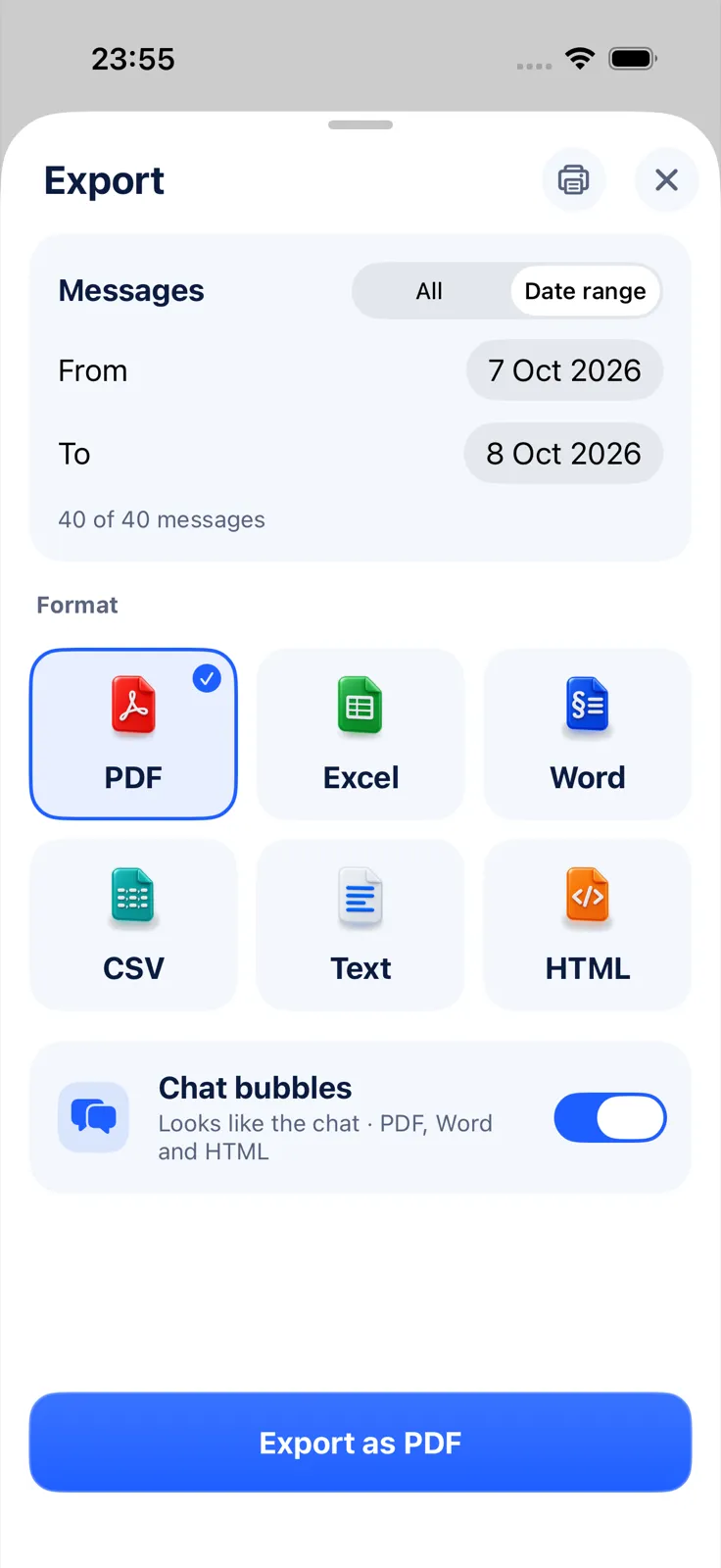
The result contains only the messages from that period, with their dates, times and senders, and photos stay in the PDF, Word and HTML versions. You can repeat step 5 with other dates, for example one file per month, without exporting from WhatsApp again.
Opening and previewing the chat are free. Exporting needs Exportly Pro, a weekly or yearly subscription with the price shown in the app before you buy. The chat is processed on your iPhone and never uploaded. Exportly works with what WhatsApp put in the export; it can’t add messages that were deleted before you exported.
Find the dates before you export
If you know what was said but not when, WhatsApp can take you to a day (WhatsApp Help Center: How to search WhatsApp):
- Open the chat, tap the chat name, then Search.
- Tap the calendar button.
- Select the date and tap Jump to date.
Scroll around that day, note the first and last dates that matter, and use them as From and To. Keyword search in the same screen helps when you remember a word instead of a day.
Which option fits?
- Text only, computer available: WhatsApp Web with Custom date range. Free and quick.
- Photos needed, or iPhone only: export the whole chat and trim it by date.
- A document for someone else: trim by date and export a PDF; see how to export a WhatsApp chat to PDF.
- A very long chat: export Without media first to keep the file small; more in WhatsApp’s export chat limit.
Questions people ask
Can I export a WhatsApp chat for a specific date range on iPhone?
Not inside WhatsApp: the iPhone app exports the whole chat. Either use WhatsApp Web’s Custom date range, or export everything and limit the dates afterwards in an app such as Exportly.
Does the WhatsApp Web date range include photos?
No. WhatsApp states that media isn’t included in exports from Web.
Can I export only one day of a WhatsApp chat?
Yes with either option: set the same day as the start and end of the range.
How do I jump to a date in a WhatsApp chat?
Open the chat, tap its name, tap Search, tap the calendar button, pick the date and tap Jump to date.