
WhatsApp to PDF: How to Export a Chat on iPhone
WhatsApp can’t save a chat as a PDF on its own. Its Export chat option creates a ZIP file with the conversation as a text file, plus photos and other media if you include them. To go from WhatsApp to PDF, you export the chat first and then turn that file into a PDF with another tool. On iPhone, you can send the export straight to an app such as Exportly and save it as a PDF with chat bubbles or as plain text.
Step 1: Export the WhatsApp chat on iPhone
These are the steps from WhatsApp’s Help Center for iPhone (WhatsApp: How to export your chat history):
- Open the individual or group chat.
- Tap the contact’s name or the group name at the top.
- Tap Export chat.
- If the chat contains media, choose With all media, With selected media… or Without media.
- Choose where to send it, for example Message, Save to Files or Notes, or an app in the share sheet.
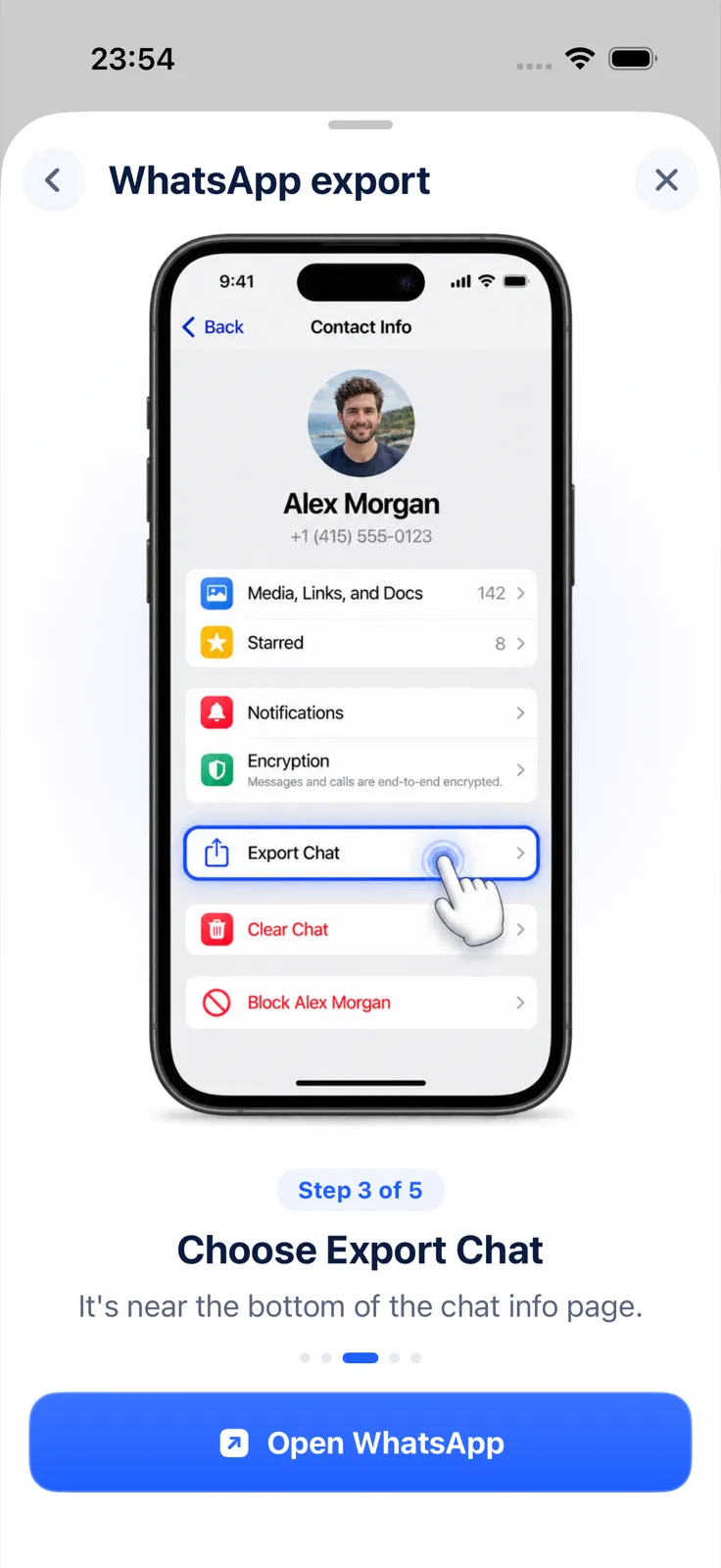
WhatsApp says the chat history is exported as a ZIP file. If you’ll want photos in the PDF, choose one of the media options; Without media gives you the text only.
What’s inside the export, and why it isn’t a PDF yet
The ZIP holds a plain text file with the messages, and the media files if you included them. You can open it in the Files app, but a long chat as raw text is hard to read: no bubbles, no page breaks, photos kept as separate files. That’s what the second step fixes.
WhatsApp also notes three things about any export:
- View once messages aren’t exported.
- The export can’t be imported back into WhatsApp, “because it’s a text file and not a backup file”.
- One export covers one chat.
Step 2: Turn the export into a PDF with Exportly
Exportly, the iPhone app we make, reads WhatsApp’s export file and lays it out as a PDF.
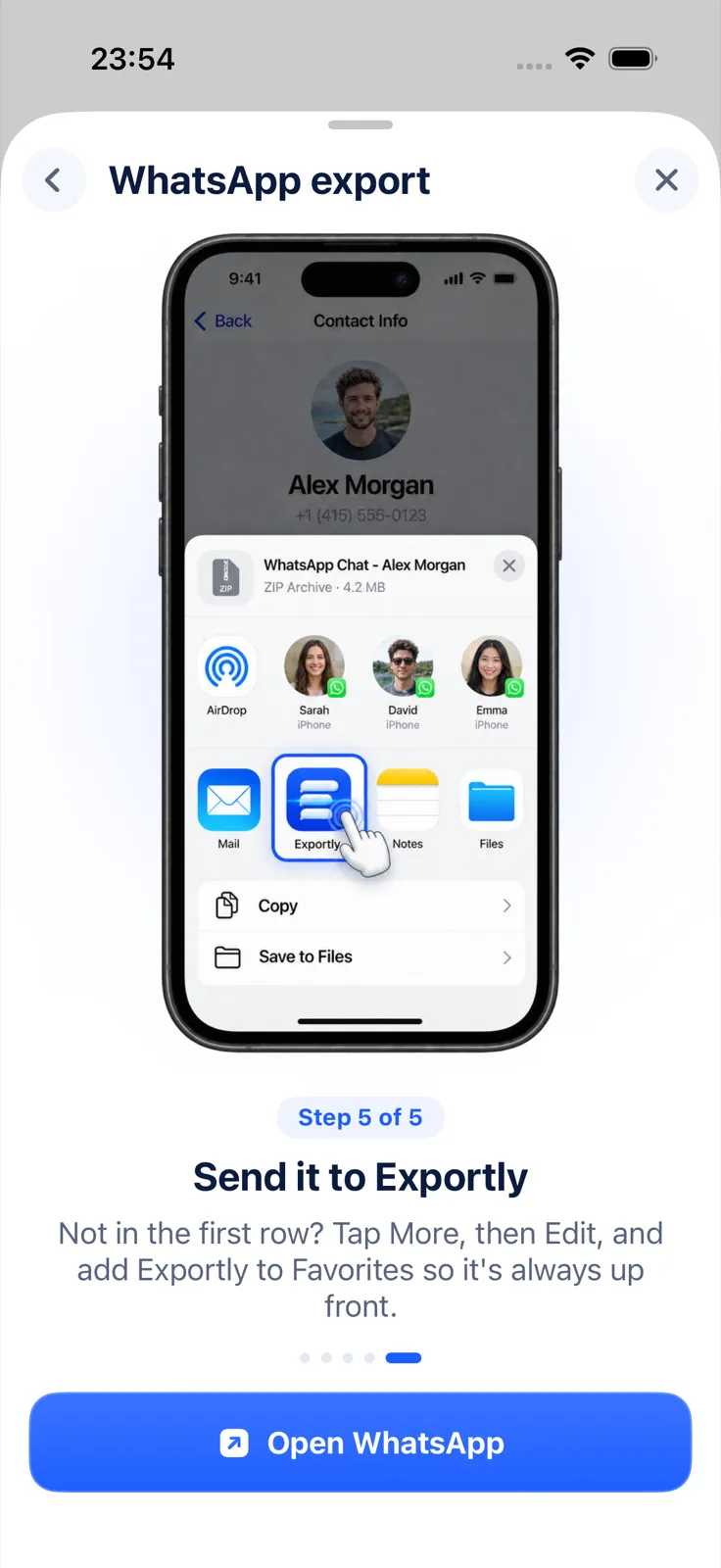
- Send the export to Exportly. In the share sheet that appears after step 1, tap Exportly. If it isn’t in the first row, tap More, then Edit, and add Exportly to your favorites. If you saved the ZIP to Files earlier, you can share it to Exportly from there.
- Check the preview. The chat opens with the names from WhatsApp, in order, with dates.
- Tap Export and choose PDF. Keep Chat bubbles on for a layout that looks like WhatsApp, or turn it off for plain text.
- Pick the messages. Under Messages, keep All or choose a Date range with From and To.
- Save or share the PDF. Save it to Files, send it, or print it.
The PDF uses A4 pages, puts the chat’s title and date range on page 1, and numbers every page “Page X of Y”. In the bubbles layout, each day gets a separator and your own messages sit on the right. Photos from an export with media are included in the PDF.
Importing a chat and reading it in Exportly is free. Exporting the PDF needs Exportly Pro, a weekly or yearly subscription; the price is shown in the app before you buy. The chat is processed on your iPhone and never uploaded.
Exporting a WhatsApp chat on Android or WhatsApp Web
The same WhatsApp Help Center article describes the other platforms:
- Android: open the chat, tap More options (three dots) > More > Export chat, then Without media or Include media, and choose where to send it.
- WhatsApp Web: open the chat, click More options > Export chat, choose All messages or Custom date range, then click Export. WhatsApp says media isn’t included in Web exports, and disappearing messages aren’t exported there either.
Exportly runs only on iPhone, but it reads both iPhone and Android export files. If a chat was exported on another phone, send the file to your iPhone and open it in Exportly.
When Export chat is missing
If you can’t find Export chat, the chat may have Restricted chat turned on. WhatsApp is replacing its earlier Advanced chat privacy setting with Restricted chat, and when it’s on, nobody in that chat can export it. In a group, admins turn it on; in a one-to-one chat, either person can (WhatsApp: About restricted chat). More causes and fixes are in WhatsApp Export Chat not showing.
The free alternative: screenshots
For a few messages, screenshots are enough: press the side button and volume up. A Full Page screenshot can be saved as a PDF on iOS 26, but Apple’s example is a Safari webpage and it doesn’t say the option appears in WhatsApp (Apple: Take a screenshot). For a long chat, the export-and-convert route above is far less work.
Questions people ask
Can WhatsApp export a chat directly to PDF?
No. Export chat creates a ZIP file with the chat as text, plus media if you choose it. You convert that file into a PDF afterwards.
Does the PDF include photos?
Only if they’re in the export. Choose With all media or With selected media… when exporting from WhatsApp on iPhone.
Can I export only part of a WhatsApp chat?
The iPhone and Android apps export the whole chat; WhatsApp Web offers a custom date range without media. In Exportly, the Date range option limits what goes into the PDF.
Is the PDF a backup of my chat?
No. It’s a readable copy. WhatsApp’s export can’t be restored into WhatsApp, and neither can the PDF.
To get the chat on paper, see how to print WhatsApp messages. For a spreadsheet instead, read how to export a WhatsApp chat to Excel, and to keep every picture, how to export a WhatsApp chat with media.
Also available in: Deutsch · Español (México) · Français · Italiano · Português (Brasil) · Türkçe