
How to Export a WhatsApp Chat with Photos and Media
To export a WhatsApp chat with media on iPhone, open the chat, tap the contact or group name, tap Export chat and choose With all media, or With selected media… if you only want some of it. On Android the choice is Include media. The photos, videos and other files travel in the same ZIP file as the chat text; WhatsApp Web, by contrast, never includes media (WhatsApp Help Center).
How to export a WhatsApp chat with media on iPhone
The media choice appears as soon as you tap Export chat in a chat that contains media.
- Open the individual or group chat.
- Tap the contact’s name or the group name at the top, then tap Export chat.
- Choose With all media or With selected media….
- Choose where to send it, for example Save to Files, Message or Notes, or an app in the share sheet.
WhatsApp exports the chat history as a ZIP file. Messages sent as view once aren’t exported, and the file can’t be imported back into WhatsApp (WhatsApp Help Center).
The three media options, explained
Each option changes what ends up in the ZIP, not which messages are in the text.
| Option on iPhone | What the export contains | When to pick it |
|---|---|---|
| With all media | The chat text plus the media files | You want the full record, pictures included |
| With selected media… | The chat text plus only the media you pick | The chat has lots of videos you don’t need, but some photos matter |
| Without media | The chat text only | You only need the words, or you want the smallest file |
With selected media… is the useful middle ground for a long chat: you keep the photos that matter without packing in every video and voice note.
On Android and WhatsApp Web
Android offers two choices and a caveat. Open the chat, tap More options (three dots) > More > Export chat, then tap Include media or Without media. WhatsApp’s note for Android says that with Include media, “the most recent media sent will be added as attachments”, without saying how many (WhatsApp Help Center). So on Android, older photos from a long chat may not be in the export.
WhatsApp Web goes the other way: you can choose All messages or a Custom date range, but “media isn’t included, unlike exporting chats on your mobile device”. Disappearing messages aren’t exported from Web either.
Why are some photos missing from my export?
Usually one of four things is going on:
- You picked Without media (or the Android/Web export, which may leave media out).
- You exported on Android, where WhatsApp attaches the most recent media.
- The photo was sent as view once. Those messages aren’t exported.
- The chat has Restricted chat turned on. In that case nobody in the chat can export it at all, and media isn’t saved to the gallery automatically either (WhatsApp: About restricted chat). See why Export chat isn’t showing.
WhatsApp doesn’t publish a message or size limit for exports on its current help page. More on that in the WhatsApp export chat limit.
Keep the photos next to the messages
Unzipped, a with-media export is a text file and a pile of separate image files, and you have to work out which photo belongs to which message. Exportly, an iPhone app, puts them back together.
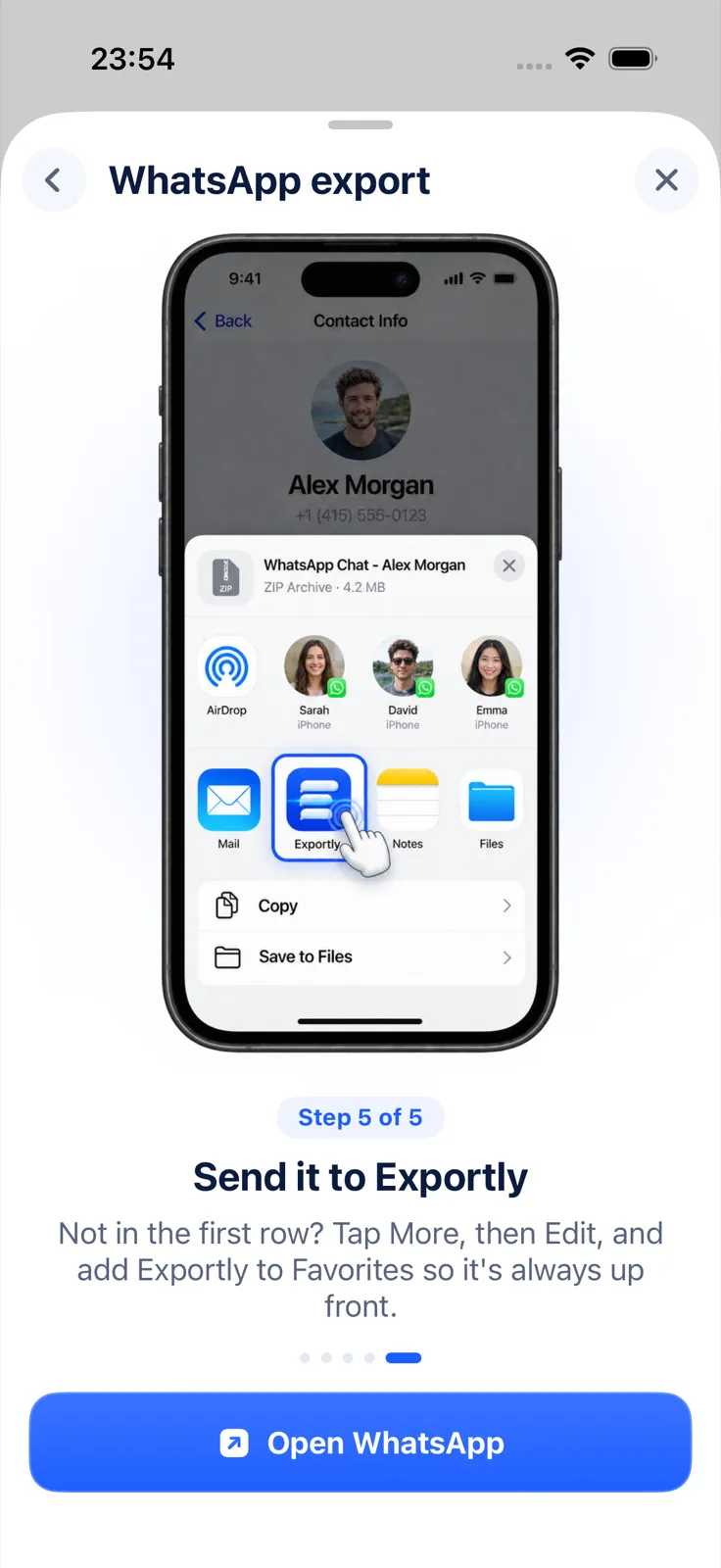
- Export the chat With all media or With selected media… as above.
- In the share sheet, tap Exportly. If you saved the ZIP to Files earlier, touch and hold it there, tap Share and choose Exportly.
- The chat opens as a conversation, with the photos from the ZIP brought in alongside the messages.
- Tap Export Chat and choose a format. In PDF, Word and HTML exports, photos are embedded in the document. In Excel and CSV, the Attachment column lists the file for each message that had one.
Videos, voice notes and other files can’t play inside a PDF or Word page, so only photos appear as pictures. Opening and previewing the chat in Exportly is free; exporting, sharing and printing need Exportly Pro (weekly or yearly, price shown in the app before you buy). The chat and its photos are processed on your iPhone and never uploaded.
For the full PDF walkthrough, see how to export a WhatsApp chat to PDF.
Questions people ask
Can WhatsApp Web export a chat with media?
No. WhatsApp says media isn’t included in exports from WhatsApp Web. Use the iPhone or Android app instead.
What’s the difference between With all media and With selected media…?
With all media includes every media file the export takes; With selected media… lets you choose which media to include. The chat text is the same either way.
Will videos play inside the PDF?
No. A PDF or Word page can show photos but not play video or audio. Exportly embeds photos; other files stay out of the document.
Does exporting with media delete anything from WhatsApp?
No. Exporting makes a copy. The chat and its media stay in WhatsApp.
Also available in: Deutsch · Español (México) · Français · Italiano · Português (Brasil) · Türkçe