
How to Print WhatsApp Messages from iPhone
WhatsApp has no Print button, so to print WhatsApp messages from an iPhone you either print screenshots of the chat from the Photos app, or export the chat and print it as a document. Screenshots are quick for a few messages. For a long conversation, export it with WhatsApp’s Export chat, turn the file into pages, and print them over AirPrint: you get the full text with dates and names instead of a stack of phone screens.
Before you start: check your printer
Printing from an iPhone uses AirPrint. Your printer must support AirPrint and be on the same Wi-Fi network as the iPhone. To see or cancel a print job, open the App Switcher and tap Print Center (Apple: Print from iPhone).
Option 1: Print screenshots of the chat
- Open the chat in WhatsApp and scroll to the first message you want.
- Take a screenshot: quickly press and release the side button and volume up together. On an iPhone with a Home button, press the Home button and the side button (Apple: Take a screenshot).
- Scroll and repeat until you’ve captured every message you need. Overlap each screenshot slightly.
- Open Photos > Collections > Media Types > Screenshots.
- Select the screenshots, tap the Share button, then Print.
- Tap No Printer Selected, choose your printer, and print.
This is free and shows exactly what was on screen. The downsides grow with the chat: one page per screen, small text, and pages that have to stay in order. Apple’s Full Page screenshot option is documented with Safari webpages as the example, not WhatsApp, so don’t count on it for a long chat.
Option 2: Export the chat and print it as a document
WhatsApp’s own export gives you the entire conversation as text. First, export it (WhatsApp: How to export your chat history):
- Open the individual or group chat.
- Tap the contact’s name or group name > Export chat.
- If the chat has media, choose With all media, With selected media… or Without media. Pick a media option if you want photos on the printout.
- Choose where to send it: an app in the share sheet, or Save to Files.
WhatsApp exports the chat as a ZIP file containing a plain text file. That file isn’t laid out for printing, so the next step turns it into pages.
Print the export from your iPhone with Exportly
Exportly, an iPhone app we make, reads WhatsApp’s export and prints it as a laid-out conversation.
- In the share sheet after Export chat, tap Exportly. (Not in the first row? Tap More, then Edit, and add it to your favorites.)
- The chat opens in Exportly with the names and dates from WhatsApp. Read through it to check it’s the right one.
- Tap Export. To print only part of the chat, set Messages to Date range and choose From and To.
- Print directly, or export a PDF first (with chat bubbles or as plain text) and print or keep that.
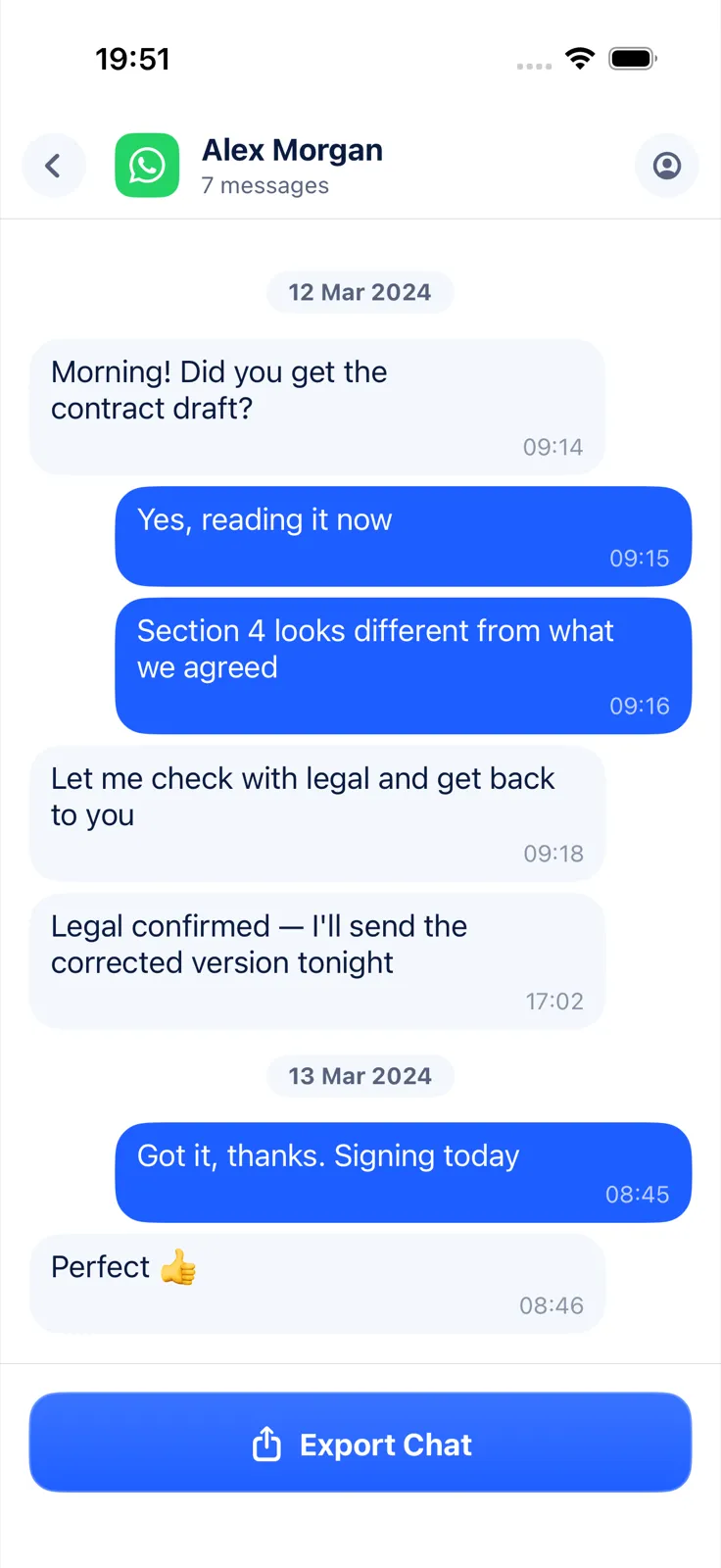
Exportly’s PDF has numbered pages (“Page X of Y”), the chat title and date range on the first page, and, in the bubbles layout, a separator for each day. Photos included in the WhatsApp export are placed in the PDF. Printing and exporting need Exportly Pro, a weekly or yearly subscription whose price you see in the app first; importing and reading the chat are free. The chat is processed on your iPhone and never uploaded.
Screenshots or an export: which should you print?
| Screenshots | Export + Exportly | |
|---|---|---|
| Cost | Free | Exportly Pro to print |
| Best for | A few messages | A whole or long chat |
| Pages | One per screen | Laid-out A4 pages, numbered |
| Shows | Exactly what was on screen | The whole chat, in order, with names |
| Photos | As they appeared on screen | If you exported with media |
If the printout is for someone else, such as a lawyer, an employer or a landlord, ask which they prefer. Some want the look of the phone screen; others want a document they can follow page by page.
If Export chat isn’t there
When Restricted chat is on for a chat (WhatsApp’s replacement for Advanced chat privacy), people in it can’t export it (WhatsApp: About restricted chat). Our guide on WhatsApp Export Chat not showing covers this in more detail.
Questions people ask
Can you print WhatsApp messages directly from WhatsApp?
No. WhatsApp’s help describes exporting a chat, not printing it. Print screenshots from Photos, or print a document made from the export.
How do I print a long WhatsApp conversation?
Export the chat with Export chat, turn the file into a PDF or print it from an app such as Exportly, then print over AirPrint.
Will the photos be printed too?
Only if they’re in the export. Choose With all media or With selected media… when you export.
Do I need a special printer?
You need an AirPrint printer on the same Wi-Fi network as your iPhone.
The full WhatsApp-to-PDF process is in how to export a WhatsApp chat to PDF. If you’re not sure what’s inside the ZIP, read how to open an exported WhatsApp chat on iPhone. For iMessage and SMS, see how to print text messages from iPhone.
Also available in: Deutsch · Español (México) · Français · Italiano · Português (Brasil) · Türkçe