
How to Print Text Messages from iPhone: 3 Ways
To print text messages from iPhone, you first need something printable, because the Messages app has no Print command for a conversation. You can print screenshots from the Photos app over AirPrint, print the conversation from Messages on a Mac, or turn the chat into a PDF with an app and print that from your iPhone. Screenshots are fine for a few messages; for a long thread, a document is easier to read and keep in order.
What you need before you print
Every route that starts on the iPhone prints through AirPrint, so check your printer first.
- An AirPrint printer on the same Wi-Fi network as your iPhone. Apple notes that printers connected over Bluetooth or to an AirPort base station’s USB port can’t use AirPrint, and that not all apps support printing (Apple: About AirPrint).
- A way to check the queue. While a job is printing, open the App Switcher and tap Print Center. To stop a job, tap Cancel Printing (Apple: Print from iPhone).
1. Print screenshots from the Photos app
This is the free route that needs nothing but your iPhone and a printer. You get one printed image per screen of the conversation.
- Open the conversation in Messages and scroll to the first message you want on paper.
- Take a screenshot: press the side button and volume up at the same time. On an iPhone with a Home button, press the side button and the Home button (Apple: Take a screenshot).
- Scroll down one screen and repeat until you reach the last message.
- Open Photos. Your screenshots are in Collections > Media Types > Screenshots.
- Tap Select, tap each screenshot in order, then tap the Share button and Print (Apple: Print photos).
- Tap No Printer Selected, choose your printer, set the number of copies, then tap Print.
Two practical tips: leave a line or two of overlap between screenshots so no message falls between pages, and look through the set before printing to make sure the dates you need are visible.
2. Print the whole conversation from a Mac
If you have a Mac signed in to the same Apple Account, Messages on the Mac can print a conversation directly.
- On your iPhone, open Settings, tap your name, then iCloud > Messages, and turn on Use on this iPhone (Apple: Messages in iCloud).
- On the Mac, open Messages, choose Messages > Settings, click iMessage and select Enable Messages in iCloud (Apple: Set up Messages in iCloud).
- Wait for the conversation to sync. A long history can take some time to appear.
- Open the conversation and choose File > Print (Apple: Print a conversation in Messages on Mac).
Apple documents this step in the Messages guide for macOS Sequoia; the guides for later macOS versions don’t list it, so menus may differ on a newer Mac. Also keep in mind that Messages in iCloud uses your iCloud storage.
3. Turn the chat into a PDF and print it from your iPhone
An iPhone app can lay out the whole conversation as pages with dates and senders, and print it through AirPrint without a computer. Desktop programs that read an iPhone backup, such as iMazing, can also export messages to PDF on a Mac or PC and print from there (iMazing’s guide).
Here is how it works in Exportly, the app we make:
- Import the conversation. On iOS 26 or later, use the free Exportly Shortcut: pick the conversation in Shortcuts and tap Always Allow when it asks. Text and photos come in. On any iOS version you can use Record & scroll instead, which reads the text from a screen recording; it currently reads English and Turkish only.
- Check the preview. Scroll through to make sure the stretch of conversation you need is all there. With Record & scroll, you can type the other person’s name in the optional Chat with field; it becomes the chat’s title and their label, and your own messages show as “You”.
- Choose what to print. In the Export sheet, set Messages to All, or pick Date range with From and To dates to print only part of the chat.
- Print. Print straight from Exportly, or export a PDF with chat bubbles or as plain text and print it later.
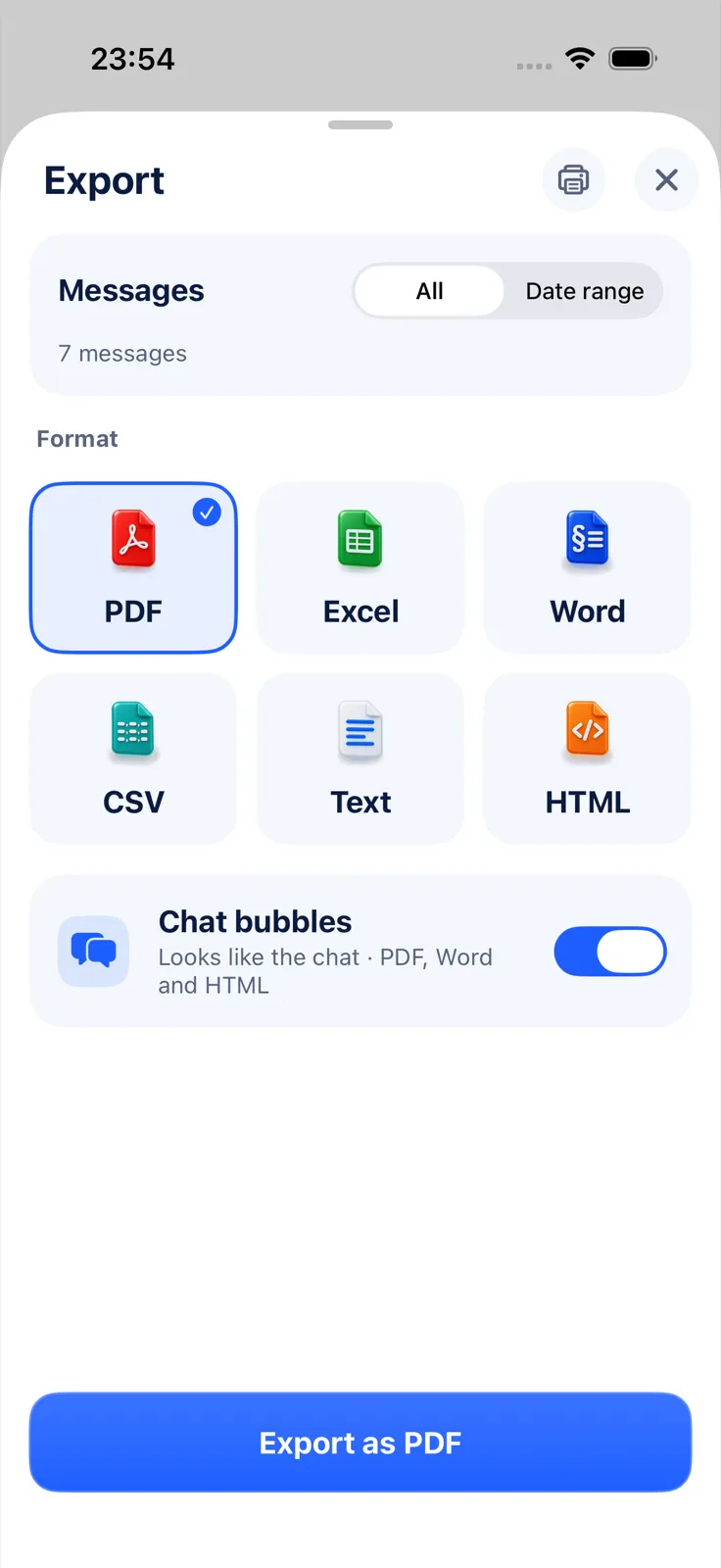
If you export the PDF first, you get A4 pages, the title and date range on page 1, and “Page X of Y” at the bottom of each page. In the bubbles layout, days are separated and your own messages sit on the right. Importing and previewing are free; printing and exporting need Exportly Pro, a weekly or yearly subscription priced in the app before you pay.
Which way should you print?
| Method | Cost | What ends up on paper | Good for |
|---|---|---|---|
| Screenshots from Photos | Free | One image per screen | A few messages |
| Messages on a Mac | Free | The conversation as printed by Messages | Long chats, if you own a Mac |
| Desktop software | Paid | A formatted export | Many chats or full history on a computer |
| An iPhone app (Exportly) | Subscription to print | Numbered pages with dates and senders | A long chat, no computer |
If the printout is for a lawyer, a landlord or HR, ask what they want first. Some want screenshots that look like the phone; others prefer a document where every message shows its date, time and sender.
Common questions
Can I print text messages straight from my iPhone?
Not from the Messages app itself. Print screenshots from Photos, or print a PDF of the conversation made by an app, over AirPrint.
What printer do I need?
An AirPrint-enabled printer on the same Wi-Fi network as your iPhone. A printer connected only by Bluetooth won’t work.
How do I print several screenshots at once?
In Photos, tap Select, choose the screenshots, then tap Share > Print. They print in one job.
Can I print only part of a conversation?
With screenshots, capture only the screens you need. In Exportly, use Date range in the Export sheet. For more on that, see exporting text messages from a specific date range.
For other ways to get a chat off your phone, start with how to export text messages from iPhone. If you’d rather keep a file than paper, see how to save text messages as a PDF, and for WhatsApp, how to print WhatsApp messages.
Also available in: Deutsch · Español (México) · Français · Italiano · Português (Brasil) · Türkçe