
How to Save Text Messages as a PDF on iPhone
The Messages app can’t save a conversation as a PDF, so how you save text messages as a PDF depends on what you have. Apple documents two built-in PDF routes: a Full Page screenshot saved as a PDF on iOS 26, and File > Print to PDF in Messages on a Mac. For a complete conversation as one PDF made on the iPhone itself, you need an app that exports chats.
Option 1: A Full Page screenshot saved as a PDF
On iOS 26, a screenshot can include content longer than the screen and be saved straight to Files as a PDF. The catch is that Apple’s example is a webpage in Safari, and Apple doesn’t say the option appears in Messages.
- Take a screenshot: press the side button and volume up together, or the side button and Home button on an iPhone with a Home button.
- Tap the screenshot thumbnail. If you see Full Page, tap it and drag on the preview at the right to see the rest.
- Tap the Selected button, tap Save PDF to Files, and choose a folder.
Source: Apple: Take a screenshot on iPhone (iOS 26). The newer version of the same Apple page says to tap Full Page “if one appears” and no longer mentions saving the PDF to Files, so don’t count on this route (current version). If Full Page doesn’t show up in your conversation, a regular screenshot only captures what’s on screen at that moment.
Option 2: Save as PDF from Messages on a Mac
A Mac produces a real multi-page PDF of a conversation for free, as long as your messages sync to it.
- On your iPhone: Settings > your name > iCloud > Messages, then turn on Use on this iPhone (Apple).
- On your Mac: Messages > Settings > iMessage > Enable Messages in iCloud, using the same Apple Account (Apple).
- Once the conversation has synced, open it and choose File > Print.
- Click the menu next to PDF at the bottom of the print dialog and choose to save it as a PDF (Apple: Print or create a PDF of a conversation).
Apple describes this in its Messages guide for macOS Sequoia. The guides for later macOS versions don’t list the page, so the dialog may look different on a newer Mac. The first sync of a long history can also take a while, and it counts toward your iCloud storage.
Option 3: Export the conversation as a PDF on your iPhone
An app can read the whole conversation and lay it out as pages, without a Mac and without stitching screenshots together. We make Exportly, so here is how it does it:
- Bring the conversation in. On iOS 26 or later, the free Exportly Shortcut lets you pick a conversation in Apple’s Shortcuts app; tap Always Allow when asked. It brings in the text and the photos. Alternatively, Record & scroll reads the chat from a screen recording, in English and Turkish only.
- Check the preview. Names come from Messages as they are; make sure the messages you need are all there.
- Open Export and pick PDF. Turn Chat bubbles on for a layout that looks like the chat, or off for plain text. Under Messages, keep All or choose a Date range.
- Save or send it. Save the PDF to Files or share it.
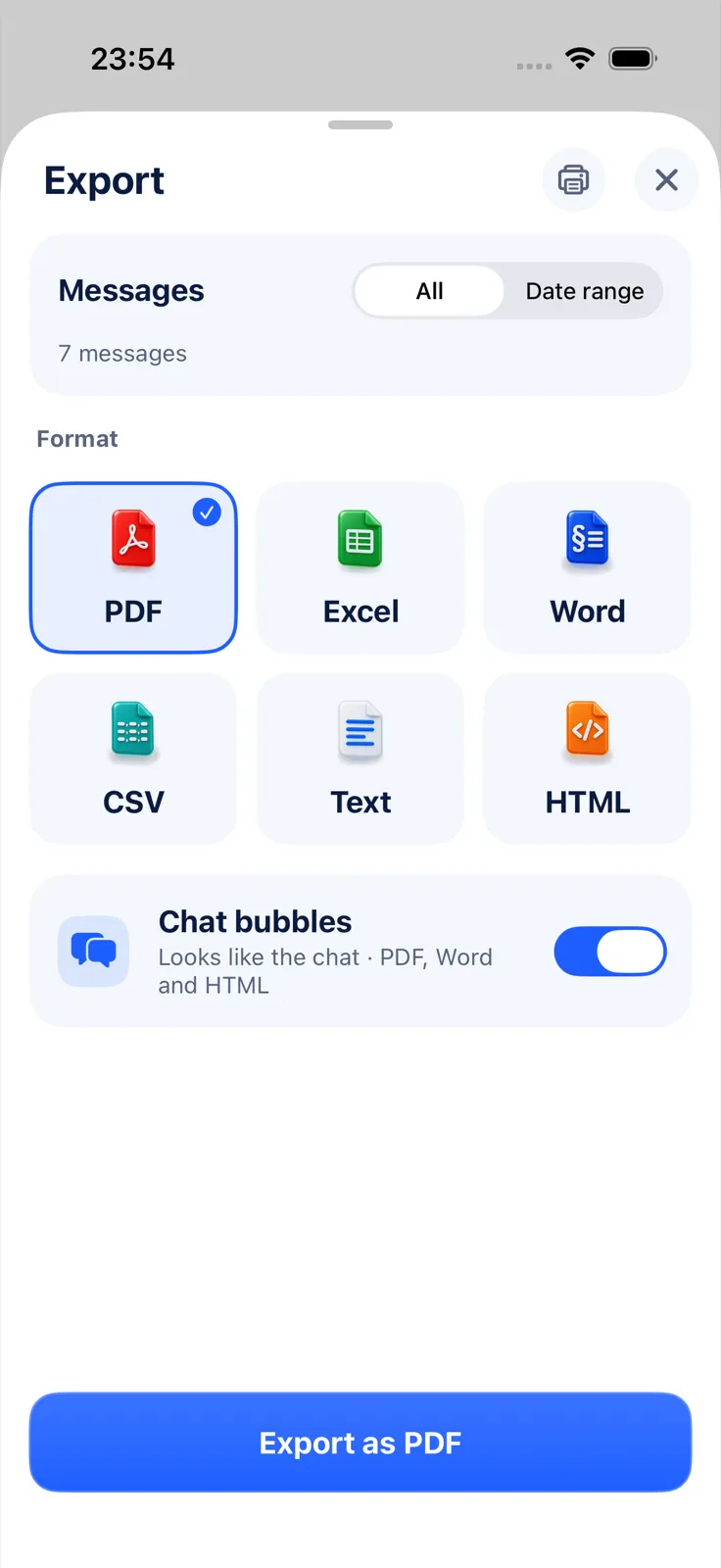
Making the PDF needs Exportly Pro (weekly or yearly; the app shows the price before you subscribe), while importing and previewing are free. The conversation is processed on your iPhone and never uploaded.
What a useful chat PDF contains
Whichever method you use, check the PDF before you send it. A PDF someone else can follow has:
- A date on every day of the conversation, so the reader knows when things were said.
- A clear sender for every message, with names rather than bare phone numbers.
- Page numbers, so a printed copy can’t get out of order unnoticed.
- The whole stretch of conversation that matters, not a selection that leaves out replies.
Exportly’s PDF is built along those lines: A4 pages, the title and the chat’s date range on page 1, a “Page X of Y” footer, and in the bubbles layout a separator for each day with your own messages on the right. Photos imported with the shortcut are placed in the PDF too.
Rename or move the PDF afterwards
PDFs saved to Files open in Apple’s Preview app on iOS 26. Open the PDF in Preview, tap the Actions menu next to the file name, and choose Rename, Move or Duplicate (Apple: Preview on iPhone). A name with the person and the dates, such as “Texts with landlord, Jan–Mar”, saves you opening the wrong file later.
Common questions
Can I save a text conversation as a PDF without an app?
Only partly. A Full Page screenshot saved as a PDF works where the option appears, and Apple documents it for content like Safari pages. For the whole conversation without an app, use a Mac.
How do I save iMessages as a PDF on a Mac?
Open the conversation in Messages, choose File > Print, then use the PDF menu at the bottom of the dialog.
Where does the PDF go on my iPhone?
To the Files location you choose when saving. From there you can share it, email it or print it.
Bubbles or plain text: which PDF should I make?
Bubbles look like the chat on your phone and suit a keepsake or a quick read. Plain text reads like a transcript and is easier to quote from.
More routes, including spreadsheets, are in how to export text messages from iPhone. To get the PDF onto paper, see how to print text messages from iPhone; to send it, how to forward text messages to email. If you need to edit the text afterwards, export to Word instead.
Also available in: Deutsch · Español (México) · Français · Italiano · Português (Brasil) · Türkçe