
How to Export Text Messages from a Specific Date Range
To export text messages from a certain date to another, you need a tool with a date filter, because the Messages app has none: its search narrows by person, conversation and type of content, but not by date. With the built-in tools, the only way is to scroll to the dates you need and screenshot them. An app such as Exportly can export just the days you choose as a PDF, a spreadsheet or a Word file.
What Messages can and can’t filter
Apple’s guide to searching in Messages lists filters for people (“Messages with”), for a conversation (“Messages in”), and for shared items such as photos, links and Wallet passes, which you can combine. It doesn’t document a filter by date (Apple: Search in Messages).
Messages on a Mac doesn’t help with dates either. Apple documents File > Print and saving a PDF of a conversation, but not printing a selected period (Apple, macOS Sequoia guide).
The free way: screenshot just the days you need
If the period is short, screenshots are enough.
- Open the conversation and scroll up until you reach the first day you need.
- Take a screenshot with the side button and volume up (or side button and Home button).
- Scroll down a screen at a time, taking a screenshot each time, until you’ve passed the last day you need.
Make sure a date is visible in the first screenshot so the reader knows where the period starts. If exact times matter, a spreadsheet with a Date and a Time column for each message is clearer.
Export a date range with Exportly
Exportly, the app we make, handles a date range in two places: what it reads from Messages, and what it puts in the file.
1. Choose how far back to read
When you import with the free Exportly Shortcut (iOS 26 or later), you choose a range first: Last 3 months, Last year, Last 3 years or Everything (slowest). Pick the shortest one that still covers your dates. A shorter range is quicker, because Shortcuts has to search through Messages to find the chat.
If your iPhone isn’t on iOS 26, Record & scroll works instead: start the recording, then scroll through just the period you need. It reads English and Turkish text only.
2. Set the exact dates in the Export sheet
- Open the conversation in Exportly and tap Export.
- Under Messages, switch from All to Date range.
- Set From and To. The sheet shows how many of the conversation’s messages fall in that range.
- Choose a format: PDF, Excel, Word, CSV, Text or HTML.
- Tap the export button, then share the file or save it to Files.
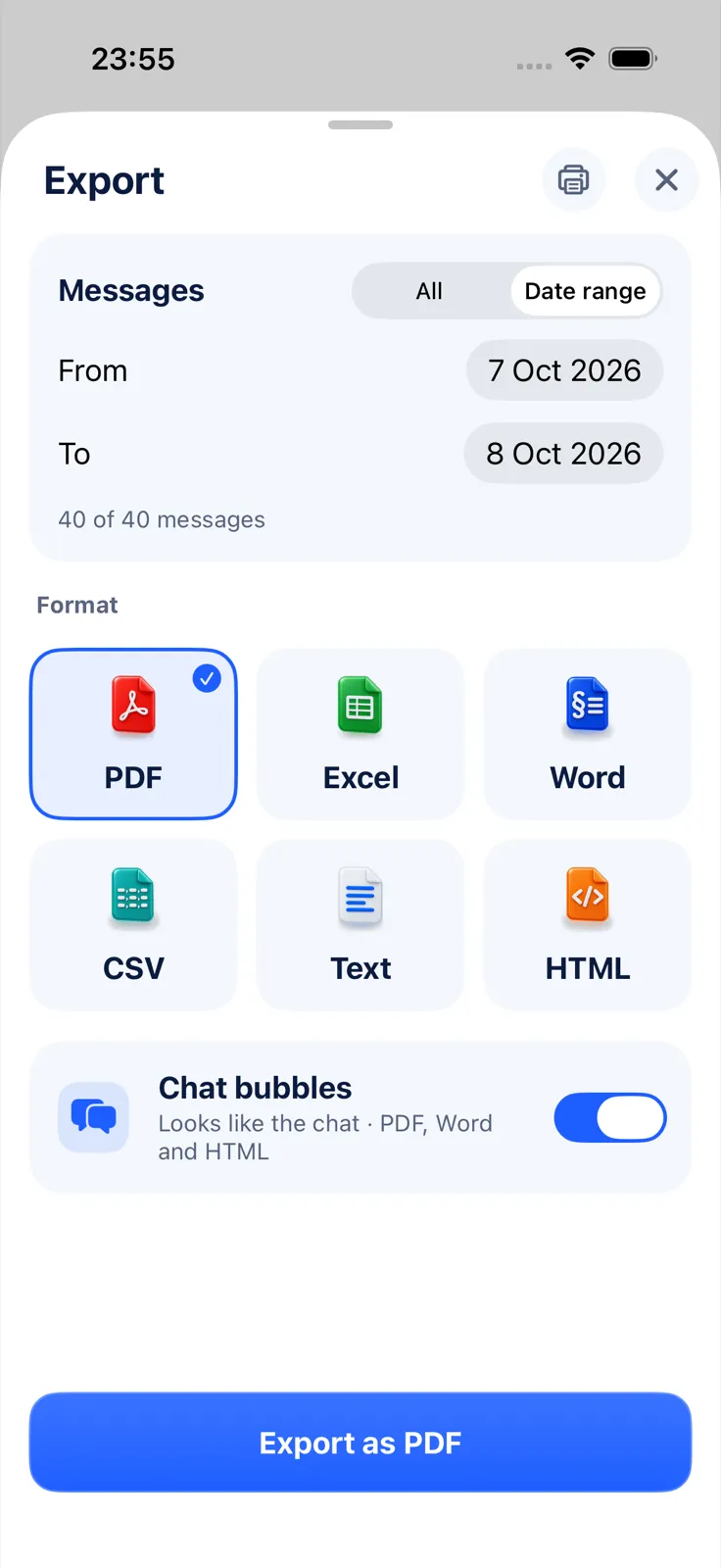
The range is set in whole days. Exportly’s PDF prints the conversation’s title and date range on its first page, so the reader sees the period at a glance. Exporting, sharing and printing need Exportly Pro, with the weekly or yearly price shown in the app before you buy; importing and previewing are free.
Which format for a date range?
- PDF when someone just needs to read that period, such as a landlord, an HR contact or a lawyer.
- Excel when you want to work with it: each message is a row with Date, Time, Sender, Message and Attachment columns, so you can sort and filter within the range.
- Word when you’ll quote from it or add notes.
If you’re preparing messages for a dispute, ask the person who asked for them which period and format they want before you export. Sending exactly the dates they asked for makes the file easier to use.
Questions people ask
Can I export texts from a specific date range on iPhone?
Not with the Messages app, which has no date filter. Use screenshots of those days, or an app with a date range option such as Exportly.
Can I search Messages by date?
Apple’s search guide lists filters for people, conversations and content types, not dates.
Does the shortcut’s range limit what’s exported?
It limits what’s read from Messages. The Export sheet’s Date range then picks exact days from what was read.
Can I include the time of every message?
Yes. Exportly’s Excel and CSV files have separate Date and Time columns for every message.
All the ways to get a chat out of Messages are compared in how to export text messages from iPhone. The shortcut is explained in detail in how to export text messages with the Shortcuts app. For a spreadsheet of the range, see how to export text messages to Excel, and to send it on, how to forward text messages to email.
Also available in: Deutsch · Español (México) · Français · Italiano · Português (Brasil) · Türkçe