
How to Forward Text Messages to Email on iPhone
If you want to forward text messages to email on iPhone, the Forward button in Messages won’t get you there: it sends the selected texts as new messages to someone in Messages, and Apple doesn’t document forwarding to an email inbox. To email texts, attach screenshots to a message in Mail, or email the whole conversation as one file, such as a PDF. Which one fits depends on how many messages you need to send.
What the Forward button in Messages actually does
Forwarding copies messages into a new Messages conversation. It’s handy for passing one text to a friend, not for sending a record to an email address.
- In Messages, open the conversation and touch and hold a message bubble.
- Tap More.
- Select the messages you want, then tap the Forward button.
- Enter a recipient and tap the Send button.
Source: Apple: Forward and share messages.
Apple adds a tip on the same page: “To show the message bubbles and timestamps just as they appear in a conversation, send a screenshot as an attached image instead of forwarding messages.” In other words, forwarded texts lose the context of who said what and when. That’s the main reason to email screenshots or a file instead.
Email a few messages as screenshots
For a handful of messages, screenshots in an email are quick and keep the bubbles and times visible.
- Open the conversation and take a screenshot: side button + volume up, or side button + Home button on an iPhone with a Home button.
- Tap the thumbnail, tap Share, and choose Mail (Apple: Take a screenshot).
- Enter the email address and send.
To attach several screenshots to one email, start in Mail instead: write the email, tap in the body, tap the Insert Attachment Actions button above the keyboard, then Photo Library, and pick the screenshots (Apple: Add attachments in Mail). Number them in the email text, or mention the first and last message, so the reader knows the order.
Email the whole conversation as one file
When the conversation runs longer than a few screens, a single attached file is easier for the person receiving it: one attachment, in order, with dates.
From a Mac. Open the conversation in Messages on a Mac that syncs through Messages in iCloud, choose File > Print, and use the PDF menu to save it (Apple, macOS Sequoia guide). Then attach the PDF to an email.
From your iPhone. Make a file of the conversation and attach it in Mail with Insert Attachment Actions > Attach File, or send it to Mail straight from the share sheet.
Exportly, the app we make, does the file part on the iPhone:
- Import the conversation. With the free Exportly Shortcut on iOS 26 or later, choose the conversation in Apple’s Shortcuts app and tap Always Allow when asked; text and photos come in. Without iOS 26, Record & scroll reads the chat from a screen recording, for English or Turkish text.
- Export it. Choose PDF (chat bubbles or plain text), Word, Excel, CSV, Text or HTML. To send only part of the chat, set Messages to Date range.
- Share to Mail. Tap Mail in the share sheet and address the email, or save the file to Files and attach it later.
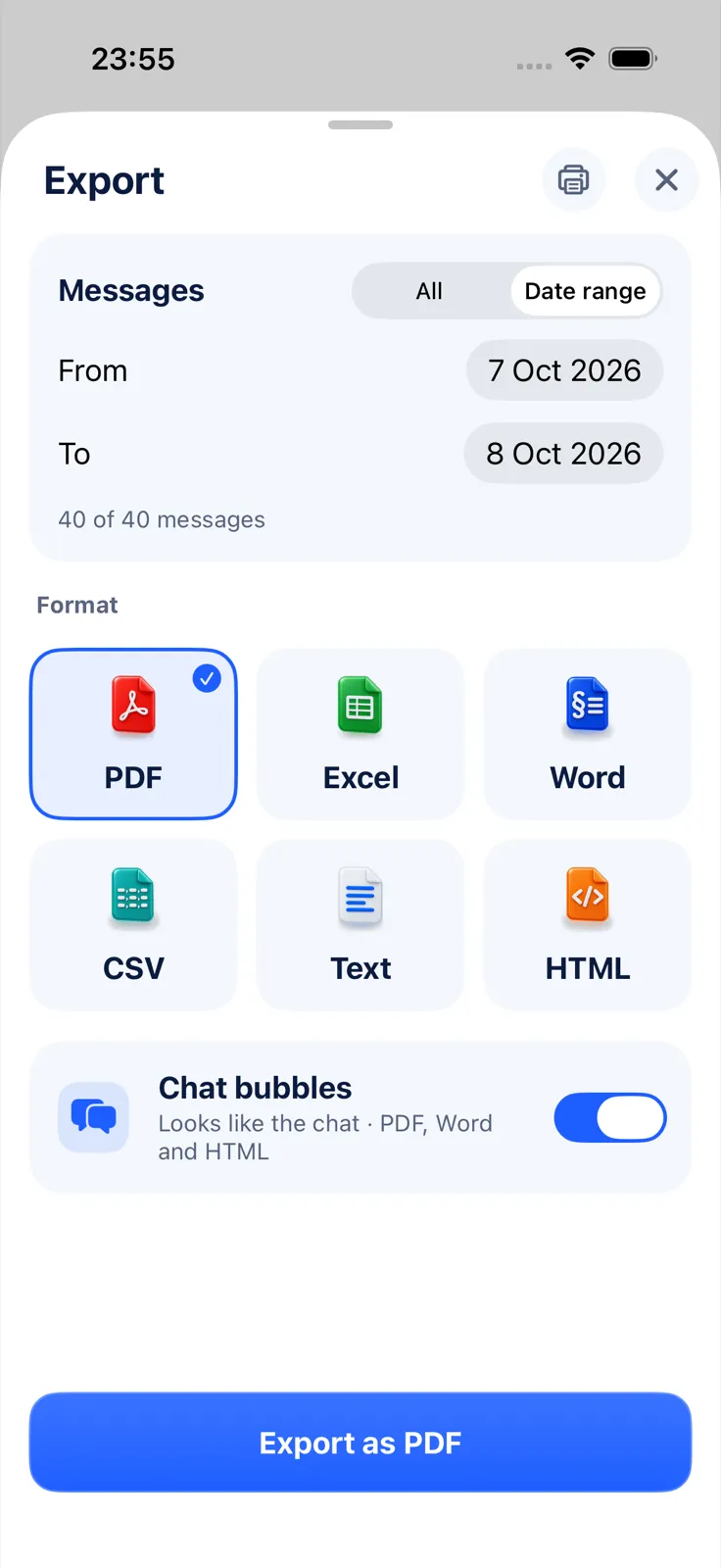
Exportly doesn’t send email itself; it hands the file to your iPhone’s share sheet. Exporting and sharing need Exportly Pro (weekly or yearly, with the price shown in the app before you subscribe). The conversation is processed on the iPhone and never uploaded, though of course the email you send goes through your email provider.
Which file format should you email?
- PDF if the reader just needs to read it. It opens on anything and looks the same everywhere.
- Word if they’ll edit it or quote from it.
- Excel or CSV if they’ll sort or analyze the messages.
If the attachment is too big
Long conversations with photos can make a large file. Apple says that if a file exceeds the maximum size allowed by your email account, Mail shows onscreen instructions to send it with Mail Drop instead (Apple: Add attachments in Mail). The size limit depends on your email provider. Another option is to export only the date range the reader needs.
Questions people ask
Can I forward a whole text conversation to email?
Not from Messages. Email screenshots, or export the conversation as one file and attach that.
Does forwarding keep the date and time?
Apple suggests sending a screenshot if you want the bubbles and timestamps to show as they do in the conversation.
What if my email says the attachment is too large?
Follow Mail’s prompt to use Mail Drop, or make a smaller file by exporting a shorter date range.
For other ways to get a chat off your phone, see how to export text messages from iPhone. To make the PDF first, read how to save text messages as a PDF; for a long chat captured as images, see how to screenshot an entire text conversation. To email just a few weeks of a chat, see exporting texts from a specific date range.
Also available in: Deutsch · Español (México) · Français · Italiano · Português (Brasil) · Türkçe