
How to Screenshot an Entire Text Conversation on iPhone
There’s no documented way to screenshot an entire text conversation on iPhone in one image. Apple’s Full Page option captures content longer than the screen, but Apple’s example is a webpage in Safari, and it doesn’t say the option works in Messages. For a long chat, take one screenshot per screen while you scroll, or record your screen as you scroll and turn the recording into a document.
Why Full Page isn’t the answer for a chat
On iOS 26, after you take a screenshot you can tap Full Page to capture “content that exceeds the length of your iPhone screen, such as an entire webpage in Safari”, then save it to Photos or as a PDF (Apple: Take a screenshot, iOS 26). The current version of Apple’s page says to tap Full Page “if one appears” (Apple).
Apple doesn’t list which apps offer it and doesn’t mention Messages. If you see Full Page after a screenshot of your conversation, try it and check the result. If you don’t, the methods below work in any case.
Method 1: Screenshot the conversation screen by screen
This is the reliable built-in way. It takes a while for a long chat, but every message ends up captured.
- Open the conversation and scroll to the first message you need.
- Take a screenshot. On an iPhone with Face ID, quickly press and release the side button and volume up together. On an iPhone with a Home button, press the side button and the Home button.
- Scroll down by a little less than one screen, so the last message of the previous screenshot is still visible at the top.
- Take the next screenshot, and repeat until you reach the last message.
Your screenshots are saved in Photos > Collections > Media Types > Screenshots. If the full-screen preview after each screenshot slows you down, you can switch it to a small corner thumbnail in Settings > General > Screen Capture by turning off Full-Screen Previews (Apple: Screen capture settings).
A few habits make a set of screenshots easier for someone else to follow:
- Overlap each screenshot by a message, so nothing falls in a gap.
- Start where the date is shown, so the reader knows when the conversation began.
- Don’t crop or mark up the originals if they’re for a record. Make edited copies if you need them.
- Keep them in order. Put them in their own album so they don’t mix with other photos.
Method 2: Record your screen while you scroll
A screen recording captures the whole conversation in one file, and scrolling once is faster than dozens of screenshots.
- Open Control Center. If you don’t see Screen Recording, touch and hold the background, tap Add a Control, and add Screen Recording.
- Tap the record button and wait for the 3-second countdown.
- Open Messages and scroll steadily through the conversation, from the first message to the last.
- Stop the recording from the red indicator at the top of the screen.
Recordings are saved in Photos > Collections > Media Types > Screen Recordings (Apple: Take a screen recording). A video is awkward to read or print, though, which is where an app can help.
Turn screenshots or a recording into one document
Exportly, an app we make, reads the text from your screenshots or from a recording and rebuilds the conversation, so you get a single file instead of a pile of images.
- From screenshots: pick the screenshots of the chat from Photos, in order. You can type the other person’s name in the Chat with field, then tap Start Processing.
- Record & scroll: Exportly starts a screen recording, you scroll through the chat, and it reads the messages from the video.
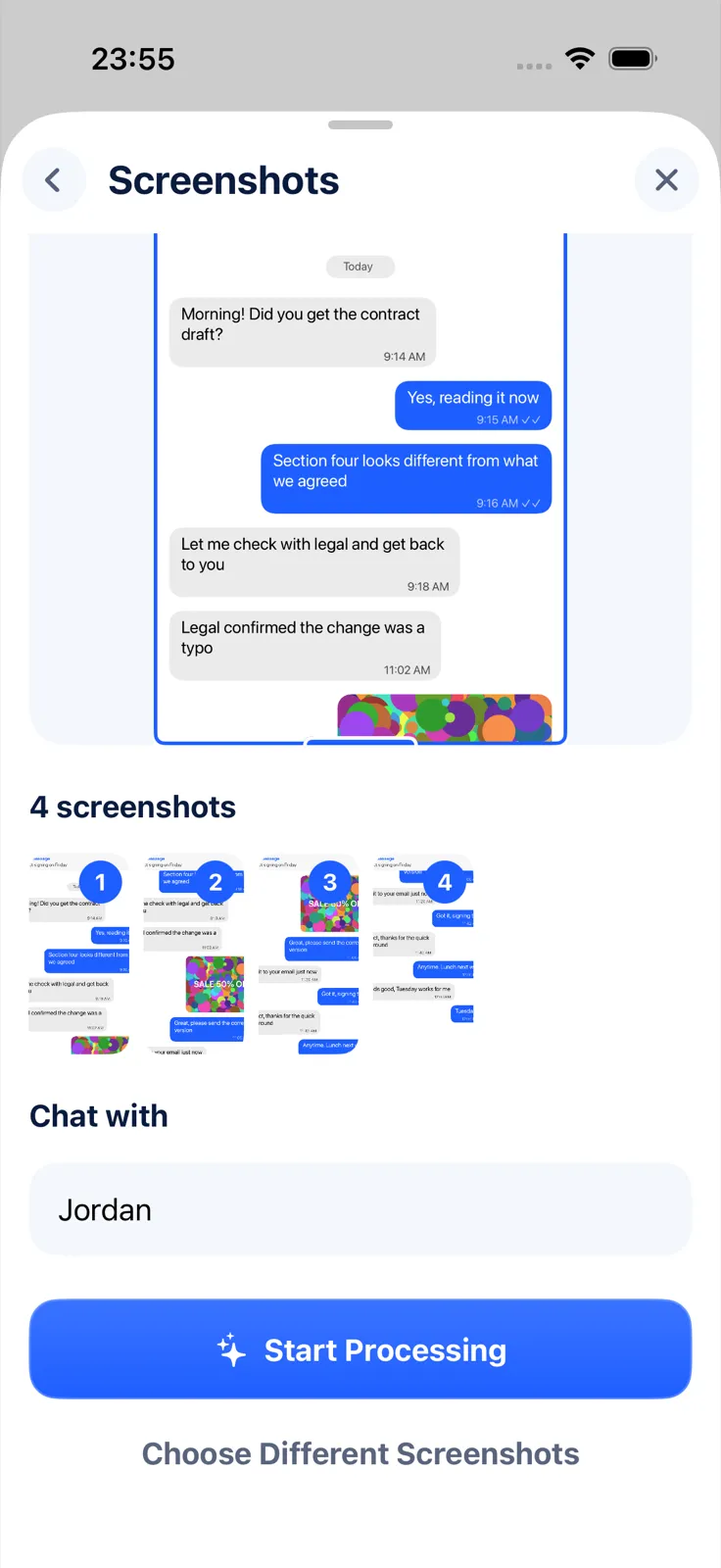
The text is read on your iPhone, and both methods currently read English and Turkish only. Afterwards you can export the conversation as a PDF (bubbles or plain text), Word, Excel, CSV, Text or HTML file. Importing and checking the result are free; exporting needs Exportly Pro, with the weekly or yearly price shown in the app first.
If your iPhone runs iOS 26 or later, there’s a route that skips screenshots altogether: the Exportly Shortcut reads the conversation from Messages directly, including photos, and works for any language. See how to export text messages with the Shortcuts app.
Questions people ask
How do I screenshot a whole text conversation on iPhone?
Take one screenshot per screen while you scroll, overlapping slightly, or record your screen as you scroll. Apple documents Full Page for content like Safari pages, not for Messages.
Where are my screenshots saved?
In Photos > Collections > Media Types > Screenshots.
Can I save a long conversation as a PDF instead?
Yes. A Mac can print a conversation to PDF, and apps can export one. See how to save text messages as a PDF.
Screenshots or a screen recording?
Screenshots are easier to share and print as they are. A recording is quicker to make for a long chat, but you’ll want to turn it into a document before anyone has to read it.
For a comparison of every export route, see how to export text messages from iPhone. If the screenshots are headed for paper, see how to print text messages from iPhone, and for turning chat images into text, how to convert a screenshot to text on iPhone.
Also available in: Deutsch · Español (México) · Français · Italiano · Português (Brasil) · Türkçe