
How to Convert a Screenshot to Text on iPhone
To convert a screenshot to text on iPhone, open it in Photos, tap the Live Text button, select the text and tap Copy Text. Live Text is built in and free, and it works on one image at a time. If you have a whole chat in screenshots and want one document that keeps who said what and when, you need a tool that reads the screenshots as a conversation.
How to copy text from a screenshot with Live Text
Live Text recognizes text in photos and screenshots on your iPhone.
Turn it on once:
- Open Settings > General > Language & Region.
- Turn on Live Text.
Copy the text:
- Open the screenshot in Photos. You’ll find all of them under Collections > Media Types > Screenshots.
- Tap the Live Text button, then touch and hold the selected text.
- Drag the grab points to adjust the selection, then tap Copy Text. The same menu offers Select All, Look Up, Translate, Search the web and Share.
- Paste the text into Notes, Messages, Mail or a document.
Source: Apple: Interact with content in a photo or video on iPhone. The Preview app on iPhone can also select and copy text in an image (Apple: Interact with text in an image).
Apple lists many languages for Live Text, including English, Spanish, French, German, Chinese, Japanese and Korean, and notes that it isn’t available in all regions or languages (Apple: iOS feature availability).
Why Live Text falls short for a chat
Live Text copies words, not structure. Copy a chat screenshot and you get the message text in one block. The sender of each bubble, the time under it and the date separators are either missing or mixed into the text, and nothing tells you which side a bubble was on.
For a single message, that’s fine. For a conversation spread across twenty screenshots, you’d be copying, pasting and retyping names and times by hand, one image at a time.
Turn a set of chat screenshots into one document
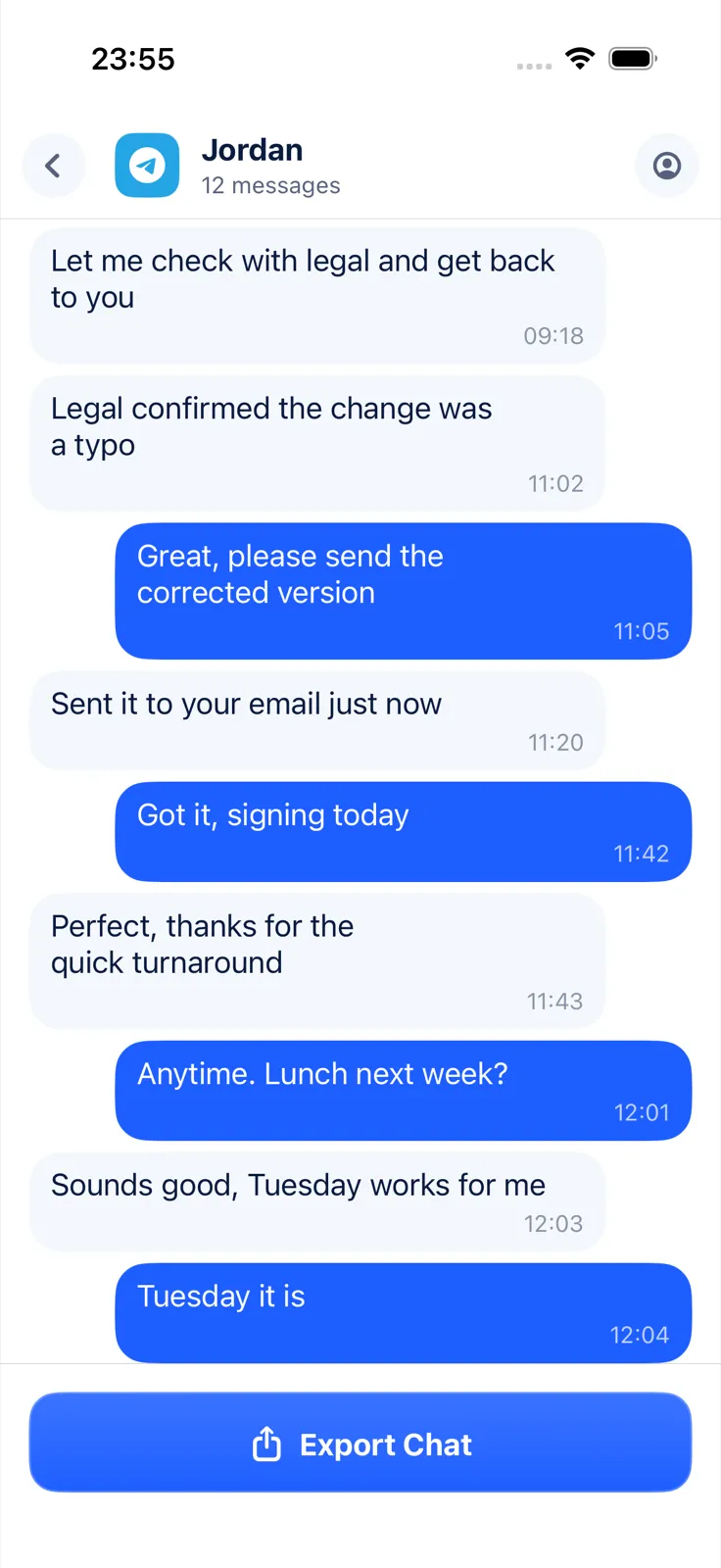
Exportly’s From screenshots import reads a stack of chat screenshots as one conversation and keeps a sender, date and time with each message.
- Take the screenshots so that each one overlaps the last a little. Press the side button and volume up together, scroll a bit, and repeat (Apple: Take a screenshot on iPhone).
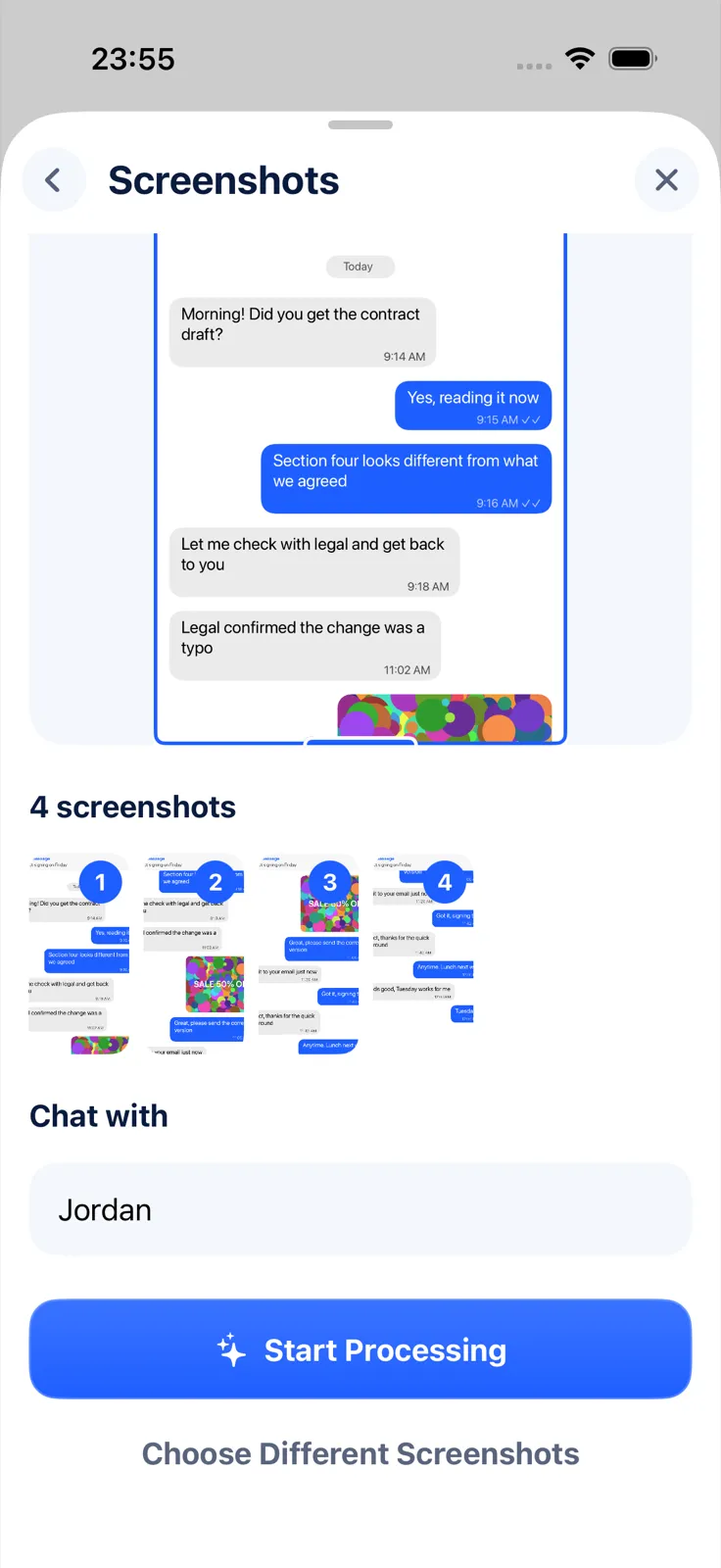
- In Exportly, add a chat, choose the app the chat came from (or Other), then From screenshots, and pick the screenshots from Photos.
- Optionally type the other person’s name in Chat with. It becomes the chat’s title and their label, and your own messages are labelled “You”.
- Tap Start Processing. Exportly reads the screenshots on your iPhone.
- Check the preview, then export as Text, Word, PDF, Excel, CSV or HTML.
The Text export gives you exactly what Live Text can’t: one line per message with [date, time] Sender: message. Excel puts the same information in Date, Time, Sender and Message columns.
Limits to know
- Languages: From screenshots reads English and Turkish text only. For a chat in another language, Live Text is the better tool.
- Text only: photos in the screenshots aren’t brought in.
- Misreads happen: recognition can get a word, link or number wrong, so read the preview before you export.
- Cost: importing and previewing are free; exporting, sharing and printing need Exportly Pro, a weekly or yearly subscription with the price shown in the app before you buy.
- Privacy: your screenshots are processed on your iPhone and never uploaded.
Which method should you use?
- A phone number, an address or one message: Live Text, then Copy Text.
- A chat in a language other than English or Turkish: Live Text, one screenshot at a time.
- A whole English or Turkish conversation as a transcript or spreadsheet: From screenshots in Exportly.
- You haven’t taken the screenshots yet: see how to screenshot an entire text conversation, or record your screen while scrolling instead.
Before you share the result, hide what the other person shouldn’t see; our guide to blurring names in a screenshot covers that. For what each export format is for, see PDF vs Excel vs Word for chat exports, and for a transcript in particular, how to make a text message transcript.
Questions people ask
How do I copy text from a screenshot on iPhone?
Open it in Photos, tap the Live Text button, select the text and tap Copy Text. Turn on Live Text first in Settings > General > Language & Region.
Can I convert many screenshots to text at once?
Live Text works one image at a time. Exportly’s From screenshots combines a set of chat screenshots into one conversation and exports it, for chats in English or Turkish.
Does Live Text keep the sender and time of each message?
No. It copies the visible text as one selection, without separating senders, times or dates.
Also available in: Deutsch · Español (México) · Français · Italiano · Português (Brasil) · Türkçe