
How to Blur Names in a Screenshot Before Sharing a Chat
The surest way to blur names in a screenshot on iPhone is to cover them completely: open the screenshot in Markup, add a shape over each name and give it a solid fill at full opacity. You can also draw over it with a pen at full opacity. Markup is built into the iPhone and free. Then zoom in and check every image before you share it, because a thin or see-through mark can leave the text readable.
How to cover a name in a screenshot with Markup
This works right after you take a screenshot, or later from Photos.
- Take the screenshot (side button and volume up), then tap the thumbnail in the lower-left corner and tap the Markup button. Apple notes Markup also works in apps such as Photos and Notes, so you can mark up older screenshots too.
- In the Markup toolbar, tap the add button, then Add Shape, and choose a square or rectangle.
- Drag the shape over the name or number. Drag the dots to resize it so it covers the text completely.
- In the Markup toolbar, set the shape’s fill color to a solid color and its opacity to full.
- Tap outside the shape, then tap Done.
Sources: Apple: Take a screenshot on iPhone and Apple: Add text, shapes and more with Markup.
How to blur part of a picture on iPhone with the pen
Apple’s Markup guide describes pens, markers and shapes, not a blur filter. Drawing over the text does the same job if you do it properly.
- In Markup, tap the pen, marker or pencil tool.
- Tap the selected tool again to choose a thick line weight, and drag the opacity slider to full.
- Draw back and forth until the text is fully covered.
Source: Apple: Draw and handwrite with Markup.
A mark at reduced opacity, or a thin stroke, can leave the letters readable. A solid shape at full opacity is the safer choice. Whichever you use, zoom in on the result before sending.
What to hide in a chat screenshot
Names in the header are only the start. Before you share, check each screenshot for:
- the contact name or number at the top of the chat;
- sender names on bubbles in a group chat;
- phone numbers, email addresses and street addresses typed inside messages;
- links that include usernames;
- profile photos and photos sent in the chat;
- notifications or other apps’ banners caught at the top of the screen.
Do this on every image. In a long chat it’s easy to cover the name on the first screenshot and forget it on the eighth.
Cleaning up an exported chat before you share it
When you share a whole conversation as a PDF or document rather than screenshots, you can shape what goes into the file before you export, and edit it afterwards. Here is what Exportly can and can’t do.
What you can control in Exportly:
- The label on a screen import. With Record & scroll or From screenshots, the chat’s title and the label on the other person’s messages are whatever you type in the optional Chat with field, or the app’s name if you leave it empty. Your messages are labelled “You”. This only sets a label; it doesn’t touch names inside the messages. Chats imported from WhatsApp or Messages keep the names from the source.
- Which days are included. On the export sheet, choose Date range and set From and To to leave out days that aren’t relevant.
- Whether photos are included. Excel, CSV and Text exports carry no photos, only file names or labels. PDF, Word and HTML include photos from the import.
What Exportly doesn’t do: it has no blur or redaction tool, and it doesn’t change the text inside messages. A name or phone number typed in a message stays in every export format.
To remove text inside messages, export to Word. Exportly’s Word (.docx) file opens in Word, Pages or Google Docs, where you can delete or replace names and numbers before you share the document. Read it through afterwards, page by page. Also check the file name: Exportly names the file after the chat title, which for a WhatsApp or Messages import is usually the contact’s name. Rename the file before you send it.
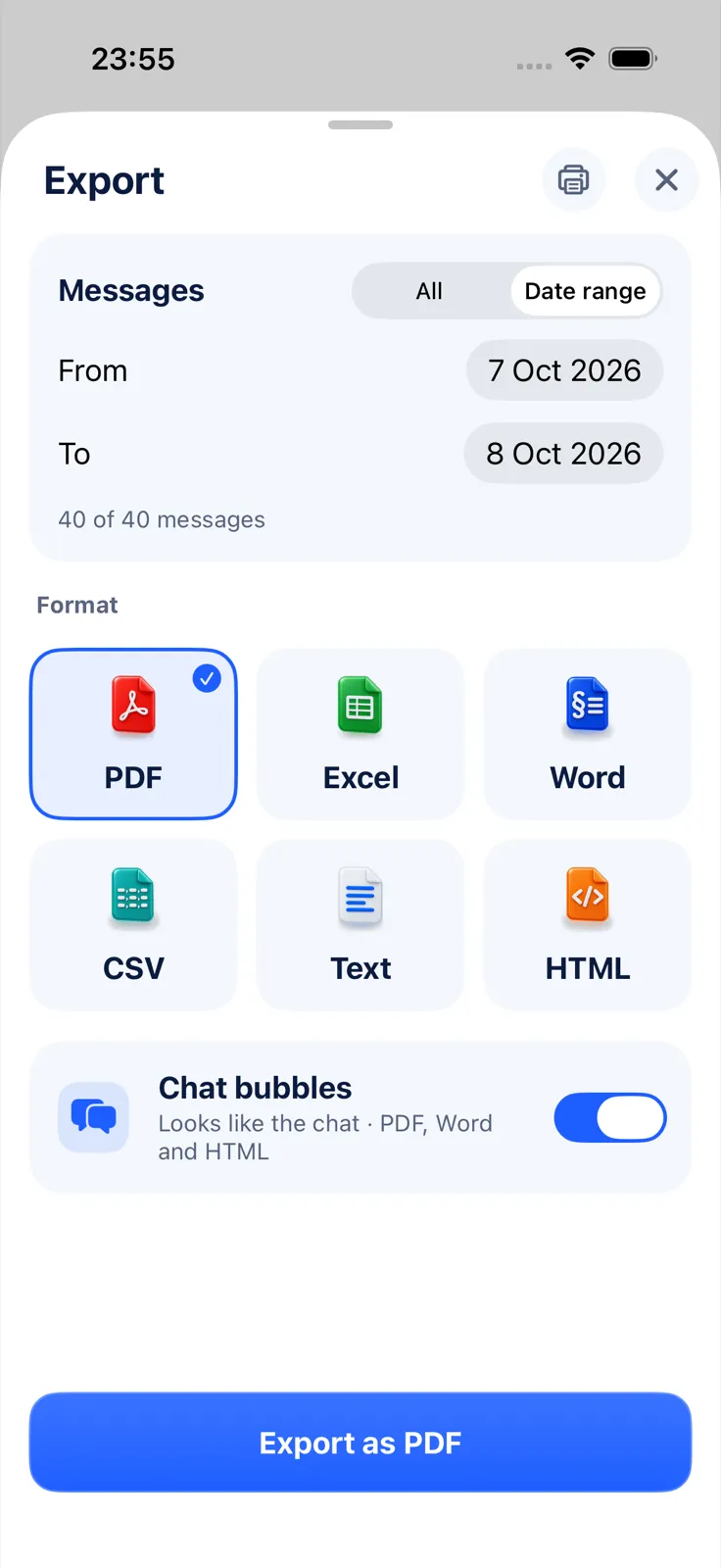
Importing and previewing are free; exporting, sharing and printing need Exportly Pro, a weekly or yearly subscription with the price shown in the app before you buy. Record & scroll and From screenshots read English and Turkish text only. Your chats are processed on your iPhone and never uploaded.
For keeping only part of a conversation, see how to export text messages from a specific date range. If you’re capturing the chat now, how to screenshot an entire text conversation helps. And for choosing between an editable and a fixed file, read PDF vs Excel vs Word for chat exports.
Questions people ask
Does the marker in Markup hide text reliably?
Not on its own. At reduced opacity or with a thin line, the text underneath can stay readable. Use a solid shape, or a thick pen at full opacity, and zoom in to check.
Will an exported chat still show phone numbers?
Anything typed inside a message stays in the export. Export to Word and remove it there, and read every page before sharing.
Does Exportly blur or rename people in a chat?
No. Exportly has no blur, redaction or rename tool. Use Markup on screenshots, or export to Word and edit the document before you share it.
Also available in: Deutsch · Español (México) · Français · Italiano · Português (Brasil) · Türkçe