
PDF vs Excel vs Word: Which Format to Export a Chat To
Choose a chat export format by what happens to the file next. PDF is for reading, printing or sending a fixed copy. Word is for editing or quoting the chat in a document. Excel or CSV is for sorting, filtering and counting messages. Text is the lightest transcript, and HTML is one file that opens in any browser with the photos inside.
Chat export formats compared
Each format suits a different job. The table describes the files Exportly writes, since that’s the output we can describe exactly.
| Format | Best for | Looks like the chat? | Photos inside? | Editable? |
|---|---|---|---|---|
| Reading, printing, sending a fixed copy | Yes, with chat bubbles, or plain text | Yes | No | |
| Word (.docx) | Statements, reports, quoting parts | Yes, or plain text | Yes | Yes |
| Excel (.xlsx) | Sorting, filtering, counting | No, one row per message | No, file names only | Yes |
| CSV | Importing into another tool | No, one row per message | No, file names only | Yes |
| Text (.txt) | A lightweight transcript | No, one line per message | No, labels only | Yes |
| HTML | One file to open in any browser | Yes, or plain text | Yes | Not easily |
Photos appear only if the import brought them in: a WhatsApp export made With all media, or the Messages shortcut, which imports text and photos. Screen recordings and screenshots bring in text only.
What do the official exports give you?
Most built-in exports don’t produce any of the formats above in a readable form:
- WhatsApp’s Export chat saves a ZIP with a text file of the chat, plus media if you include it (WhatsApp Help).
- Data downloads from Instagram, Facebook, X, Discord and others arrive as HTML or JSON archives of your whole account.
- Messages on a Mac can print a conversation or save it as a PDF with File > Print (Apple: Print or create a PDF of a conversation, macOS Sequoia guide).
So the format question usually comes after a converter step: you take the raw export and turn it into the file you need.
When to choose PDF
Choose PDF when the reader only needs to read the chat, or when it will be printed. It looks the same on every device and can’t be changed by accident.
In Exportly, a PDF has A4 pages. Page 1 starts with the chat title and the date range of the messages, and every page has a “Page X of Y” footer. Two layouts:
- Chat bubbles: your messages on the right, the other side’s on the left, a date separator whenever the day changes, and the time on each bubble. In a one-to-one chat, the side tells you who wrote each message. Sender names appear on bubbles only in groups.
- Plain text: each message is headed with the sender, date and time, then the text.
If every message must name its sender, for example for a lawyer or HR, pick plain text. More detail is in our guide to saving text messages as a PDF.
When to choose Word
Choose Word when you’ll edit the result: cutting it down to the relevant part, adding headings or notes, or pasting passages into a statement. Exportly’s .docx opens in Word, Pages or Google Docs, comes in bubbles or plain layout, and embeds photos as pictures. See how to export a WhatsApp chat to Word for a worked example.
When to choose Excel or CSV
Choose a spreadsheet when you want to work with the messages as data: filter one person’s messages, find every mention of a word, count messages per day, or keep a log.
Exportly’s Excel file has one sheet with the columns Date, Time, Sender, Message and Attachment, with a bold, frozen header row. One message is one row. Dates are written as text in yyyy-MM-dd form and times as 24-hour HH:mm. They sort correctly as they are, but convert them to real dates before using Excel’s date functions.
CSV has the same five columns as plain text. Exportly saves it so that Excel opens accents and emoji correctly. Use CSV when another tool asks for it; otherwise Excel is easier to open. The text messages to Excel guide covers sorting and filtering.
When to choose Text or HTML
Text is a transcript and nothing else: the title, the date range, then one line per message in the form [date, time] Sender: message. Photos and files show as labels such as [Photo: name]. It’s tiny, opens anywhere and pastes cleanly into an email. See how to make a text message transcript.
HTML is a single web page file. It keeps the bubbles or plain layout and stores the photos inside the file, so there’s no separate image folder to lose. Anyone can open it in a browser.
How to pick a format in Exportly
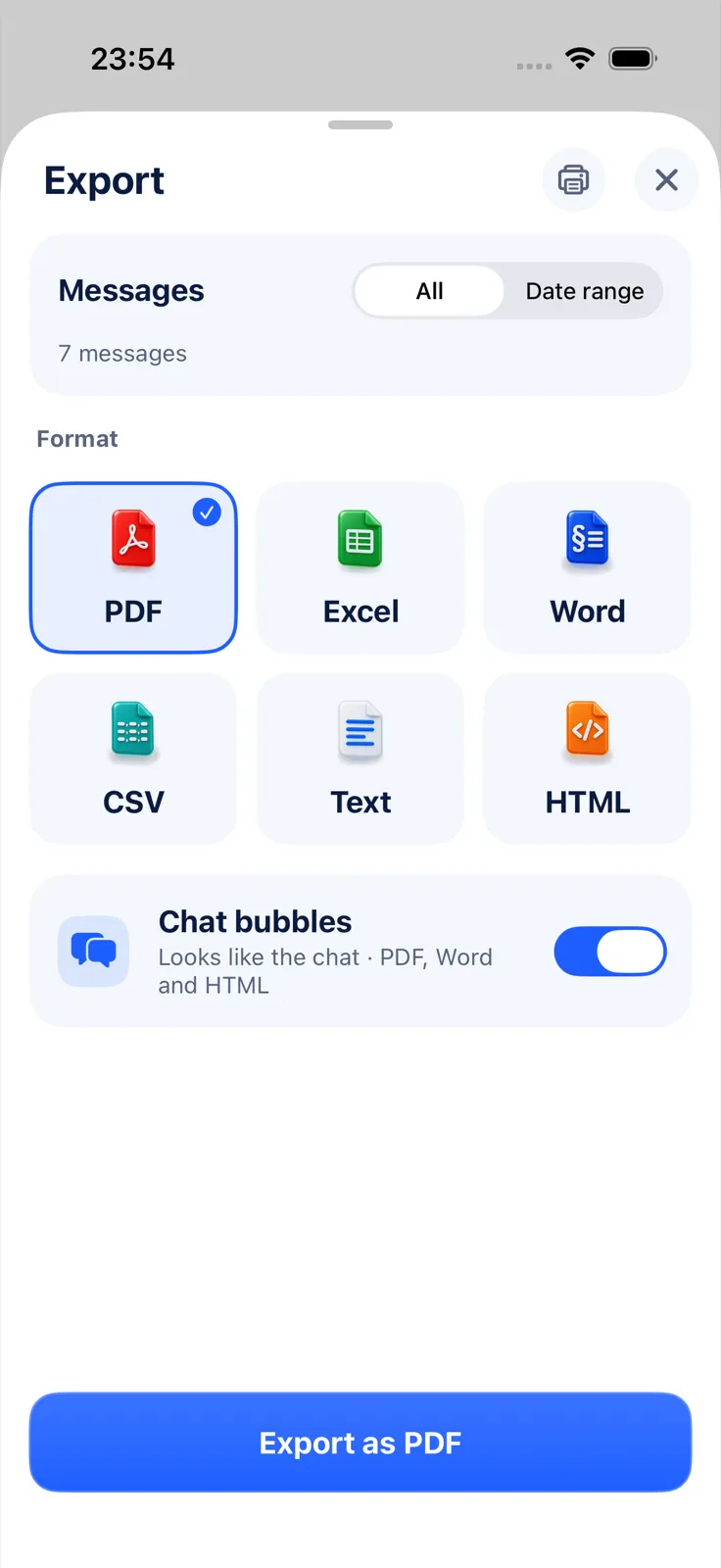
- Open the chat and tap Export Chat.
- Under Messages, choose All, or Date range and set From and To.
- Under Format, tap PDF, Excel, Word, CSV, Text or HTML.
- For PDF, Word and HTML, turn Chat bubbles on for the chat look or off for plain text.
- Tap Export as PDF (or the format you chose), then share the file or save it to Files. The printer button at the top prints the PDF.
You can export the same chat as many times as you like, in different formats. Importing and previewing are free; exporting, sharing and printing need Exportly Pro, a weekly or yearly subscription with the price shown in the app before you buy. Your chats are processed on your iPhone and never uploaded. See sample output for each format.
Questions people ask
Which format is best for printing a chat?
PDF. It has fixed pages with page numbers, and you can choose chat bubbles or plain text.
Which format keeps the photos?
PDF, Word and HTML embed photos when the import included them. Excel and CSV list only the file name.
Can I change the page size of the PDF?
No. Exportly’s PDF and Word files are A4. If you print on US Letter paper, check the print preview before printing.
Also available in: Deutsch · Español (México) · Français · Italiano · Português (Brasil) · Türkçe