
WhatsApp Chat to Word: Export a Conversation as a .docx
WhatsApp can’t save a chat as a Word document. Its Export chat feature gives you a ZIP file containing the conversation as plain text, plus photos and other media if you include them (WhatsApp Help Center). Going from WhatsApp chat to Word therefore takes two steps: you export that file first and then either paste the text into Word yourself or let an app build the .docx for you.
Step 1: Export the chat from WhatsApp
Every route to Word starts with WhatsApp’s own export. On an iPhone:
- Open the individual or group chat.
- Tap the contact’s name or the group name at the top, then tap Export chat.
- If the chat contains media, choose With all media, With selected media… or Without media.
- Pick where the file goes, for example Save to Files, or an app from the share sheet.
On Android, the option is under More options (the three dots) > More > Export chat, with a choice of Without media or Include media (WhatsApp Help Center).
Three things WhatsApp states about the result: the chat arrives as a ZIP file, messages sent as view once are left out, and the file can’t be imported back into WhatsApp because “it’s a text file and not a backup file”. The phone apps also export the whole conversation; there is no date range to choose on iPhone or Android.
Step 2, the free way: paste the text into Word
If you only need the words and don’t mind some tidying, you can do this without any extra app.
- Save the export to the Files app.
- In Files, touch and hold the ZIP file and tap Uncompress (Apple: Organize files and folders on iPhone). A folder appears with the chat’s text file and any media files.
- Open the text file in a text editor (on your iPhone or a computer), copy everything and paste it into a new Word document.
What you get is a block of lines with dates, names and messages run together. Photos stay as separate files in the folder, so you have to insert each one by hand, and you’ll want to fix fonts and spacing before anyone else reads it. For a short chat that’s fine. For months of messages, it’s slow.
Step 2, the quick way: build the Word file with Exportly
Exportly is an iPhone app that reads WhatsApp’s export file and writes a formatted .docx from it.
- In WhatsApp’s share sheet (step 4 above), tap Exportly. If it isn’t in the first row of apps, tap More, then Edit, and add it to your favorites.
- Check the preview: the messages appear as a conversation, with the names exactly as they were in WhatsApp.
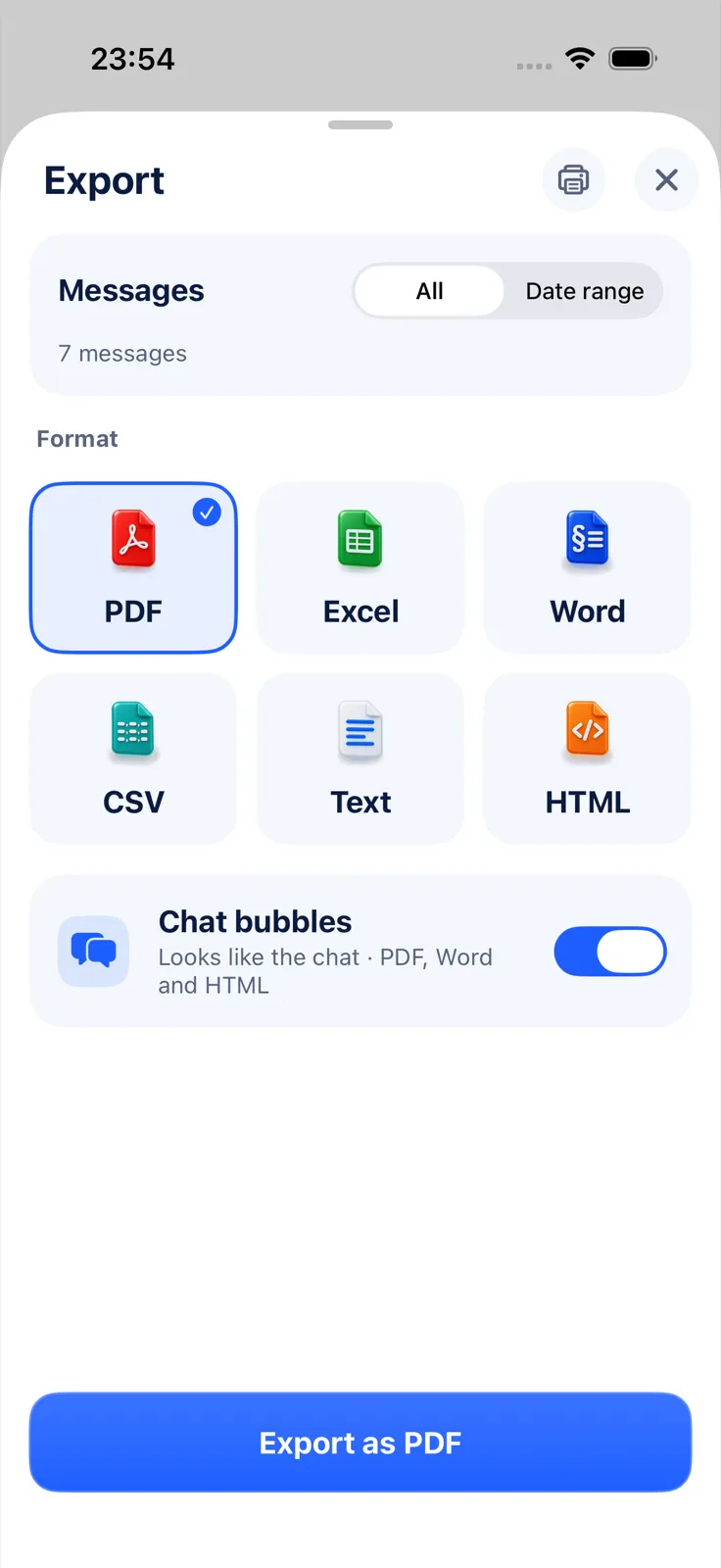
- Tap Export Chat, choose Word and decide on Chat bubbles (on or off).
- Under Messages, keep All or pick Date range and set From and To if you only need part of the conversation.
- Export, then share the .docx or save it to Files.
If you exported from WhatsApp with media, the photos are placed inside the Word document with the conversation. Importing and previewing in Exportly are free; creating, sharing and printing the Word file needs Exportly Pro, a weekly or yearly subscription with the price shown in the app before you buy. The chat is processed on your iPhone and never uploaded.
Chat bubbles or plain text: which Word layout to choose
Pick the layout by what the document is for.
| Layout | What it looks like | Good for |
|---|---|---|
| Chat bubbles | Like the conversation on your phone | Reading, keepsakes, showing someone the exchange as it happened |
| Plain text | A continuous transcript, one message after another | Quoting in a statement or report, editing, adding your own notes |
Because a .docx is meant to be edited, you can add headings, highlight key lines or write comments beside them. That same flexibility means a Word file isn’t a locked record. If the conversation may matter in a dispute, keep the original WhatsApp export as well, and ask your lawyer which format they want. A PDF is often the better choice there; see how to export a WhatsApp chat to PDF.
Word, PDF or Excel?
Word is the right pick when you’ll keep working on the text. If you want a fixed document to send or print, PDF fits better. If you want to sort, filter or count messages, a spreadsheet does that: see how to export a WhatsApp chat to Excel. For a side-by-side look at every format, read PDF vs Excel vs Word for chat exports.
Questions people ask
Can WhatsApp export a chat directly to Word?
No. WhatsApp exports a ZIP file with the chat as text, plus media if you include it. You need to convert that file into a .docx.
Can I edit the Word file afterwards?
Yes. It’s a normal Word document, so you can add notes, change formatting or remove lines you don’t need. Exportly keeps the names as WhatsApp wrote them; any changes you make happen in Word.
Can I put only part of a chat into Word?
WhatsApp’s iPhone and Android apps always export the whole conversation. Exportly’s Date range option lets you limit the Word file to the dates you choose.
Will videos and voice notes be in the Word document?
No. Exportly places photos inside the document. Videos, voice notes and other files can’t play inside a Word page.
Also available in: Deutsch · Español (México) · Français · Italiano · Português (Brasil) · Türkçe