
How to Export a WhatsApp Chat to Excel
To export a WhatsApp chat to Excel, start with WhatsApp’s own Export chat, then convert the file it gives you into a spreadsheet. WhatsApp doesn’t export to Excel itself: it creates a ZIP file with the conversation as plain text. A converter such as Exportly on the iPhone reads that file and writes an .xlsx with one message per row and separate Date, Time, Sender, Message and Attachment columns, or a CSV if you prefer.
Step 1: Export the chat from WhatsApp
On iPhone, per WhatsApp’s Help Center (WhatsApp: How to export your chat history):
- Open the individual or group chat.
- Tap the contact’s name or the group name.
- Tap Export chat.
- If the chat contains media, choose With all media, With selected media… or Without media.
- Choose where to send it, such as an app in the share sheet or Save to Files.
On Android, the path is More options (three dots) > More > Export chat, then Without media or Include media.
For a spreadsheet, Without media is usually enough, since pictures don’t go into the cells anyway. Export with media if you also want a PDF or Word copy with photos from the same file.
Why the raw export doesn’t work well in Excel
The export is a text file, not a table: dates, times, names and messages run together as lines of text. Getting that into columns by hand means splitting the text yourself, fixing messages that run over several lines, and checking that every date came through correctly. For a short chat that might be manageable. For thousands of messages, a tool that understands the format saves a lot of time.
Step 2: Convert the export to Excel with Exportly
Exportly, an iPhone app we make, reads WhatsApp’s export and writes the spreadsheet on your phone.
- Send the export to Exportly. In the share sheet that appears after Export chat, tap Exportly. If you saved the file to Files instead, share it to Exportly from there. It accepts the .zip or the .txt.
- Check the chat. It opens with the names from WhatsApp. Exportly reads exports made on both iPhone and Android, with day-first or month-first dates and 12- or 24-hour times.
- Tap Export and choose Excel, or CSV.
- Choose the rows. Under Messages, keep All, or choose Date range and set From and To.
- Share or save to Files, then open it in Excel, Numbers or Google Sheets.
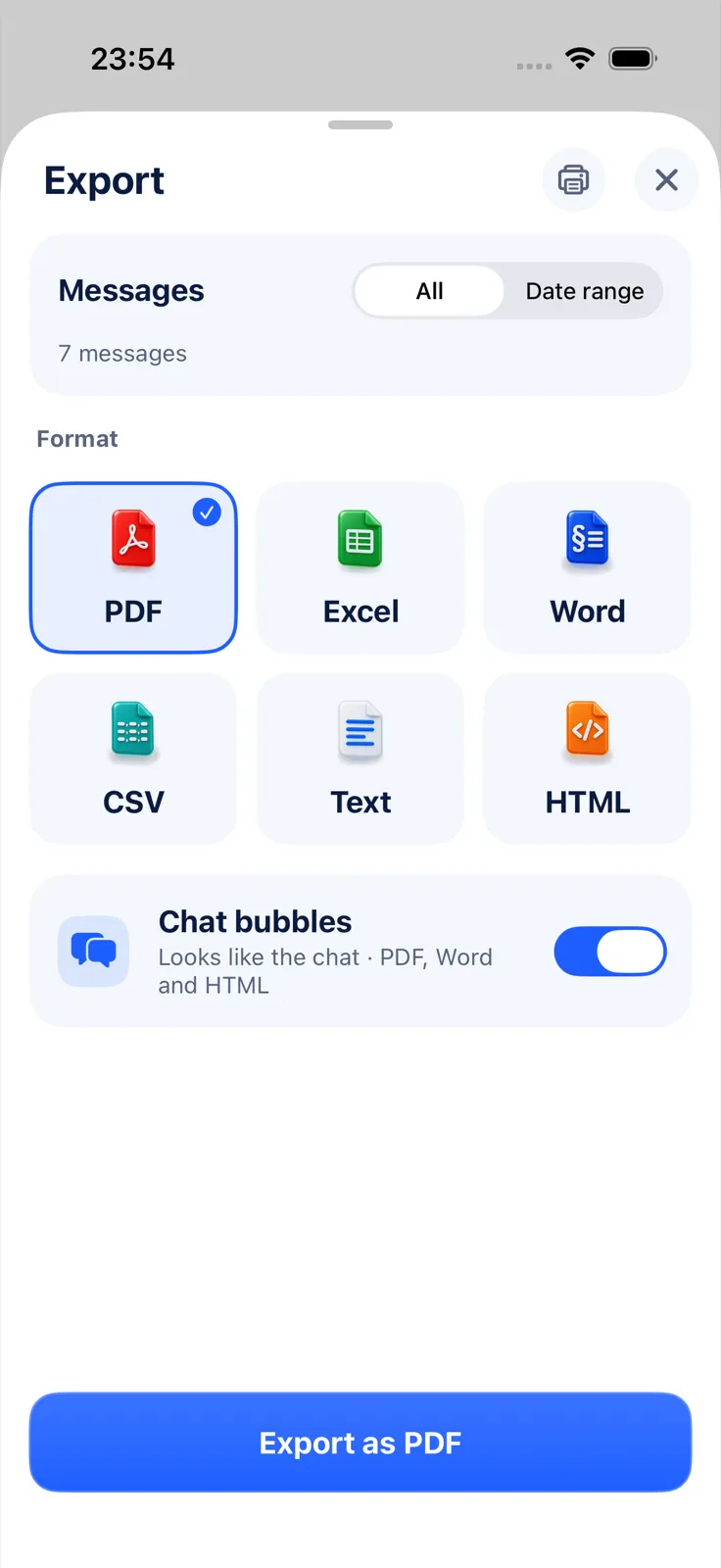
Importing and reading the chat in Exportly is free; the Excel export needs Exportly Pro, with the weekly or yearly price shown in the app before you subscribe. The chat is processed on your iPhone and never uploaded.
What the spreadsheet contains
One row per message, five columns. A made-up example:
| Date | Time | Sender | Message | Attachment |
|---|---|---|---|---|
| 2026-03-12 | 09:14 | Alex | Morning! Did you get the contract draft? | |
| 2026-03-12 | 09:15 | You | Yes, reading it now | |
| 2026-03-12 | 17:02 | Alex | Legal confirmed, I’ll send the corrected version tonight |
A few details to know before you work with it:
- Date and Time are text. Dates are written year-month-day and times in 24-hour format, as text rather than Excel date values. They still sort in the right order. For date math or grouping by month in a PivotTable, convert the Date column with DATEVALUE, or use LEFT on the Date to get a year-month key such as 2026-03.
- Sender names come from WhatsApp. They’re the names shown in the export.
- Photos aren’t in the spreadsheet. If you need the pictures, export the same chat as a PDF, Word or HTML file too; those formats include photos from an export with media.
- Group chats work the same way. The Sender column tells you who wrote each row, so you can filter by person.
Excel or CSV?
Both have the same five columns. Choose Excel if you’ll open the file in Excel or Numbers and want it ready to read. Choose CSV if the messages are going into another program, a database or a script; CSV is plain text that nearly any tool can open.
If you can’t export the chat
If Export chat is missing, the chat may have Restricted chat turned on (WhatsApp’s replacement for Advanced chat privacy), which stops everyone in that chat from exporting it (WhatsApp: About restricted chat). WhatsApp also notes that view once messages aren’t included in exports.
Questions people ask
Can I export a WhatsApp chat straight to Excel?
Not from WhatsApp. It exports a ZIP file with the chat as text, which a converter such as Exportly turns into an .xlsx.
What columns does the Excel file have?
Date, Time, Sender, Message and Attachment, with one message per row.
Can I export only part of the chat?
WhatsApp on iPhone exports the whole chat. In Exportly, use Date range in the Export sheet to keep only the days you need.
What can I do with the chat once it’s in Excel?
Count messages per person, see the busiest days, or search for a word. Our WhatsApp chat analysis in Excel guide walks through it with a sample chat.
The WhatsApp export itself is explained in how to export a WhatsApp chat to PDF. For a busy group, see how to export a WhatsApp group chat; for iMessage and SMS, how to export text messages to Excel.
Also available in: Deutsch · Español (México) · Français · Italiano · Português (Brasil) · Türkçe