
How to Export Text Messages to Excel
Apple has no way to export text messages to Excel: the iPhone has no export at all, and Messages on a Mac only prints or saves a PDF. To get a spreadsheet, you need third-party software, either a desktop program that reads your iPhone on a Mac or PC, or an iPhone app that writes the .xlsx file on the phone. Either way, the useful result is the same: one message per row, with the date, time and sender in their own columns.
We make Exportly, one of the tools below. The comparison starts with what Apple offers.
Why Apple’s tools don’t give you a spreadsheet
Apple’s built-in options all produce pictures or pages, not data:
- Screenshots on the iPhone are images (Apple).
- Forwarding sends messages to another Messages recipient (Apple).
- Messages on a Mac can File > Print a conversation or save it as a PDF (Apple, macOS Sequoia guide). Apple documents no CSV or Excel option.
Copying a PDF into Excel by hand rarely works well for a long chat: dates, names and multi-line messages end up in the wrong cells. That’s why the spreadsheet routes below read the messages directly.
Option 1: Desktop software on a Mac or PC
Desktop programs read the messages from your iPhone or from a backup on your computer. iMazing, for example, runs on Mac and Windows and lists “Excel or CSV” among its message export formats, along with PDF, Text and RSMF. It can export several conversations at once and work from an existing backup; RSMF needs its Business subscription (iMazing’s guide).
This is the stronger choice if you need many conversations, your full history in one go, or attachments in bulk. You need a computer and a cable or backup, and it’s paid software; check the developer’s site for the current price.
Option 2: Export to Excel on your iPhone with Exportly
If you need one conversation as a spreadsheet and don’t want to involve a computer, Exportly writes the .xlsx on your iPhone.
- Import the conversation. On iOS 26 or later, add the free Exportly Shortcut, choose how far back to look, pick the conversation and tap Always Allow when Shortcuts asks. On any iOS version, Record & scroll reads the chat from a screen recording; it reads English and Turkish text only.
- Open Export and choose Excel. Or choose CSV if the file is going into another tool.
- Limit the rows if you want. Under Messages, keep All or switch to Date range and set From and To.
- Share or save to Files, then open the file in Excel, Numbers or Google Sheets.
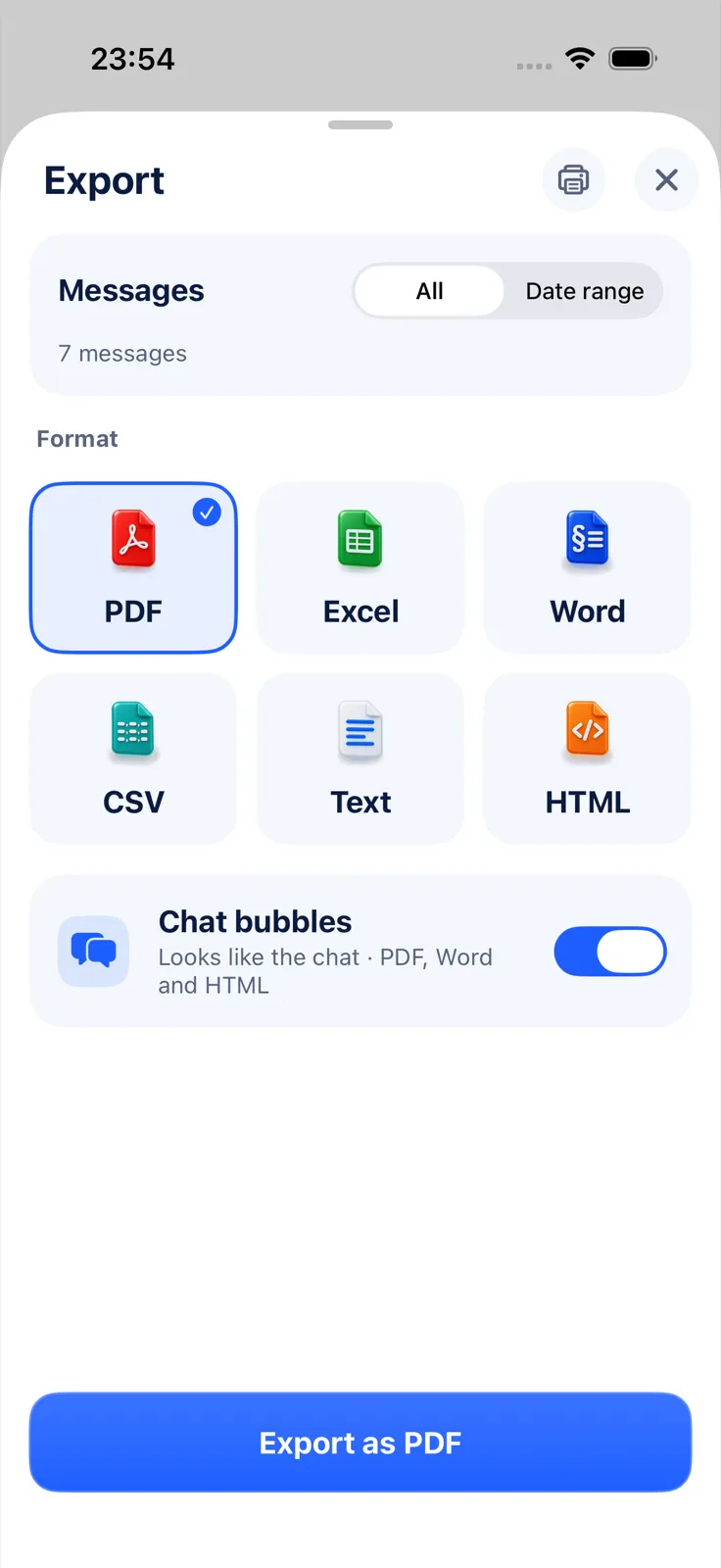
Bringing a conversation in and previewing it is free; the Excel export itself needs Exportly Pro, and the app shows the weekly or yearly price before you subscribe. The conversation is processed on the iPhone and never uploaded.
What the spreadsheet looks like
Exportly’s Excel file has five columns and one row per message. A made-up example:
| Date | Time | Sender | Message | Attachment |
|---|---|---|---|---|
| 2026-03-12 | 09:14 | Jordan | Did you get the contract draft? | |
| 2026-03-12 | 09:15 | You | Yes, reading it now | |
| 2026-03-12 | 17:02 | Jordan | I’ll send the corrected version tonight |
Two details matter once you start working with it:
- Date and Time are text. The date is written as year-month-day and the time in 24-hour format, but as text rather than Excel date values. Sorting the Date column still puts rows in order because of that format. If you need date math or date grouping, convert the column with Excel’s DATEVALUE function.
- Sender comes from the source. With the shortcut, names are the ones Messages shows. With Record & scroll, you can type the other person’s name in the optional Chat with field before processing, and your own messages are labelled “You”.
Things people do with a texts spreadsheet
Once the conversation is in rows, ordinary Excel features do the rest:
- Filter by Sender to read one person’s messages in a group chat.
- Search the Message column for a word, an address or an amount.
- Count messages per day or per person with a PivotTable, after converting the dates.
- Log a dispute or a job: add your own Notes column next to the messages that matter.
Photos don’t go into the spreadsheet. If the pictures matter, export the same conversation as a PDF, Word or HTML file too; those formats include photos the shortcut brought in.
Excel or CSV?
Pick Excel if you’ll open the file in Excel or Numbers and want it ready to read. Pick CSV if the messages are going into another program, a database or a script, since CSV is plain text that almost anything can read. Both have the same five columns.
Questions people ask
Can I export iPhone text messages to Excel for free?
Not with Apple’s tools, which produce images or a PDF. Every spreadsheet route uses third-party software, and the ones covered here are paid.
What columns does the Excel file have?
In Exportly: Date, Time, Sender, Message and Attachment, with one message per row.
Can I export only some of the messages?
Yes. Use Date range in Exportly’s Export sheet. See how to export text messages from a specific date range.
Can I do the same with a WhatsApp chat?
Yes, from WhatsApp’s own Export Chat file. See how to export a WhatsApp chat to Excel.
The other routes out of Messages are compared in how to export text messages from iPhone. If you’re unsure a spreadsheet is the right file at all, read PDF vs Excel vs Word for a chat export.
Also available in: Deutsch · Español (México) · Français · Italiano · Português (Brasil) · Türkçe