
How to Export Text Messages to a Word Document
You can’t export text messages to Word with Apple’s own tools: the iPhone has no export, and Messages on a Mac only prints or saves a PDF. To get an editable .docx of a conversation, use an app that writes Word files, such as Exportly on the iPhone, then open the document in Word or Pages and edit it like any other file. If you only need a few messages in a document, screenshots pasted into Word also work.
Why you’d want Word instead of a PDF
A PDF is for showing a conversation as it was. A Word document is for working with it. People pick Word when they need to:
- Quote messages in a statement or report and add their own explanation between them.
- Build a timeline, cutting the chat down to the messages that matter and adding headings.
- Remove private details before sharing, such as an unrelated message or an address.
- Combine several sources, for example texts plus emails, into one document.
If the person receiving the file needs to see the untouched conversation, send a PDF instead, or alongside. A Word file is easy to change, which is exactly why it’s useful and also why it isn’t a neutral record.
The built-in workarounds and their limits
Apple’s options can get messages into a document, but not as editable text:
- Screenshots: press the side button and volume up (or side button and Home button), then insert the images into your document (Apple: Take a screenshot). The messages stay pictures, so you can’t edit or search the text.
- Messages on a Mac: File > Print, then the PDF menu, gives you a PDF of the conversation (Apple, macOS Sequoia guide). That’s a document, but not a .docx.
Neither route produces a Word file directly. For that, the conversation has to be read as text and written into a .docx.
Export a conversation to Word with Exportly
Exportly, which we make, exports a Messages conversation as a .docx on your iPhone.
- Import the conversation. On iOS 26 or later, the free Exportly Shortcut reads the conversation you pick in Apple’s Shortcuts app, including its photos; tap Always Allow when asked. On older iOS versions, Record & scroll reads the text from a screen recording, for chats in English or Turkish.
- Open Export and choose Word.
- Pick the style. With Chat bubbles on, the document looks like the chat. With it off, you get plain text that reads like a transcript.
- Choose the messages. All, or a Date range with From and To dates.
- Share or save to Files, then open the .docx in Word, Pages or Google Docs.
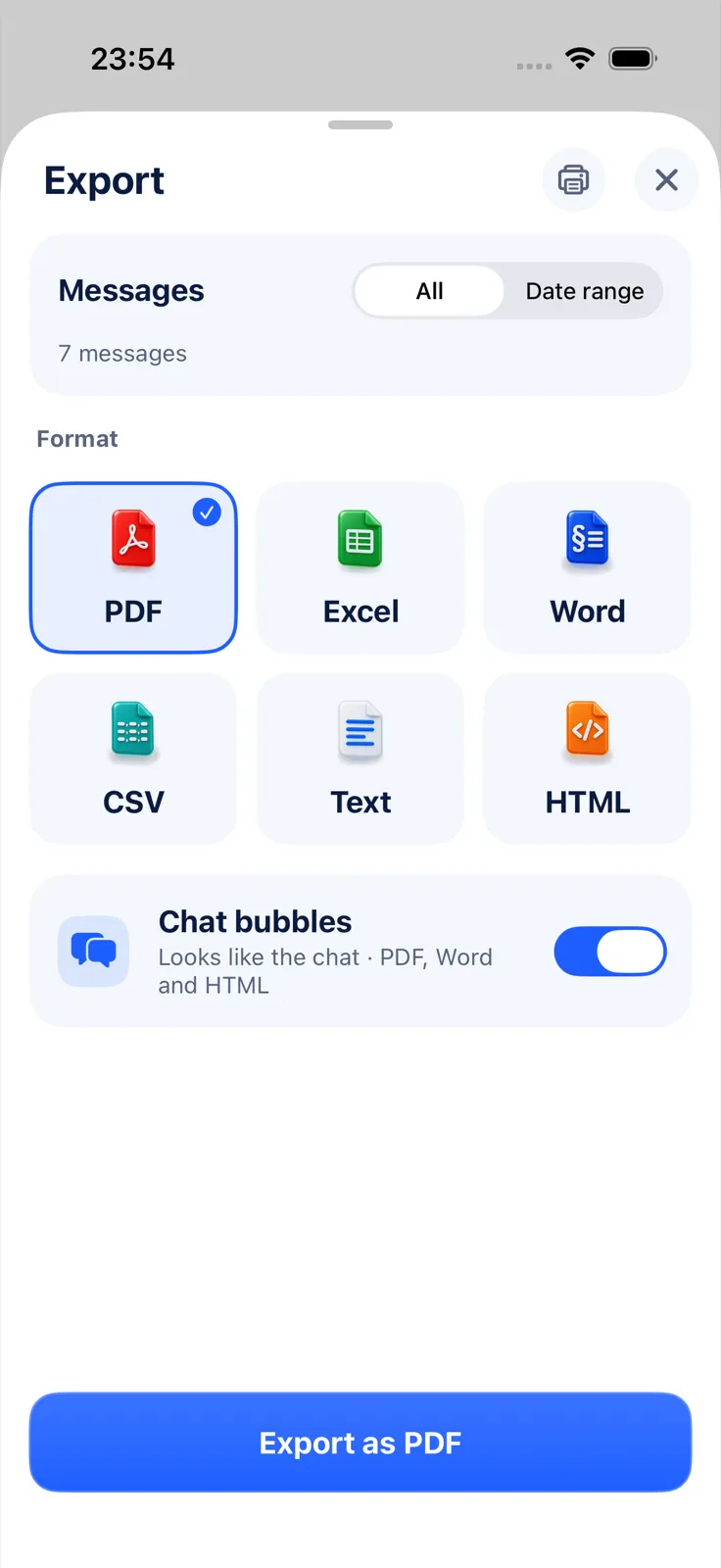
Photos the shortcut brought in are placed in the Word file. Creating the file needs Exportly Pro, a weekly or yearly subscription whose price you see in the app first; importing and previewing don’t. The conversation is processed on your iPhone and never uploaded.
Exportly doesn’t edit the document itself. Names come from Messages as they are, and with Record & scroll you can type the other person’s name in the optional Chat with field before processing. Everything else, such as cutting messages, adding notes or changing the layout, you do afterwards in your word processor.
Bubbles or plain text in Word?
| Chat bubbles | Plain text | |
|---|---|---|
| Looks like | The conversation on your phone | A transcript |
| Best for | Keepsakes, showing context | Statements, quoting, timelines |
If you plan to edit, start with plain text. If you plan to show, bubbles read more naturally.
Tips once the document is open
- Save a copy before editing. Keep the untouched export, and edit a duplicate.
- Mark your own additions with brackets or a different style, so a reader can tell your notes from the messages.
- Use Find to jump to names, amounts or dates instead of scrolling.
Questions people ask
Can I turn a text conversation into a Word document on my iPhone?
Not with Apple’s tools. An app that exports .docx, such as Exportly, can do it on the phone.
Can I edit the document after exporting?
Yes. It’s a normal .docx file that opens in Word, Pages and other editors.
Will the photos be in the Word file?
In Exportly, photos imported with the shortcut are included in the Word export. Videos and other attachments from Messages aren’t imported.
All the ways out of Messages are compared in how to export text messages from iPhone. For a document that shouldn’t change, see how to save text messages as a PDF; for a line-by-line record, see how to make a text message transcript. The same process for WhatsApp is in how to export a WhatsApp chat to Word.
Also available in: Deutsch · Español (México) · Français · Italiano · Português (Brasil) · Türkçe