
How to Export Text Messages with the Shortcuts App
If you’re looking for a shortcut to export text messages, the Shortcuts app on its own won’t produce a file of a conversation, but it can pass one to an app that does. On iOS 26 or later, Exportly’s free shortcut reads the Messages conversation you pick, with its photos, and hands it to the Exportly app, which saves it as a PDF, Excel, Word, CSV, Text or HTML file. You pick how far back to look, choose the conversation, and tap Always Allow when Shortcuts asks.
We make Exportly, so this guide is about our own shortcut. It covers what it reads, what Apple’s permission prompts mean, and what to do if it stops partway.
What you need
- An iPhone on iOS 26 or later. The Exportly Shortcut doesn’t run on earlier versions.
- Apple’s Shortcuts app, which comes with iOS.
- The Exportly app. The shortcut is free to add.
The shortcut reads text and photos. Videos, voice messages and other attachments aren’t imported. Exportly only receives the one conversation you pick.
Step by step: export a conversation with the shortcut
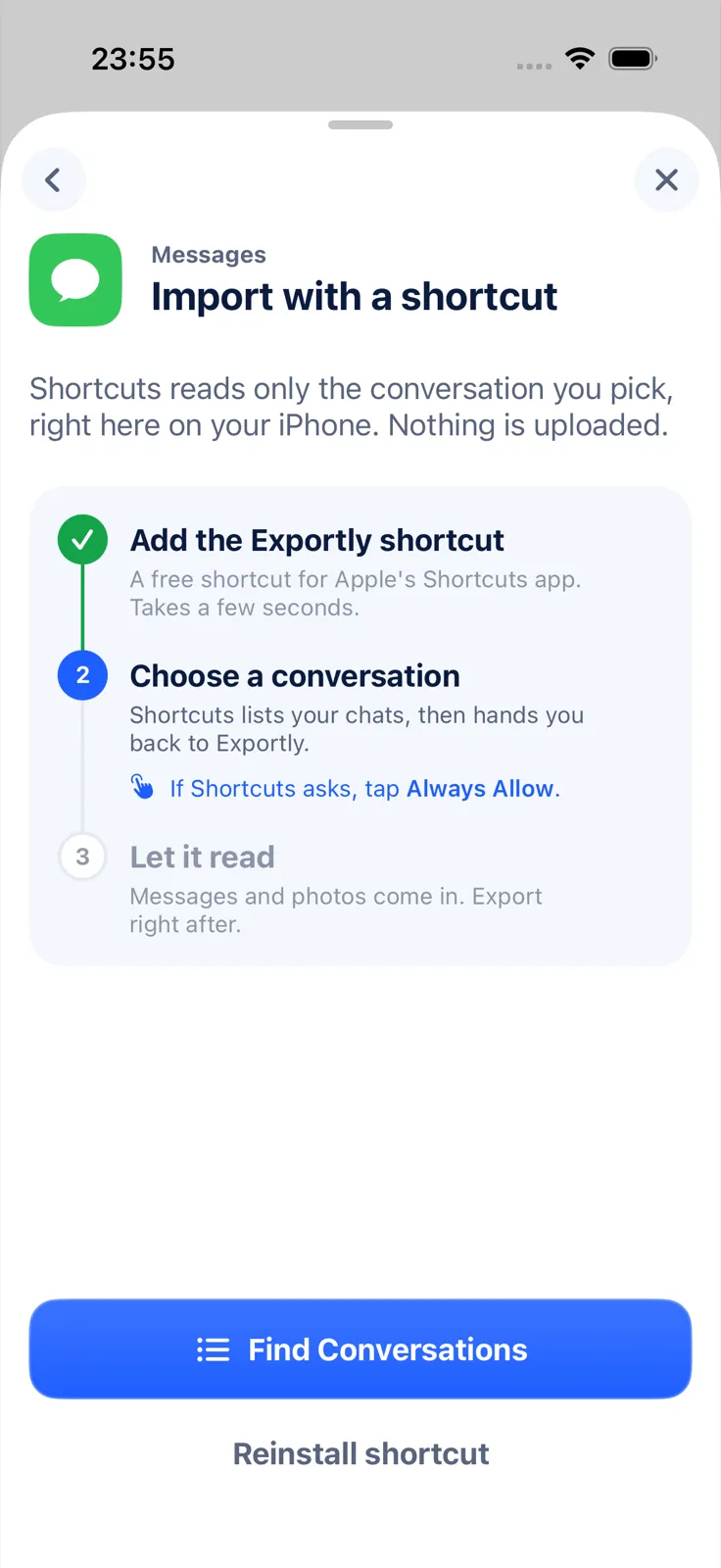
- Open Exportly and choose Messages. Tap Exportly Shortcut as the import method.
- Add the shortcut. Exportly opens Apple’s Shortcuts app on the add-shortcut screen. Add it, then return to Exportly. This takes a few seconds and only has to be done once.
- Choose how far back to look. Pick Last 3 months, Last year, Last 3 years or Everything (slowest).
- Choose a conversation. Shortcuts lists your conversations. Pick the one you want; it can be a one-to-one chat or a group.
- Tap Always Allow. Shortcuts asks for permission before handing the conversation to Exportly, sometimes more than once. Choose Always Allow each time so the import runs to the end.
- Preview and export. The conversation opens in Exportly. Check it, tap Export, choose a format, and share it or save it to Files.
Importing and previewing are free. Exporting, sharing and printing need Exportly Pro, a weekly or yearly subscription; the price appears in the app before you buy. The conversation is processed on your iPhone and never uploaded.
Which range should you pick?
Shortcuts has to look through all of Messages to find the chat, so longer ranges take more time. Pick the shortest range that covers what you need.
| Range | Use it when |
|---|---|
| Last 3 months | You need recent messages, quickly |
| Last year | The part you need happened this year |
| Last 3 years | You need a longer history |
| Everything (slowest) | You need the conversation from the very first message |
The range limits what’s read. After import, the Export sheet can narrow it further: under Messages, choose Date range and set From and To dates.
What the “Always Allow” prompt means
The permission dialog comes from Apple’s Shortcuts app, not from Exportly. Apple’s Shortcuts guide explains that when a shortcut needs access to data, a privacy dialog offers Allow Once, Always Allow or Don’t Allow, and that with Always Allow “the Shortcuts app won’t ask you for access the next time you run the shortcut” (Apple: Shortcuts privacy settings).
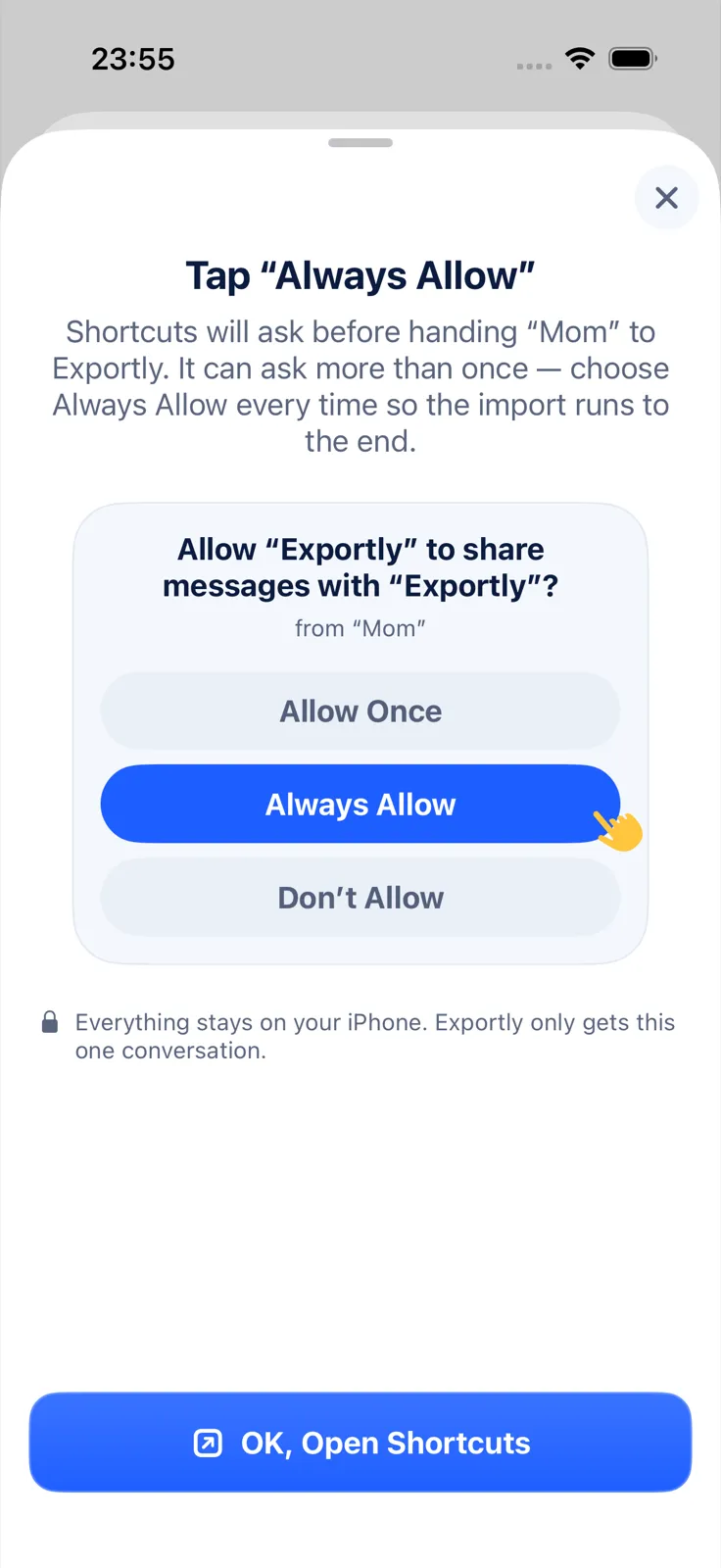
If you tap Allow Once, you’ll be asked again on the next run. If you tap Don’t Allow, the import stops.
To take the permission back later, open the Shortcuts app, open the shortcut’s Details, go to Privacy, and turn off an option or tap Reset Privacy (same Apple page).
If the import stops or takes a long time
- It asked again and you tapped Allow Once or Don’t Allow. Run it again and choose Always Allow every time.
- It’s slow. Everything is the slowest range. Try a shorter one if you don’t need the full history.
- The shortcut seems broken. Exportly’s import screen has a Reinstall shortcut option.
- Your iPhone isn’t on iOS 26. Use Record & scroll instead: Exportly reads the chat from a screen recording as you scroll. It reads English and Turkish text only.
Questions people ask
Does Apple’s Shortcuts app export text messages by itself?
Not to a document. In this setup, the shortcut reads the conversation and the Exportly app creates the file.
Why does Shortcuts keep asking for permission?
Shortcuts asks before sharing data. Always Allow stops it asking on the next run, and it can still ask more than once during a single import. Choose Always Allow each time.
Does it work on iOS 18?
No. The Exportly Shortcut needs iOS 26 or later.
Does it import photos?
Yes, photos come in with the text and appear in PDF, Word and HTML exports. Videos and other attachments don’t.
The other ways to export a conversation are compared in how to export text messages from iPhone. To export only part of a chat, read how to export text messages from a specific date range. If you mainly want the pictures, see how to save pictures from text messages; on an older iPhone, how to screenshot an entire text conversation covers the recording route.
Also available in: Deutsch · Español (México) · Français · Italiano · Português (Brasil) · Türkçe