
How to Save Pictures from Text Messages on iPhone
To save pictures from text messages on iPhone, tap the Save Photo button next to the photo (or the stack of photos) in the conversation, and it goes to your photo library. To find every picture someone has sent you, tap their name or icon at the top of the conversation, swipe left and tap Photos. Both steps come from Apple’s iOS 26 guide.
Save one photo, a collage or a stack
When someone sends several photos at once, Messages groups them: two or three appear as a collage, four or more as a stack you can swipe through (Apple: Share photos, links and more in Messages).
- Open the conversation in Messages.
- Find the photo, collage or stack.
- Tap the Save Photo button next to it.
To browse a stack first, tap it and swipe through the photos.
You can also tap a photo to open it, tap the Share button, and save it from there. Apple notes that from an attachment you can “copy, save, or print” it. The share sheet is also where you’d send the picture on to someone else or save it to Files instead of Photos.
Find every picture in a conversation
Scrolling back through months of messages to find photos is slow. Messages keeps them in one place:
- Open the conversation and tap the contact’s or the group’s icon at the top.
- Swipe left and tap Photos.
The same screen has Links, Documents, Locations and Wallet if those were shared. If a category doesn’t appear, nothing of that type was received in that conversation (same Apple page).
Apple documents saving per photo or per stack from the conversation. It doesn’t document a “save all” step from this screen; the select option there is described for deleting attachments, not saving them. If you need many photos, save them one stack at a time from the conversation.
Where saved pictures go
Saved pictures land in your photo library in the Photos app, with your other photos. Separately, photos from people in your contacts can show up under Shared with You in Photos. To stop that for one conversation, tap the icon at the top, then Info, and turn off Shared with You.
Before you delete anything, check this setting
Photos in Messages are attachments, and they disappear with the conversation. Apple says that if Keep Messages is set to anything other than Forever, conversations “including all attachments” are removed automatically after that time (Apple: Delete messages and attachments). Check Settings > Apps > Messages > Keep Messages before an old conversation, and its pictures, expire.
The same applies when you’re clearing storage. If you delete photos from the conversation’s Photos screen (Edit > Select > Delete), they’re gone from the chat; save any you want to keep first.
Keep the photos together with the messages
Saving to your library separates a picture from its context: you no longer see who sent it, when, or what was said around it. When that context matters, for a keepsake, a record of work done, or a dispute, keep the photos inside a file of the conversation.
Exportly, which we make, does this on iOS 26 or later. Its free shortcut for Apple’s Shortcuts app reads the conversation you pick, text and photos together. When you export it as a PDF, Word document or HTML page, the photos are included in the file along with the messages.
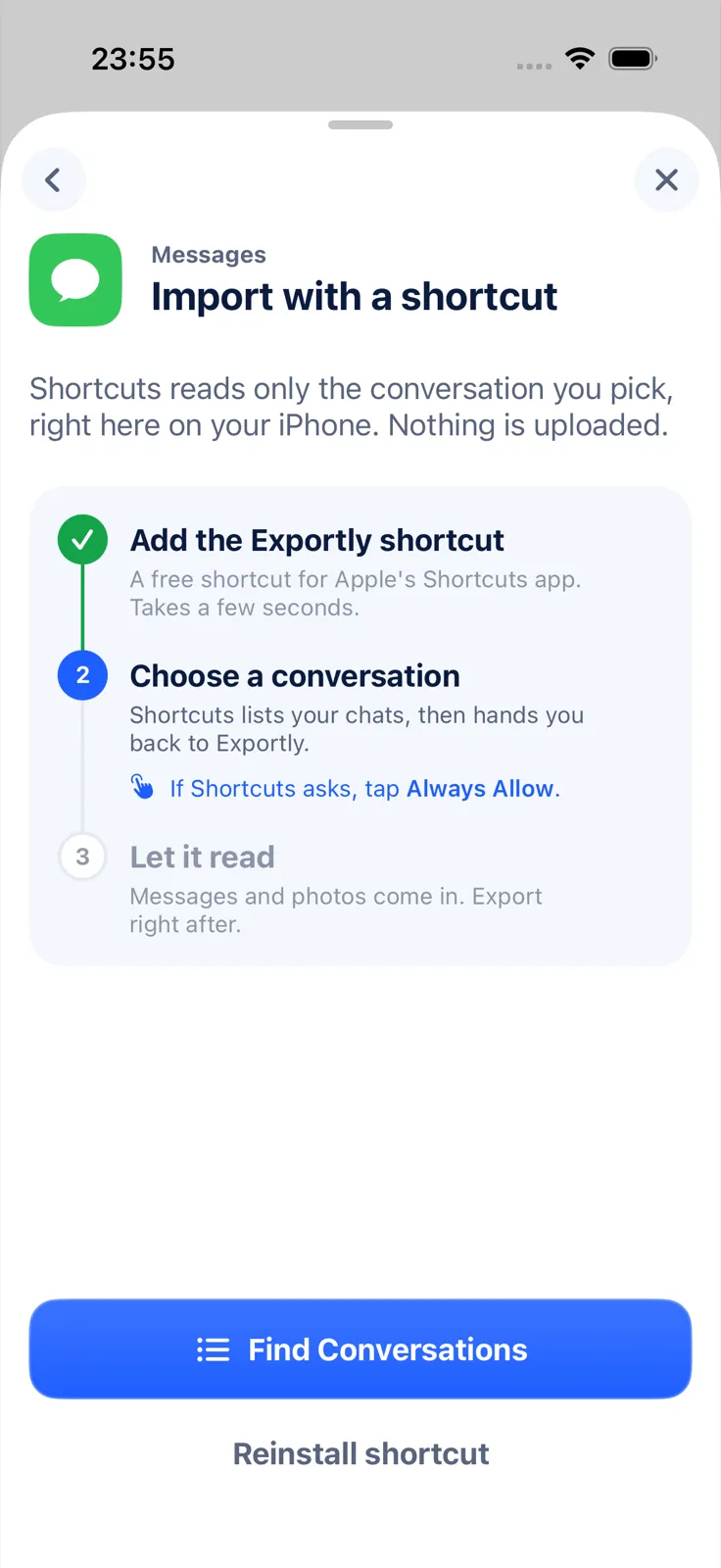
What it doesn’t do: it doesn’t save pictures to your photo library (use Save Photo for that), and it only brings in photos from Messages, not videos, voice messages or other files. Exporting the file needs Exportly Pro, with the price shown in the app before you subscribe; importing and previewing are free. The conversation and its photos are processed on your iPhone and never uploaded.
Questions people ask
How do I save all the photos from a text conversation at once?
Apple documents saving one photo or one stack at a time with Save Photo, and viewing them all under Photos in the conversation details. It doesn’t document a bulk save.
Where do photos from texts go when I save them?
To your photo library in the Photos app.
Why can’t I find old photos in a conversation?
If Keep Messages is set to anything other than Forever, older conversations and their attachments are removed automatically.
Can I keep the photos and the messages in one file?
Yes, with an export that includes photos, such as an Exportly PDF, Word or HTML file made with its shortcut.
For the complete set of export routes, see how to export text messages from iPhone. The shortcut itself is explained in how to export text messages with the Shortcuts app. If you’re saving photos to clear space, read how to free up Messages storage without losing chats.
Also available in: Deutsch · Español (México) · Français · Italiano · Português (Brasil) · Türkçe