
Free Up Messages Storage on iPhone Without Losing Chats
Messages storage on iPhone is mostly the conversations and the photos and videos inside them, and you can see how much it uses in Settings > General > iPhone Storage. To free up space without losing anything that matters, save a copy of the conversations and photos you want to keep first, then delete attachments or whole conversations. One warning before you start: if Messages in iCloud is on, anything you delete on your iPhone is deleted on your other Apple devices too.
Step 1: See how much space Messages uses
- Open Settings > General > iPhone Storage.
- Look at the recommendations at the top, then the list of apps sorted by how much space they use.
- Tap Messages for details.
Apple describes the Messages category as “Messages and their attachments” (Apple: Check storage on iPhone; Apple: Manage storage). Because attachments count too, you can often free space by clearing them without deleting the conversations themselves.
Step 2: Save what you want to keep, before deleting anything
Deleting is easy to undo for 30 days and hard to undo after that. Take a few minutes first.
Photos. Open the conversation and tap the Save Photo button next to each photo or stack you want to keep in your library (Apple: Share photos and more in Messages).
Conversations. Decide which chats you’d regret losing: a family member, a contract, a dispute, a job. For those, make a copy that lives outside Messages:
- Screenshots for a short exchange.
- A PDF from a Mac, with Messages in iCloud on: File > Print, then the PDF menu (Apple, macOS Sequoia guide).
- An exported file made on the iPhone. Exportly, which we make, saves a conversation as a PDF, Word, Excel, CSV, Text or HTML file you keep in Files. On iOS 26 or later, its free shortcut brings in text and photos; on older versions, Record & scroll reads the chat from a screen recording, for English or Turkish text. Photos the shortcut imports are included in PDF, Word and HTML files, so the pictures stay with the conversation after you delete them from Messages.
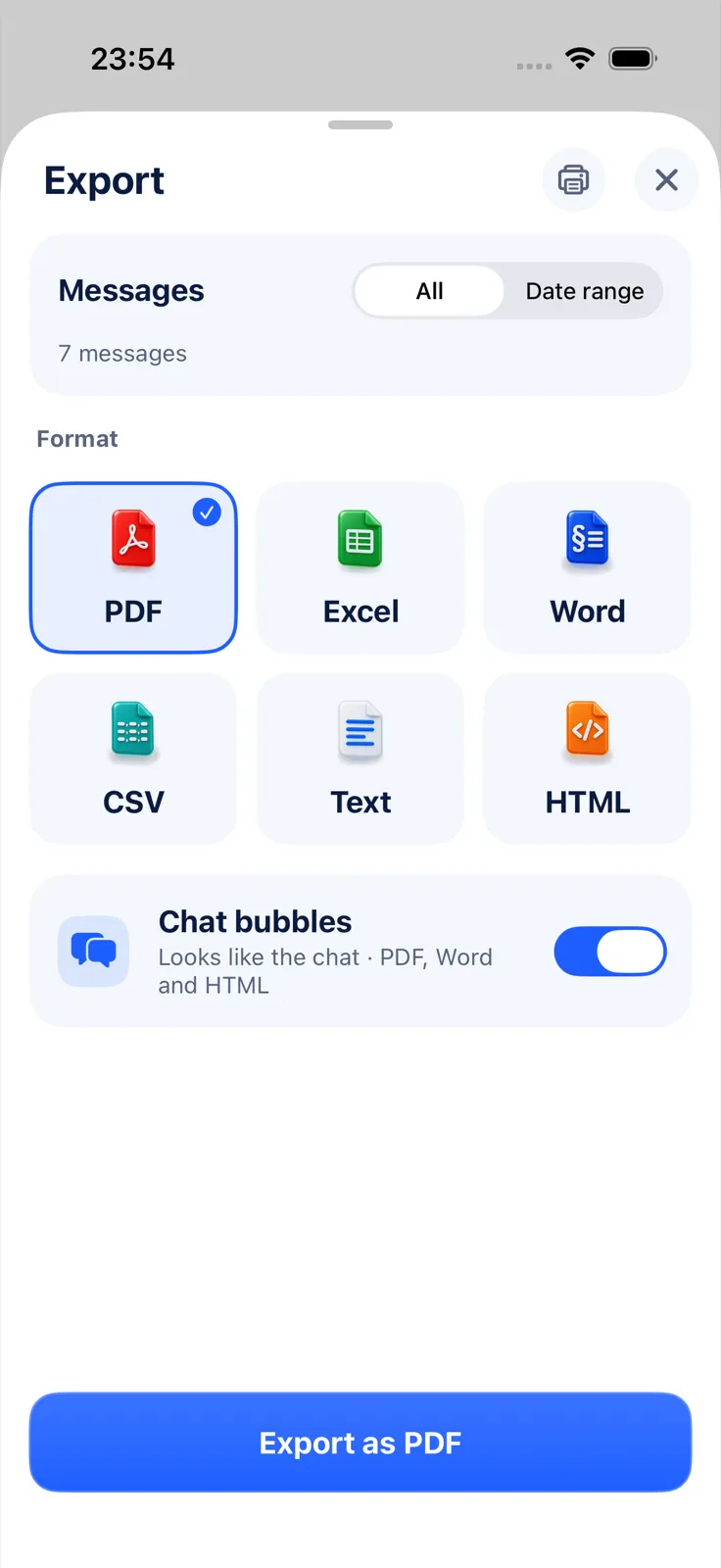
Saving these files needs Exportly Pro; the weekly or yearly price is shown in the app before you buy. An exported file is a copy to read, not a backup: it can’t be put back into Messages.
A backup. An iPhone backup is a safety net if you delete too much (Apple: Back up iPhone). Note that messages are part of iCloud Backup only when Messages in iCloud is off (Apple: What iCloud backs up).
Step 3: Delete attachments but keep the texts
This removes photos, videos and other files from a conversation while the messages stay.
- Open the conversation and tap the contact’s or group’s icon at the top.
- Tap a category such as Photos. You can use Filter to show only screenshots, videos or photos.
- Tap Edit, then Select, choose the items, tap Delete, and confirm.
Source: Apple: Delete messages and attachments. Start with the conversations where people send the most photos and videos.
Step 4: Delete old conversations you don’t need
- One conversation: swipe left on it in the list and tap Delete, or touch and hold it and tap Delete.
- Several at once: tap Edit, then Select Messages, choose them and tap Delete.
Deleting only affects your own devices; the other people keep their copy.
If you deleted something by mistake
Deleted conversations stay in Recently Deleted for up to 30 days. In Messages, tap the Filter button, then Recently Deleted, select what you need and tap Recover. Deleting from there is permanent; Apple’s prompt warns that it “can’t be undone” (Apple: Recover deleted messages).
Let your iPhone clean up automatically, or not
Settings > Apps > Messages > Keep Messages controls automatic deletion. Any choice other than Forever removes conversations and attachments once they’re older than that period. It saves space without effort, but it doesn’t ask which conversations matter. If you choose it, export the important ones first.
Questions people ask
How do I see how much space Messages uses?
Go to Settings > General > iPhone Storage and find Messages in the list.
Can I delete photos in a chat but keep the texts?
Yes. Tap the contact icon, tap Photos, then Edit > Select, choose the photos and tap Delete.
Will deleting on my iPhone delete messages on my Mac?
Yes, if Messages in iCloud is on. Deletions apply to every device that uses it.
Can I undo a delete?
Within 30 days, from Recently Deleted. After that, only by restoring a backup made before the deletion.
For every way to copy a conversation out of Messages, see how to export text messages from iPhone. To make sure nothing expires on its own, read how to save text messages on iPhone, and for keeping pictures, how to save pictures from text messages.
Also available in: Deutsch · Español (México) · Français · Italiano · Português (Brasil) · Türkçe