
How to Open an Exported WhatsApp Chat on iPhone
A WhatsApp chat export is a ZIP file, so your iPhone can’t show it as a conversation straight away. To open an exported WhatsApp chat, save it to the Files app, touch and hold it and tap Uncompress: you get a folder with the chat as a text file plus any photos and media you included. The text is readable but raw; to see it as a conversation again, open the ZIP in an app that understands WhatsApp exports.
What’s inside a WhatsApp export file?
The export is a compressed archive with the conversation as text and, if you chose to include them, the media files. WhatsApp’s help article says the chat history “will be exported as a ZIP file” and that it can’t be imported back into WhatsApp “because it’s a text file and not a backup file” (WhatsApp Help Center).
That has two practical consequences:
- It’s a copy for reading, not a backup. You can’t restore the chat from it or open it inside WhatsApp again.
- Some messages are never in it. WhatsApp leaves out messages sent as view once.
Step 1: Save the export to the Files app
If someone sent you the ZIP, save it from Mail or Messages to Files. If you’re exporting it yourself:
- Open the individual or group chat in WhatsApp.
- Tap the contact’s name or the group name, then Export chat.
- Choose With all media, With selected media… or Without media, if the chat has media.
- Choose Save to Files and pick a folder.
Source: WhatsApp Help Center.
Step 2: Unzip it in Files
The Files app can open ZIP archives without any extra app.
- Open the Files app and go to the folder where you saved the export.
- Touch and hold the ZIP file, then tap Uncompress (Apple: Organize files and folders on iPhone).
- Open the new folder. Tap the text file to read the conversation; photos, videos and voice notes are separate files next to it.
Why the text file is hard to read
The text file is a log, not a chat screen. Each message is a line of text with the date, time and sender in front of it, with no bubbles and no indication of which side of the conversation you were on. Photos and other media aren’t shown where they were sent; they sit in the folder as separate files, and the text only refers to them. In a long chat or a busy group, finding a specific exchange means a lot of scrolling through dense text.
That’s fine if you only need to check a date or copy a few lines. If you need to read the conversation properly, print it or send it to someone, it helps to turn it back into something that looks like a chat.
Open it as a readable conversation with Exportly
Exportly is an iPhone app that opens WhatsApp’s export file (.zip or .txt) and shows it as a conversation, with the photos in place if you exported with media. Opening and reading it costs nothing. We make Exportly, so weigh that alongside the free Files method above.
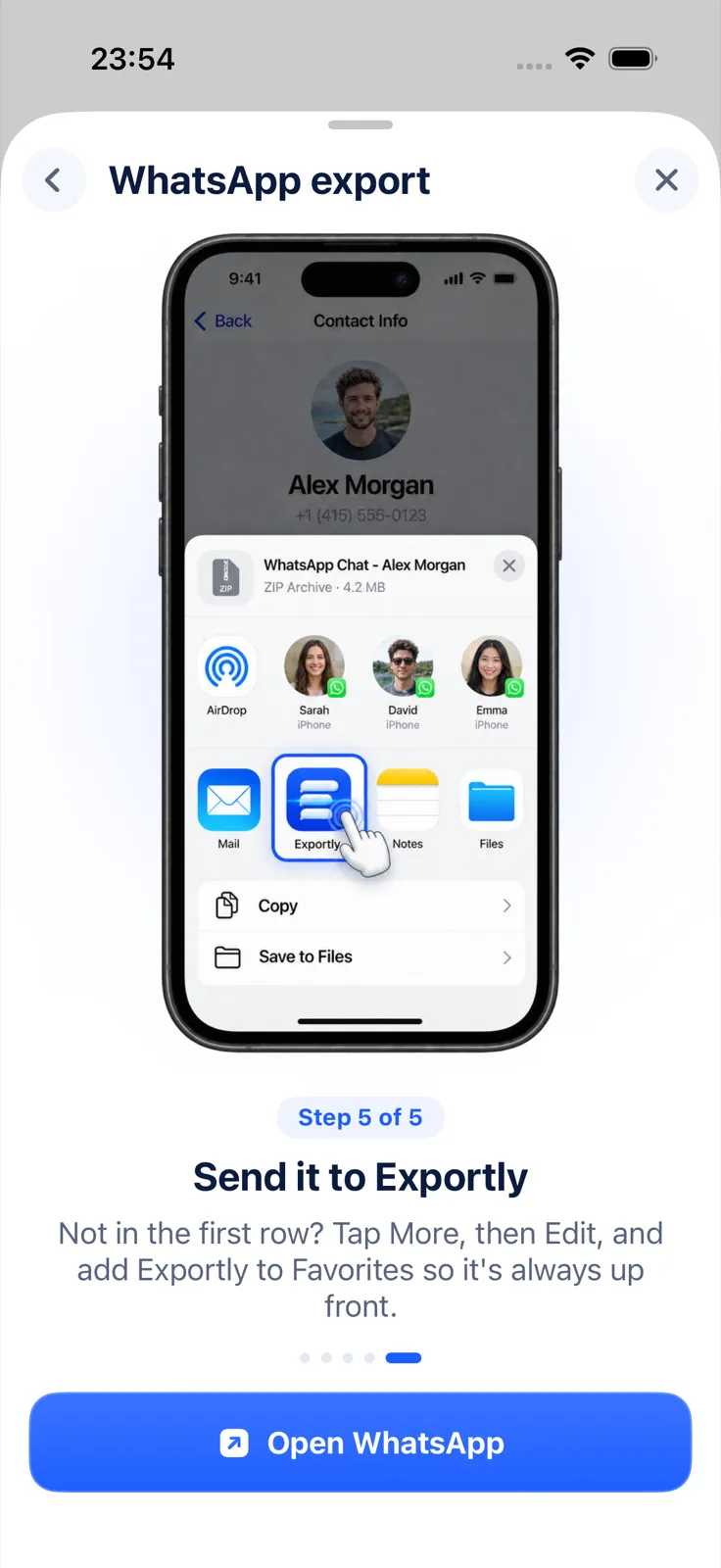
You can open the export two ways:
- Straight from WhatsApp: at step 4 above, tap Exportly in the share sheet instead of Save to Files. If it isn’t in the first row, tap More, then Edit, and add it to your favorites.
- From the Files app: touch and hold the ZIP you saved, tap Share, then choose Exportly. There’s no need to uncompress it first.
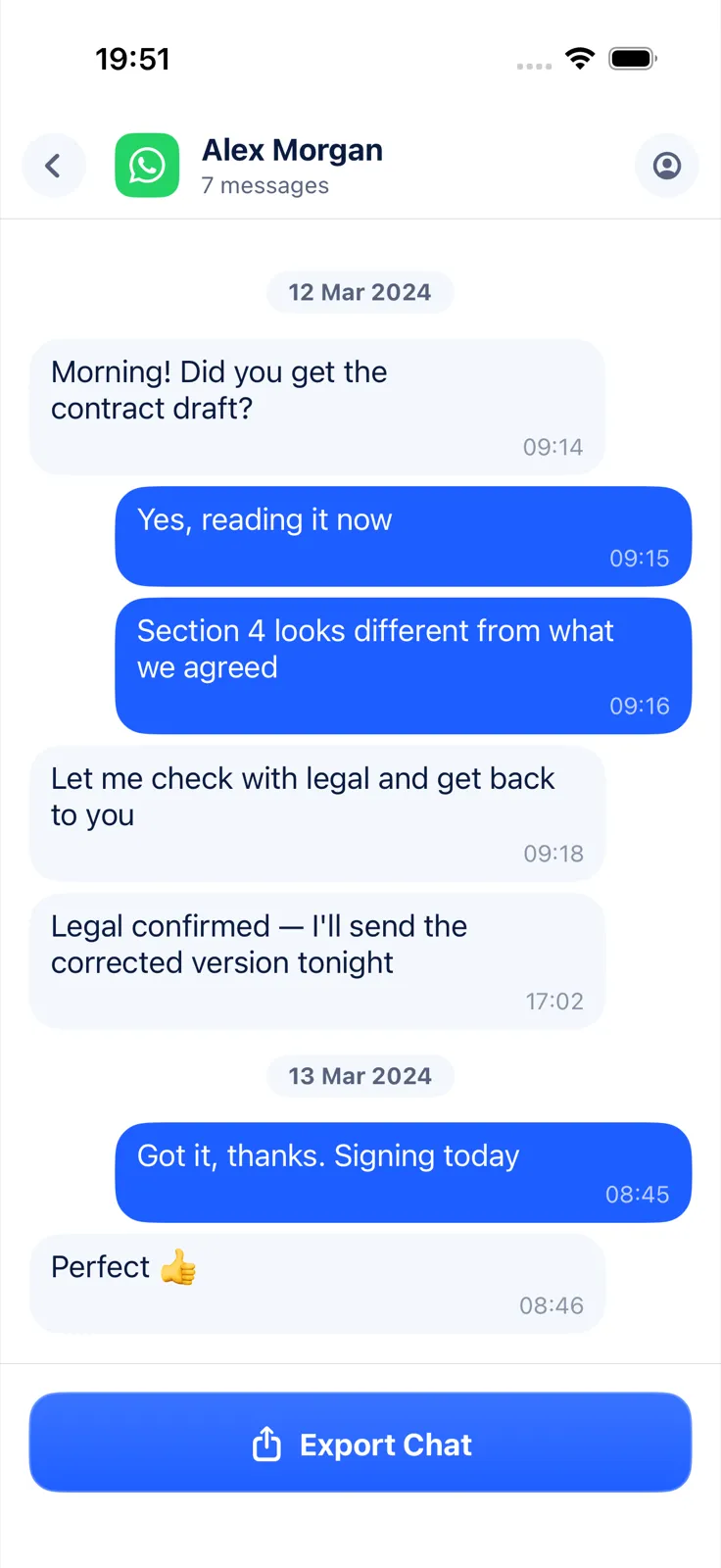
The chat opens as bubbles with names, dates and times, laid out like it was in WhatsApp. Exportly reads both iPhone and Android export layouts. Everything happens on your iPhone; the chat is never uploaded.
If you then want a file, Exportly exports PDF, Word, Excel, CSV, Text or HTML. That step needs Exportly Pro, a weekly or yearly subscription whose price is shown in the app before you buy.
Which way should you open it?
Choose by what you need to do with the chat.
| Method | Cost | What you see | Best for |
|---|---|---|---|
| Files app, Uncompress | Free | A raw text file and a folder of media | Checking a date, copying a few lines |
| A text editor on a computer | Free | The same raw text, on a bigger screen | Searching a long chat |
| Exportly | Free to open and read; export needs Pro | The chat as bubbles, photos in place | Reading it properly, then saving as PDF, Word or Excel |
If your goal is a printable document, see how to export a WhatsApp chat to PDF or how to print WhatsApp messages.
Questions people ask
Can I open the export back in WhatsApp?
No. WhatsApp says the exported chat can’t be imported back because it’s a text file, not a backup.
Where are the photos in my WhatsApp export?
In the same ZIP, as separate files, if you chose to include media when exporting. If you picked Without media, there are no photos to find. See how to export a WhatsApp chat with media.
Why does nothing happen when I tap the ZIP file?
A ZIP is an archive, not a document. Touch and hold it in Files and tap Uncompress, or share it to an app that reads WhatsApp exports.
Can I open a WhatsApp export from an Android phone on my iPhone?
Yes. Save the file to Files on your iPhone; if it arrived as a ZIP, uncompress it there. Exportly also reads exports made on Android.
Also available in: Deutsch · Español (México) · Français · Italiano · Português (Brasil) · Türkçe