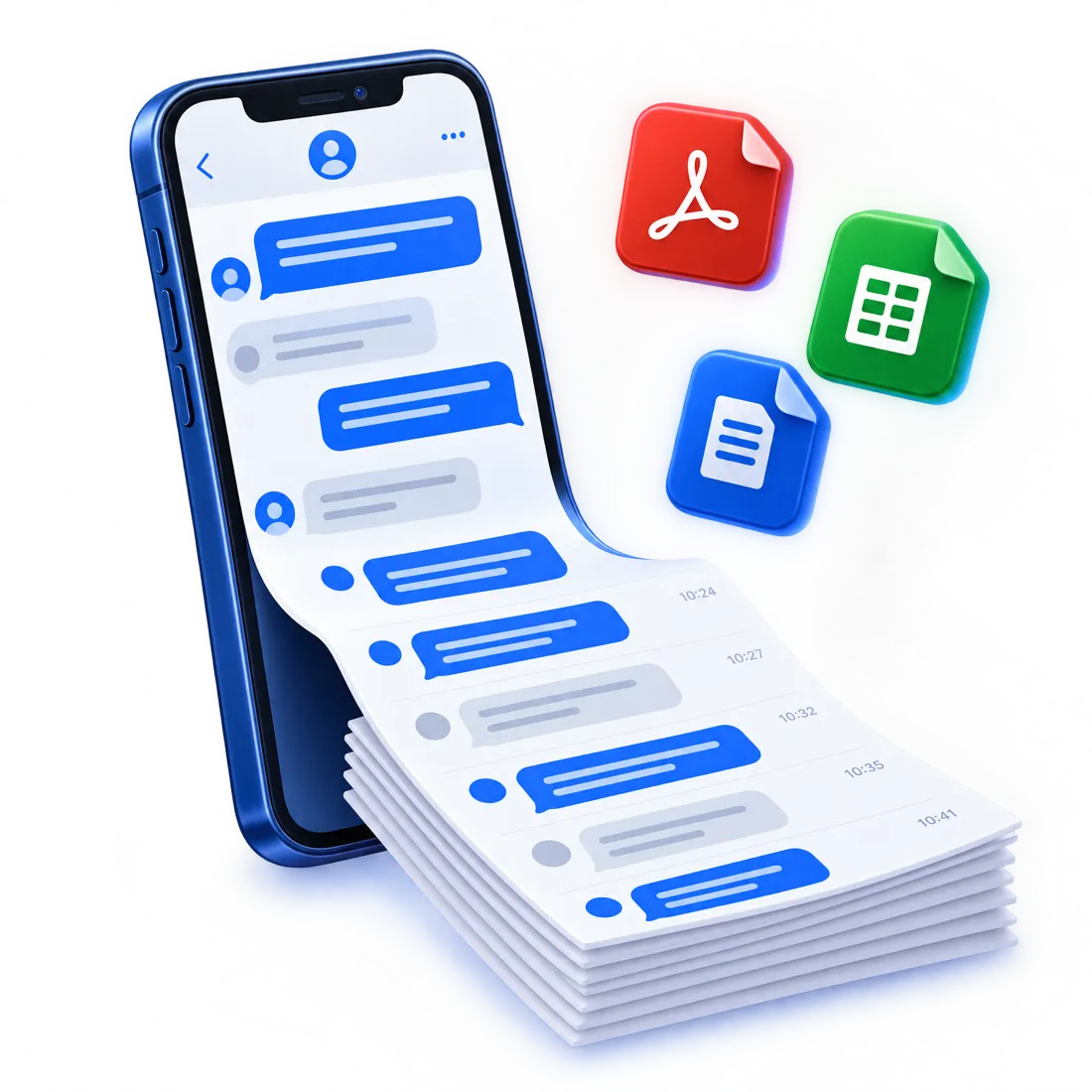
To show timestamps on iPhone messages, swipe left on any message bubble in the conversation: the send or receive time of every message slides in from the right edge. Apple’s own tip reads: “Swipe left on the message bubble to see timestamps for all messages in the conversation” (Apple: Send and reply to messages on iPhone, checked November 2026). Let go and they slide back out of view.
See the time of each message
- Open Messages and go to the conversation.
- Put a finger on a message bubble and swipe left, keeping your finger on the screen.
- Read the times at the right edge. Every message on screen gets one, yours and theirs.
- Scroll to other parts of the conversation and swipe again to check those.
Can you keep timestamps on screen all the time?
No. Apple’s iPhone User Guide describes the swipe and doesn’t describe any setting that keeps a time next to every bubble. The times are part of the conversation the whole time; Messages just keeps them tucked away until you swipe.
That’s fine for a quick check, and awkward when you need the times to stay visible, for example in something you plan to send to someone or keep.
Why this matters when you screenshot or forward
Two common ways of sharing texts lose the per-message times.
- Screenshots capture the conversation as it normally looks, with the times hidden.
- Forwarded messages arrive as new messages. Apple notes that to show “the message bubbles and timestamps just as they appear in a conversation”, you should send a screenshot instead of forwarding (Apple: Forward messages on iPhone), which brings you back to the first problem.
So if every message needs its time next to it, a different kind of copy is needed.
Get a copy with the date and time on every message
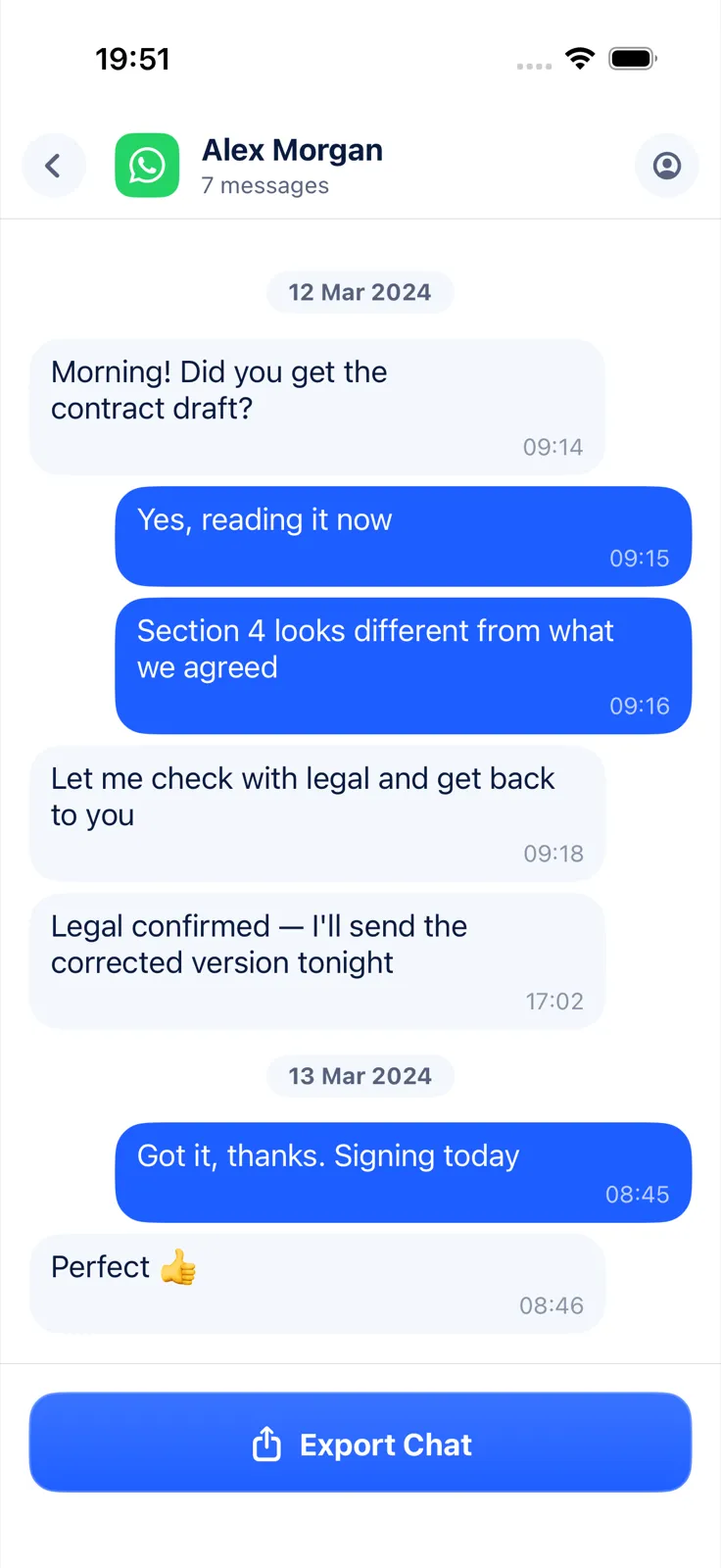
An exported file writes the timestamp next to each message, permanently. We make Exportly, an iPhone app that does this, and this is what its files contain:
| Format | Where the date and time appear |
|---|---|
| PDF, chat bubbles | The time inside each bubble, with a date line between days |
| PDF or Word, plain text | Sender, date and time on the line above each message |
| Excel or CSV | Separate Date and Time columns, one row per message |
To make one:
- In Exportly tap Import a Chat, choose Messages, then Exportly Shortcut. The shortcut needs iOS 26 or later.
- Pick the conversation and a range, from Last 3 months to Everything (slowest).
- Open the imported chat. The preview already shows the time in each bubble.
- Tap Export Chat and choose a format.
Importing and previewing are free. Exporting, sharing and printing need Exportly Pro, a weekly or yearly subscription with the price shown in the app before you buy. The conversation is processed on your iPhone and never uploaded.
Other ways to get such a copy, including Mac and PC software, are compared in how to export text messages from iPhone. If the goal is paper, see printing text messages with date and time, and for a plain written record, making a text message transcript.
Questions people ask
Why is there no timestamp on my iPhone messages?
The times are hidden by design. Swipe left on a bubble and hold to reveal them for all messages on screen.
How do I see the exact time a text was sent?
Swipe left on the conversation. The time at the right edge of each bubble is when that message was sent or received.
Can I turn on timestamps permanently?
Apple’s guide describes no such setting. For a version of the conversation where every message always shows its date and time, export it to a PDF or spreadsheet.
Do the times show in a screenshot?
A normal screenshot shows the conversation with the times hidden. An exported PDF keeps the time on every message.