To print text messages with the date and time from an iPhone, print an exported copy of the conversation instead of screenshots. Messages hides each message’s time until you swipe left on a bubble, so a normal screenshot shows no time next to the individual messages. An export, made by desktop software or an iPhone app, writes the date and time beside every message and keeps them there on paper.
We make Exportly, one of the apps described below. The other options are described from their developers’ own pages, checked in November 2026.
Why screenshots don’t show the time of each message
Apple’s guide explains where the times are: “Swipe left on the message bubble to see timestamps for all messages in the conversation” (Apple: Send and reply to messages on iPhone). They appear only while you hold the swipe. Forwarding the messages to yourself doesn’t help either: Apple says forwarded messages don’t keep the bubbles and timestamps as they appear in the conversation (Apple: Forward messages on iPhone).
Screenshots are still fine for a handful of messages where the day matters more than the minute. The general printing routes, including screenshots with AirPrint, are in how to print text messages from iPhone.
Three ways to get the date and time on every message
| Route | What you need | How times appear | Cost |
|---|---|---|---|
| Desktop software (iMazing, Decipher TextMessage) | A Mac or Windows PC and a backup of the iPhone | Set by the program’s print or PDF options | Paid |
| iPhone app (Exportly, TextPort) | Only the iPhone | Written beside each message in the file | Subscription to export |
| Messages on a Mac | A Mac signed in to the same Apple Account | Check the print preview before printing | Free |
1. Desktop software
Programs that read an iPhone backup on a computer are the long-standing route.
- iMazing exports conversations to PDF in the Messages layout and to Excel, CSV and text, and its print options include “Page numbers and timestamp” (iMazing). It is sold as a subscription.
- Decipher TextMessage saves and prints messages from a backup on Mac or Windows, exports to PDF with photo and video attachments, and is listed at $29.99 with no subscription (Decipher Tools).
Both handle very long histories and attachments. Both need a computer and a backup first.
2. An iPhone app
Exportly imports the conversation on the phone and produces the file there.
- Tap Import a Chat, choose Messages, then Exportly Shortcut. It needs iOS 26 or later; see exporting text messages with the Shortcuts app.
- Pick the conversation and a range, from Last 3 months to Everything (slowest).
- Open the chat and tap Export Chat.
- To print only part of it, set Messages to Date range and choose From and To.
- Choose PDF and a layout, then print from the export sheet to an AirPrint printer, or save the PDF and print it elsewhere.
What ends up on paper:
- Chat bubbles layout: the time inside every bubble, a date line wherever a new day starts, your messages on the right.
- Plain text layout: the sender’s name, date and time on the line above each message.
- Every PDF: A4 pages with the chat’s title and date range on page 1 and “Page X of Y” at the bottom of each page.
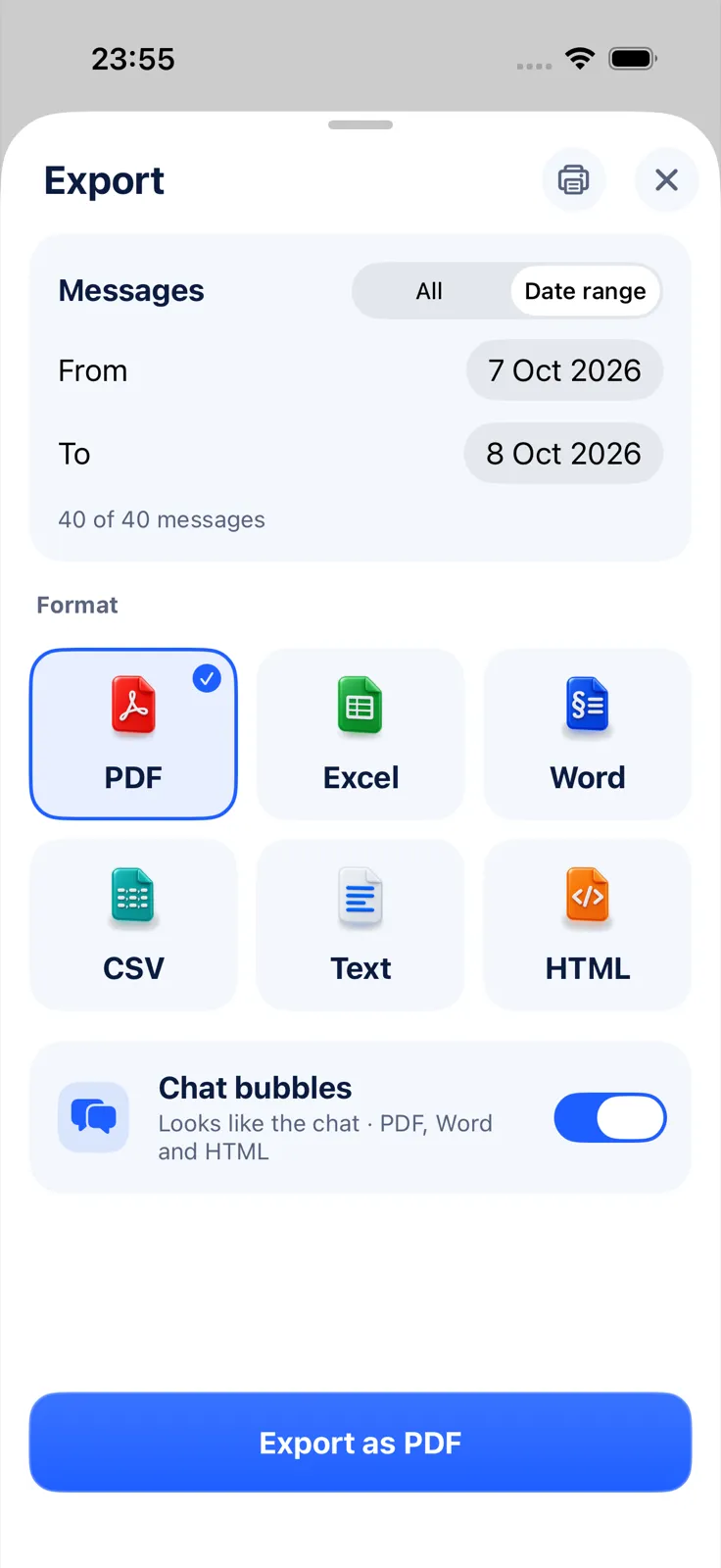
Importing and previewing are free. Exporting and printing need Exportly Pro, a weekly or yearly subscription with the price shown in the app before you buy. The conversation is processed on your iPhone and never uploaded.
TextPort is another iPhone app for this; its App Store listing describes a “print-ready, timestamped PDF” and says a subscription is required to export (App Store). More apps are compared in the best apps to export text messages on iPhone.
3. Messages on a Mac
If your texts sync to a Mac, the Messages app there can print a conversation or save it as a PDF from File > Print (Apple: Print or create a PDF of a conversation). It prints what the conversation window shows, so look at the preview and confirm the times you need are there before you print a long conversation.
Check the printout before you rely on it
- Compare the first and last pages with the conversation on your phone: same messages, same dates.
- Make sure each page shows who sent each message, not only the text.
- Times are printed in your phone’s time format. If the reader is in another time zone, say which zone the times are in.
- Keep the original conversation on your iPhone. A printout is a copy.
If the printout is for a lawyer, a court or an employer, ask them which format they need before you print; requirements differ and no app can promise that a document will be accepted.
Questions people ask
How do I get the date and time to show on printed text messages?
Print an exported PDF instead of screenshots. An export writes the date and time next to every message.
Can I print text messages with timestamps for free?
Screenshots are free but hide per-message times. Messages on a Mac prints for free if your texts sync to it. iPhone apps and desktop programs that add a time to every message charge for exporting.
Can I print only the messages from certain dates?
Yes. In Exportly choose Date range in the export sheet. Details are in exporting text messages from a date range.
Do I need a computer?
No. An iPhone app can make the PDF and send it to an AirPrint printer. Desktop programs are the stronger choice for a full history with all attachments.