You can’t see how many messages you have with someone on iMessage inside the Messages app: it shows no counter for a conversation, in the chat or in its details. To get the number, the conversation has to be read by something that counts it. On an iPhone, the short way is to import the conversation into an export app, which shows the total as soon as the import finishes.
We make Exportly, the app used in the steps below. Seeing the total is free; the per-person breakdown in Excel needs a paid export, and that’s marked where it applies.
What your iPhone shows on its own
The iPhone reports how much space Messages takes, not how many messages there are. Under Settings > General > iPhone Storage > Messages you see how much storage your conversations and their attachments use, which is useful for cleaning up (how to free up Messages storage) but says nothing about message counts.
Search doesn’t help either. Apple’s search in Messages finds messages by word, person or type of shared item, and doesn’t return a total for a conversation (Apple: Search in Messages on iPhone).
Get the total for one conversation
Exportly imports a Messages conversation through its shortcut for Apple’s Shortcuts app and counts the messages it receives.
- Install Exportly and tap Import a Chat. Choose Messages, then Exportly Shortcut. The shortcut needs iOS 26 or later; the first-time setup is described in exporting text messages with the Shortcuts app.
- Choose the conversation.
- Choose the range. For a lifetime total pick Everything (slowest); the other choices are Last 3 months, Last year and Last 3 years.
- When Shortcuts asks for permission, tap Always Allow so the import runs to the end.
- Open Exportly. The conversation appears in the Chats list with its number of messages and the dates of the first and last one. The same number is shown under the name when you open the chat.
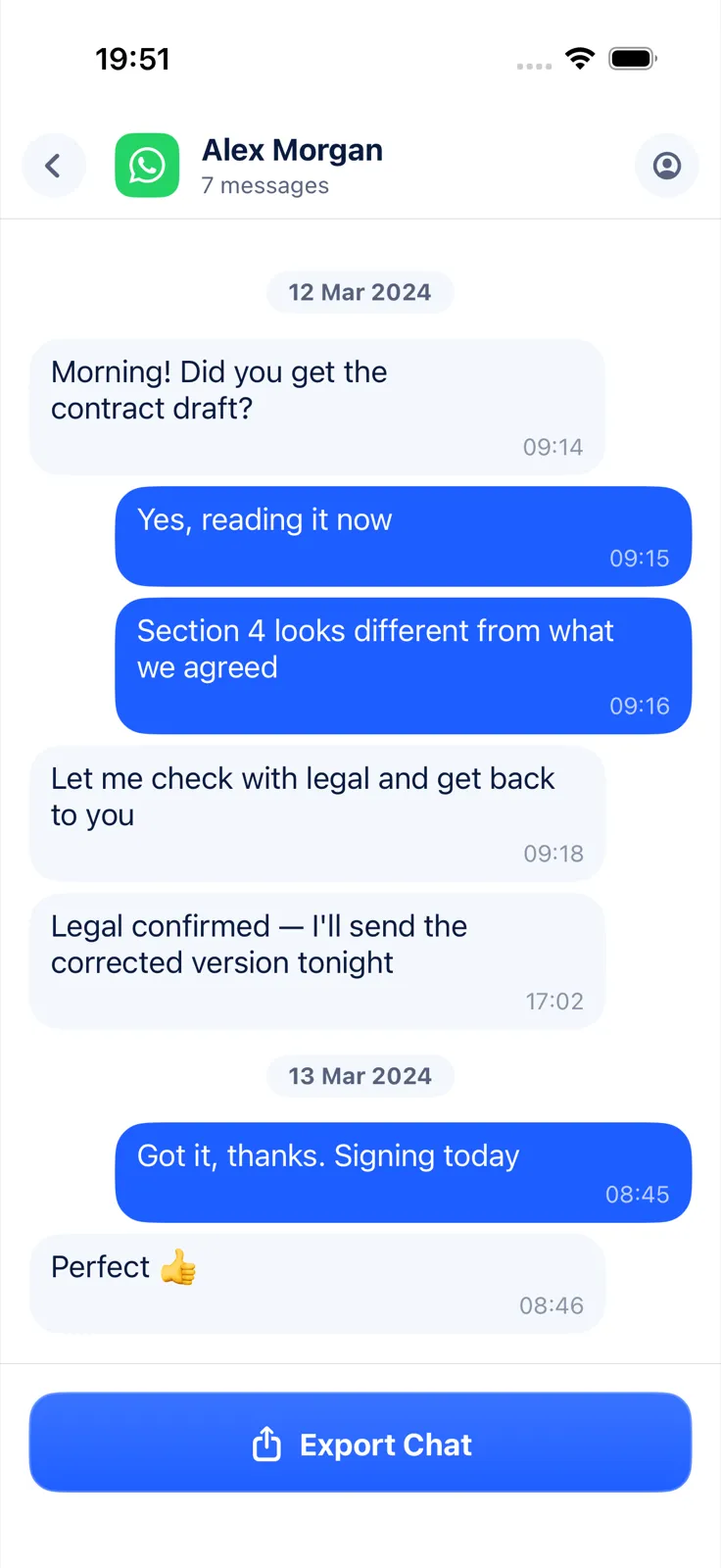
Importing and previewing are free, so you can stop here if the total is all you wanted. The conversation is processed on your iPhone and never uploaded.
Count a single month or year
The export sheet counts any period for you before you export anything.
- Open the chat and tap Export Chat.
- Under Messages, choose Date range.
- Set From and To.
The sheet shows how many of the chat’s messages fall inside those dates, for example the messages from one year or from the month you met.
See how many messages each person sent
A per-person count needs the messages in a spreadsheet, one row per message.
- In the export sheet choose Excel and export. This step needs Exportly Pro, a weekly or yearly subscription with the price shown in the app before you buy.
- Open the file in Excel or Numbers. The columns are Date, Time, Sender, Message and Attachment.
- Count rows per sender with
=COUNTIF(C:C,"Name"), using the name exactly as it appears in the Sender column.
For messages per month, busiest hours and a PivotTable, the formulas in analyzing a WhatsApp chat in Excel work unchanged, because the columns are the same. More on the spreadsheet itself is in exporting text messages to Excel.
What the number includes
The count is the number of messages the shortcut handed over for the range you chose, so read it with these limits in mind:
- Deleted messages aren’t counted. Only what’s in the conversation on your iPhone now is imported. If Keep Messages is set to 30 days or 1 year, older messages were already removed.
- The range matters. A total from Last year is that year’s total, not the whole history.
- Older iPhones. The shortcut doesn’t run before iOS 26. On older versions Exportly can read a screen recording or screenshots of the chat instead, which is slow for a long history.
What about WhatsApp and other apps?
For WhatsApp, export the chat with WhatsApp’s own Export chat and share the file to Exportly; the total appears the same way. The steps are in exporting a WhatsApp chat to PDF.
Questions people ask
Does iPhone show how many texts you’ve sent to someone?
No. The Messages app has no counter, and iPhone Storage shows sizes, not message counts.
Can I see the count without paying?
Yes. In Exportly, importing and previewing are free, and the total is shown on the imported chat. Exporting to Excel for a per-person count needs Exportly Pro.
Why is my count lower than I expected?
Check the range you imported and your Keep Messages setting. Messages that were deleted, or removed automatically after 30 days or 1 year, can’t be counted.
Does this work for group chats?
Yes. A group conversation is imported the same way, and in the Excel file each row carries the sender’s name, so COUNTIF gives a count per person.