
How to Keep a Record of WhatsApp and Text Work Chats
To keep a record of a WhatsApp or text work chat, export the conversation regularly into files you control and store them in one place, named by client and period. WhatsApp’s Export chat saves any chat as a file. On iPhone, setting Keep Messages to Forever stops texts from expiring. Before any of that, check your employer’s or client’s policy: it may require a specific system or forbid personal copies.
This is a practical guide, not legal advice. Retention rules, consent and what counts as an official record depend on your company and local law, so ask HR or your legal team when it matters.
Start with the policy
Many workplaces have rules about where work conversations live and who may keep copies. Check three things:
- Is there an official system? If your company archives WhatsApp, Teams or email itself, your own copy may be unnecessary or not allowed.
- Can you keep personal copies? Some policies forbid storing client data on personal devices.
- How long must records be kept, and when deleted? A record kept too long can be a problem too.
If you work for yourself, your accountant or lawyer can tell you what records are worth keeping.
Stop work texts from expiring on iPhone
Your iPhone may delete old conversations automatically. To keep them:
- Open Settings > Apps > Messages.
- Under Message History, tap Keep Messages and choose Forever.
Apple says any other option removes conversations, including attachments, after that period (Apple: Delete messages and attachments on iPhone). If you use Messages in iCloud, remember that deleting a conversation on one device deletes it everywhere (Apple: Set up Messages on iPhone).
A setting isn’t a record, though. The conversation still lives only in Messages, which is why a regular export is worth the few minutes.
Export a WhatsApp work chat
WhatsApp’s own export is free and works for individual and group chats.
- Open the chat and tap the contact’s or group’s name.
- Tap Export chat.
- Choose With all media, With selected media… or Without media. Include media if photos of receipts, signed forms or site photos are part of the record.
- Choose Save to Files.
WhatsApp saves the chat as a ZIP file. View once messages aren’t included, and the file can’t be imported back into WhatsApp (WhatsApp Help: How to export your chat history). For the WhatsApp Business app, see our guide on exporting a WhatsApp Business chat.
The ZIP is complete but hard to read, and hard to search across months. The next step turns it into files you can file.
Turn each period into a PDF and an Excel log
A routine that works for many people: once a month, export last month’s messages for each client or project as two files.
- A PDF to read and share. Choose plain text rather than chat bubbles, so each message is headed with the sender, date and time. Pages carry “Page X of Y”.
- An Excel file as a log. One row per message, with Date, Time, Sender, Message and Attachment columns, so you can filter by sender or search for “invoice” or “approved”.
Exportly makes both on your iPhone:
- Bring the chat in: share WhatsApp’s export file to Exportly, or for Messages use the Exportly Shortcut (iOS 26 or later), with a range such as Last 3 months.
- Tap Export Chat. Under Messages, choose Date range and set From and To to the period you’re filing, such as September 1 to September 30.
- Choose PDF with Chat bubbles off, tap Export as PDF and save it to Files.
- Open the export sheet again, choose Excel, and save that too.
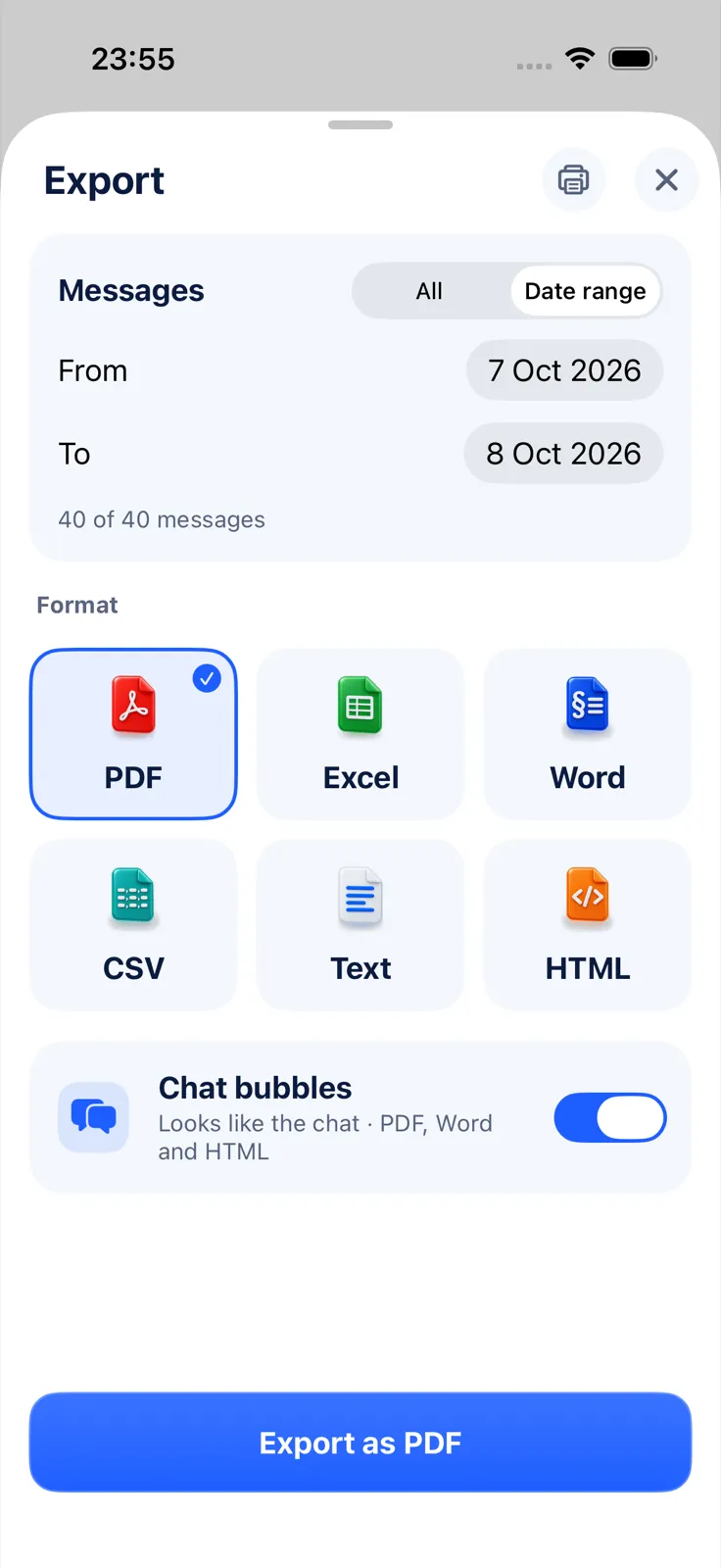
Two details about the Excel file: dates are written as text (2026-09-14) and times in 24-hour form (16:05). They sort correctly as they are, but convert them to Excel dates before doing date arithmetic. Photos aren’t in the spreadsheet, only their file names; they are in the PDF if the import had them. Our guide to exporting a WhatsApp chat to Excel covers filtering and sorting.
Importing and previewing are free; exporting, sharing and printing need Exportly Pro, a weekly or yearly subscription with the price shown in the app before you buy. Chats are processed on your iPhone and never uploaded. Exportly is a manual, one-chat-at-a-time tool: it doesn’t export on a schedule, sync, back up or recover deleted messages.
Name and file the records consistently
Exportly names each file after the chat title. When you save, add the period yourself so the files sort in order:
Client A – 2026-09.pdfClient A – 2026-09.xlsxSite crew group – 2026-Q3.pdf
Keep one folder per client or project, in Files or wherever your company keeps documents. Don’t overwrite last month’s file; add the new one next to it. When a dispute comes up, the month you need is easy to find.
Chats in other work apps
Teams, Slack and similar apps have their own export routes, usually run by an admin. See how to export a Microsoft Teams chat for an example. On iPhone, Exportly’s Record & scroll can capture a chat in any app from the screen, in English and Turkish only, but check your policy first. For exporting one stretch of time from Messages, see how to export text messages from a specific date range. If you also keep personal conversations, our guide to making a text message book covers the keepsake side.
Questions people ask
How do I save WhatsApp messages for business records?
Use WhatsApp’s Export chat (with or without media) and save the ZIP to Files. For a readable record, convert it to a PDF or an Excel log.
How often should I export work chats?
Whatever your policy says. Without one, a monthly export per client is easy to keep up and keeps each file a manageable size.
Is an exported chat an official business record?
That depends on your company’s policy and local rules. Ask your HR or legal team. An export is a copy; keep the original conversation too.
Also available in: Deutsch · Español (México) · Français · Italiano · Português (Brasil) · Türkçe