
How to Export LINE Chat History
LINE can export chat history on iPhone by itself: open the chat, tap the menu icon at the top, tap Settings > Export chat history and choose how to send the file. You get the conversation as a text (.txt) file (LINE Help Center). That file is for reading, not restoring: LINE says you can’t restore chat history from it. To move chats to a new phone, use LINE’s backup instead.
How to export LINE chat history on iPhone
This works on the main device, and the same steps work on an iPad or Android sub device.
- Open the chat you want to export.
- Tap the menu icon at the top, then Settings.
- Tap Export chat history.
- Choose how to send or save the file, for example to the Files app, Mail or another app.
Source: LINE Help Center. LINE’s page describes the result as a text file; it doesn’t say that photos, stickers or other media are included, so expect text only.
Export from LINE on a computer
LINE for Windows and Mac has a similar option under a different name: open the chat, click the menu icon at the top and choose Save chat. LINE notes that “only the messages that currently appear in the chat will be saved”, so older messages that aren’t showing may be left out (LINE Help Center). The feature works on every version of LINE except LINE for Chrome.
Back up LINE chats for a new phone
A text export can’t be restored, so for a phone change you need a backup. On iPhone, LINE’s Standard Backup uses iCloud Drive.
- Make sure iCloud Drive is on: open the iPhone’s Settings, tap your name, then iCloud.
- In LINE, go to the Home tab and tap the settings icon.
- Under Backup and transfer, tap Chat history backup, then Back up now. If you don’t see it, tap Create backup PIN and back up chat history.
- To back up automatically, set Back up how often.
Source: LINE Help Center. Standard Backup saves “only text messages”, works only between devices with the same operating system, and runs only on the main device.
Premium Backup goes further: it backs up text, photos, videos, files and voice messages, up to 100 GB, across iOS and Android. It’s only for LYP Premium members in Japan and LINE Premium members in Taiwan and Thailand, and the data is deleted after a 30-day grace period once the membership ends (LINE Help Center).
Text export or backup: which do you need?
They solve different problems.
| Export chat history | Standard Backup | Premium Backup | |
|---|---|---|---|
| What you get | A .txt file of one chat | A backup in iCloud Drive | A real-time backup for members |
| Photos and media | Not mentioned by LINE | No, text only | Yes |
| Can restore into LINE | No | Yes, same OS only | Yes, iOS and Android |
| Who can use it | Everyone | Everyone on iPhone | Japan, Taiwan, Thailand members |
If you want to read, keep or send a conversation, export it. If you want your chats back on a new phone, back up.
Want a PDF instead of a text file?
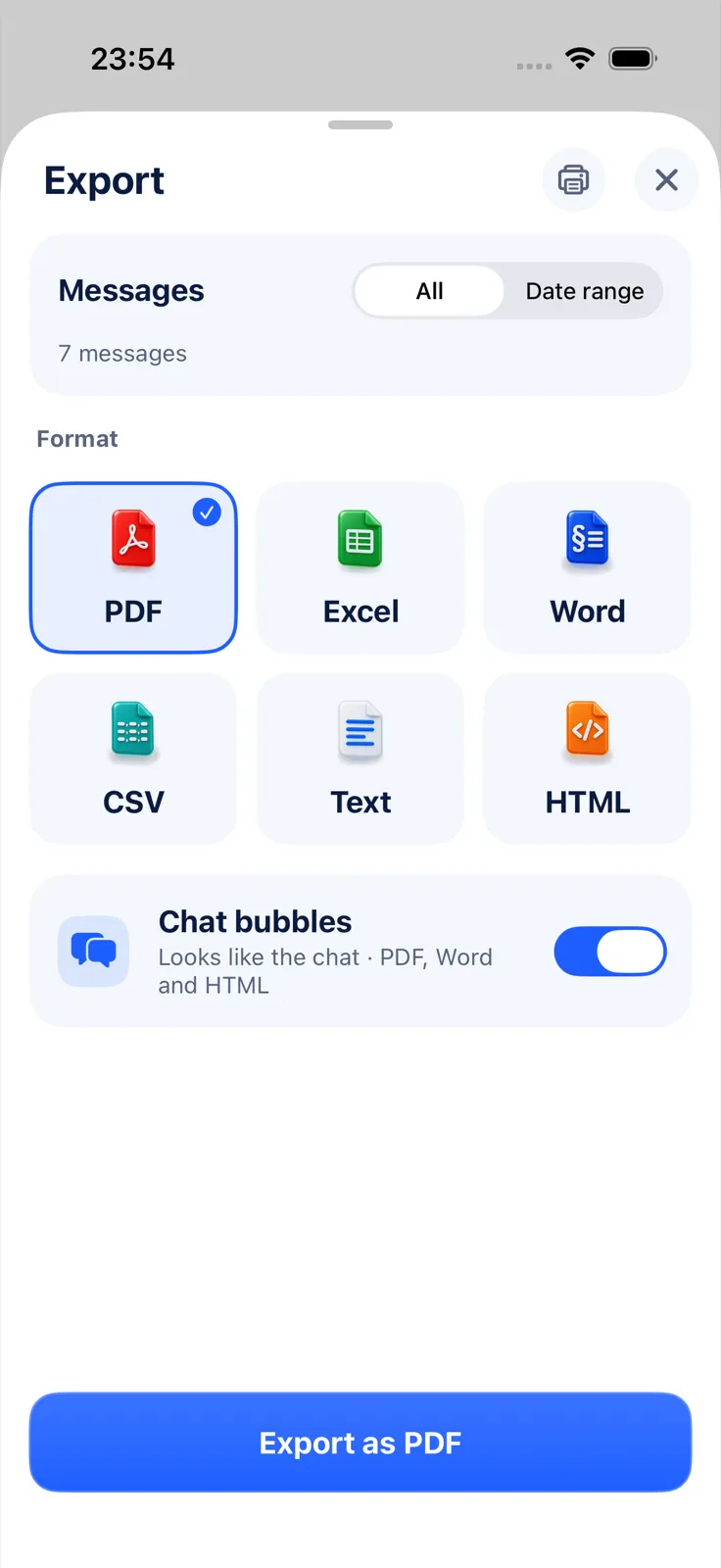
A .txt file is plain text with no layout. If you need the chat as a formatted document, Exportly, an iPhone app, can build one, but not from LINE’s text file: Exportly doesn’t import LINE’s export. Instead it reads a screen recording or screenshots of the chat.
- In Exportly, add a chat and choose LINE.
- Choose Record & scroll and scroll through the chat while recording, or From screenshots.
- Optionally type the other person’s name as the contact name; your messages show as “You”.
- Tap Export Chat and pick PDF (with chat bubbles or plain text), Word, Excel, CSV, Text or HTML.
The important limit: Exportly reads English and Turkish text only for now. LINE chats in Japanese, Thai, Chinese or Korean won’t come out correctly; for those, LINE’s own text export is the better option. Importing and previewing are free; exporting needs Exportly Pro (price shown in the app before you buy). The chat is processed on your iPhone and never uploaded.
To choose a format, see PDF vs Excel vs Word for chat exports. For WeChat, which has no text export, see how to export WeChat chat history. More apps are covered in how to export a Telegram chat on iPhone.
Questions people ask
How do I export a LINE chat on iPhone?
Open the chat, tap the menu icon at the top, then Settings > Export chat history, and choose where to send the .txt file.
Can I restore LINE chats from the exported text file?
No. LINE says chat history can’t be restored from a text file backup. Use Standard Backup or Premium Backup for that.
Does LINE Standard Backup include photos?
No, only text messages. Premium Backup, for members in Japan, Taiwan and Thailand, includes photos, videos, files and voice messages.
Can I export a LINE chat from a computer?
Yes. In LINE for Windows or Mac, open the chat, click the menu icon and choose Save chat. Only the messages currently shown in the chat are saved.
Also available in: Deutsch · Español (México) · Français · Italiano · Português (Brasil) · Türkçe