
How to Export a Telegram Chat on iPhone
The official way to export a Telegram chat is Export chat history, a Telegram Desktop feature: on a computer, open the chat, open the … menu and choose Export chat history, then save it as HTML or JSON, with photos and other media if you want them (Telegram blog). Telegram doesn’t document a chat export in its iPhone app. On an iPhone alone, the options are a screen recording or screenshots of the chat, which you can then turn into a document.
Export a Telegram chat with Telegram Desktop
If you have a Windows PC, Mac or Linux computer, this is the official and most complete route.
- Install the latest Telegram Desktop and log in with your account.
- Open the chat you want to keep.
- Open the … (more) menu and choose Export chat history.
- Choose what to include, such as photos and other media, and pick the format: HTML for a formatted page you can open in a browser, or JSON for machine-readable data.
Source: Telegram: Export chat history. To export everything in your account instead of one chat, go to Settings > Export Telegram data in Telegram Desktop.
On a Mac, pick the right app. Telegram’s FAQ says there are two official Mac apps. “Telegram Lite”, the macOS version of the multi-platform client, “can also be used to export your Telegram data and chats”. The other, “Telegram for macOS”, isn’t described as having an export (Telegram FAQ).
What a Telegram export can’t include
Two kinds of chats won’t come out through Telegram Desktop.
- Secret chats. Telegram says secret chats are device-specific, not part of the Telegram cloud, and “can only be accessed on their devices of origin”. A secret chat started on your iPhone can’t be exported from a computer (Telegram FAQ).
- Groups and channels with protected content. Owners can turn on Restrict Saving Content (in the group or channel info page, under the group or channel type). It restricts forwarding, “prevents screenshots and limits the ability to save media” (Telegram blog). Screenshots and recordings of those chats may not work either.
Can you export a Telegram chat on iPhone?
Not with a built-in option that Telegram documents. On the iPhone you can capture what’s on screen:
- Screenshots for a few messages: press and release the side button and the volume up button at the same time (Apple: Take a screenshot on iPhone).
- A screen recording for a long chat: start the iPhone’s screen recording, then scroll through the conversation.
About notifications: in Secret Chats, Telegram says it will “make every effort to alert you about screenshots”, and adds that detection isn’t bulletproof on some systems. It documents no alert for screenshots in normal cloud chats, and nothing about screen recordings (Telegram FAQ).
A recording or a pile of screenshots is still just images, though. To get a document you can search, print or send, the text has to be read out of them.
Turn a Telegram recording into a PDF with Exportly
Exportly is an iPhone app that reads a screen recording or screenshots of a chat and turns them into a conversation you can export. We make Exportly; the Desktop route above is free and remains the most complete option if you have a computer.
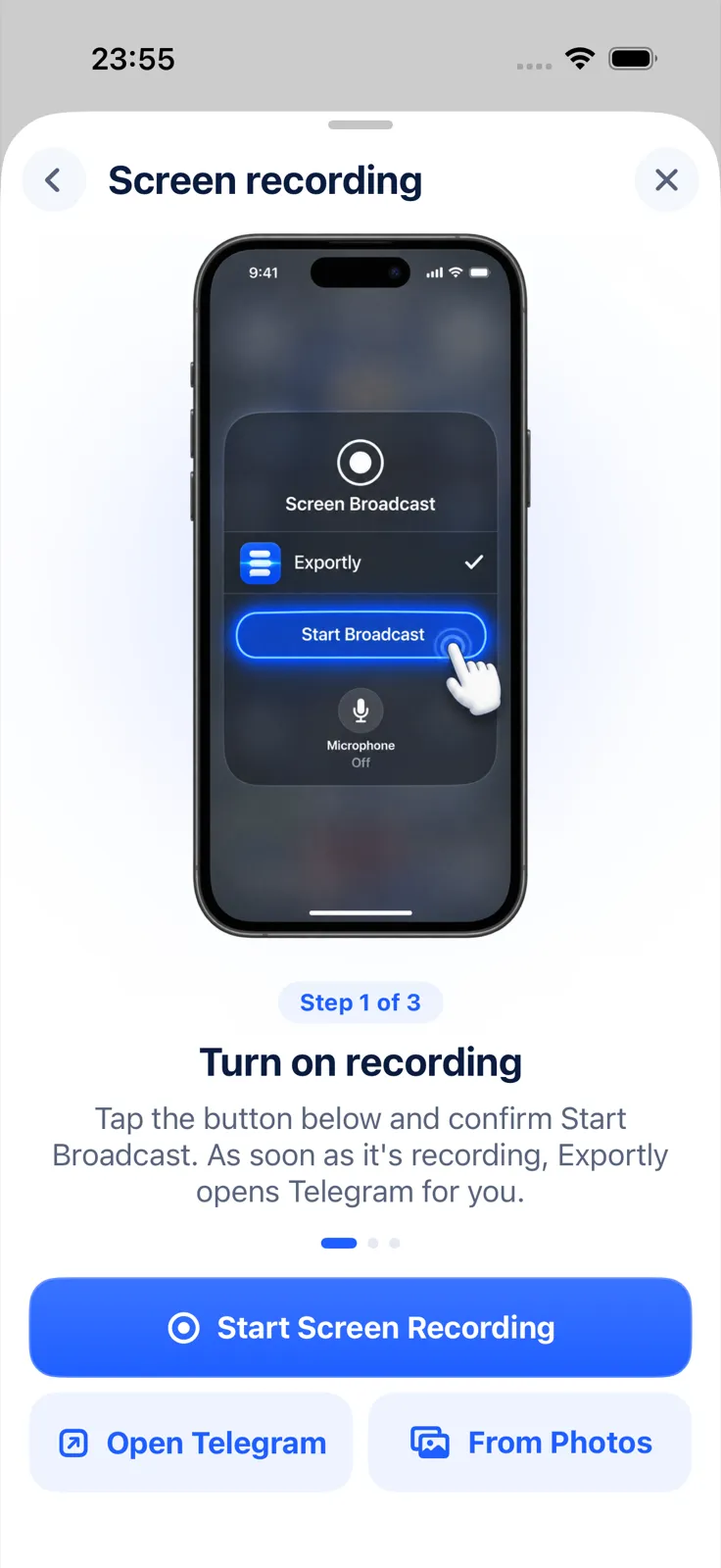
- In Exportly, add a chat, choose Telegram and then Record & scroll.
- Tap Start Screen Recording and confirm Start Broadcast. Exportly opens Telegram for you.
- Open the chat and scroll slowly from the oldest message you need to the newest, then stop the recording.
- Exportly reads the text on your iPhone and shows the messages as a conversation. You can type an optional contact name, which becomes the chat’s title and the label for the other person; your own messages appear as “You”.
- Tap Export Chat and choose PDF, Word, Excel, CSV, Text or HTML. Under Messages, pick All or a Date range.
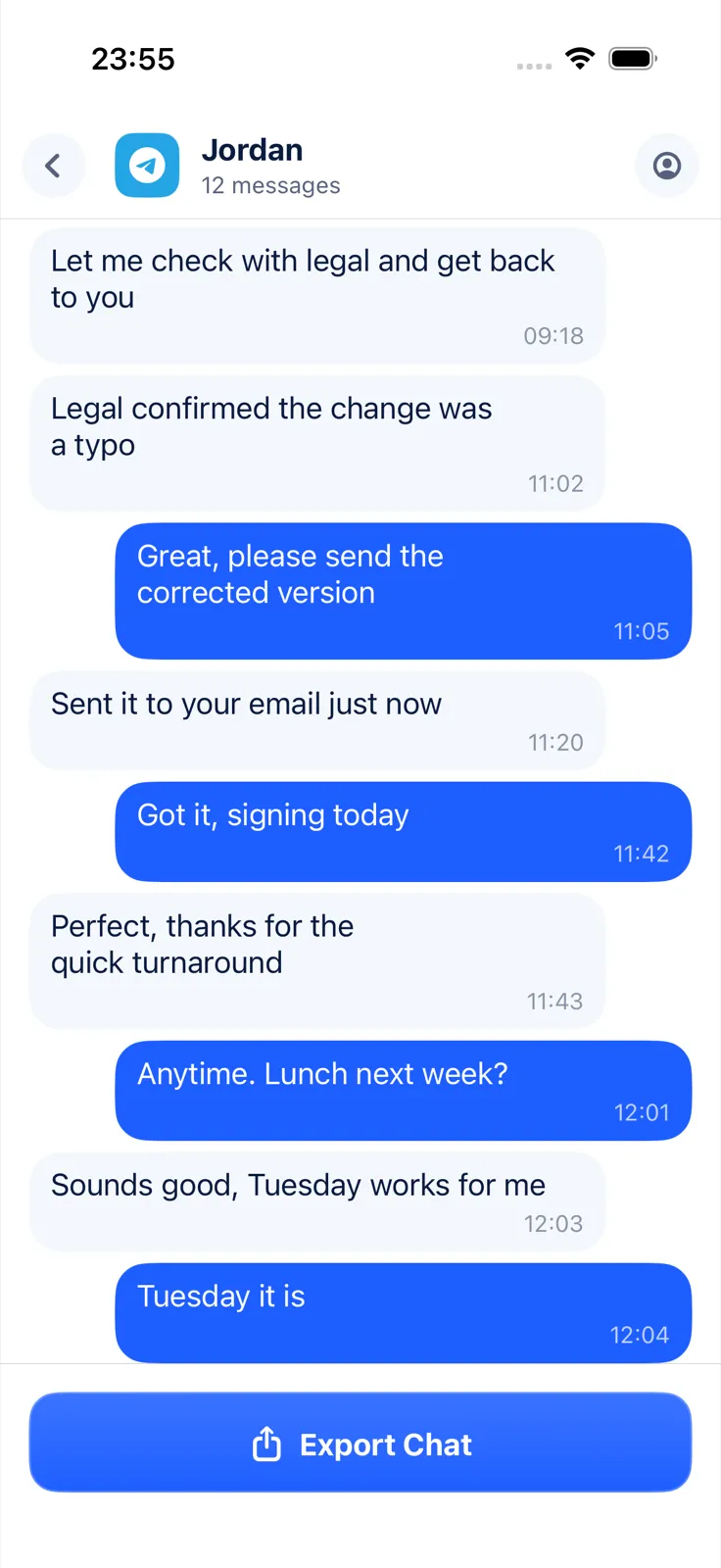
The limits: Record & scroll and From screenshots read English and Turkish text only for now, so Telegram chats in Russian, Persian, Arabic or other languages won’t come out correctly. Only the text you scrolled past is captured. Importing and previewing are free; exporting, sharing and printing need Exportly Pro, with the price shown in the app before you buy. The recording is processed on your iPhone and the chat is never uploaded.
What other chat apps let you export
Every app handles this differently. Here’s what each offers, according to its own help pages:
| App | Official export | Readable copy of one chat? |
|---|---|---|
| Telegram | Export chat history in Telegram Desktop (HTML or JSON) | Yes, from Desktop |
| Signal | None; backups only restore Signal | No |
| Export your information (your account data, by type and date range) | No, account data in files | |
| Messenger | Export your information; end-to-end encrypted chats via a computer backup | No |
| Snapchat | My Data ZIP with saved chats | No |
| None for chats; backup to WeChat for Windows/Mac | No | |
| LINE | Export chat history as a .txt file | Yes, plain text |
| Discord | Data Package (JSON, only messages you sent) | No |
| Slack | Workspace export by owners and admins (JSON) | No, for most members |
Details for each: exporting Signal messages, downloading Instagram messages, downloading Messenger messages, and for WhatsApp, which has its own export on iPhone, exporting a WhatsApp chat to PDF.
Questions people ask
Can I export a Telegram chat on iPhone?
Telegram documents Export chat history only in Telegram Desktop. On the iPhone, you can record or screenshot the chat and turn that into a document.
What formats does Telegram export to?
HTML or JSON, with the option to include photos and other media.
Can I export a Telegram secret chat?
No. Secret chats exist only on the device where they started and aren’t in Telegram’s cloud, so Telegram Desktop can’t reach them.
Does Telegram tell the other person if I take a screenshot?
In Secret Chats, Telegram tries to alert people about screenshots. It documents no such alert for normal chats.
Also available in: Deutsch · Español (México) · Français · Italiano · Português (Brasil) · Türkçe