
How to Export Signal Messages
You can’t export Signal messages with a built-in feature: Signal has no “export chat” option. Its own help page says your messages are stored only on your device and that only “community-developed open source utilities” can parse them (Signal: GDPR). Signal’s official tools (Secure Backups, device transfer and on-device backups) are for restoring Signal, not for reading. For a readable copy of one chat on an iPhone, screenshots or a screen recording are the practical route.
What Signal says about exporting your messages
Signal answers the question directly in its GDPR article: message content is “stored locally on your device” and is “readable by the open source Signal clients”. It adds that “several community-developed open source utilities” can parse locally stored Signal content (Signal support). Signal doesn’t name or endorse any of them, and they aren’t Signal products, so we don’t recommend one here.
In practice that leaves two goals with different answers:
- Keep your messages safe for a new phone: use Signal’s backups.
- Get a file you or someone else can read: capture the chat yourself.
Signal’s backup options, and why none is a readable file
Each official option produces something only Signal can open.
| Option | Where it works | What it’s for | Readable file? |
|---|---|---|---|
| Secure Backups | Phone (iPhone and Android) | Restoring Signal; covers all text messages and recent media on the free tier | No, encrypted |
| Device transfer | Between two phones on the same platform, both present | Moving to a new phone | No |
| On-device backup | Android and Desktop only | Restoring Signal; “cannot be restored on an iPhone” | No, encrypted |
| Signal Desktop backup | Desktop | Restores to a primary Android device; iOS “not currently supported” | No |
Sources: Signal Secure Backups, Backups and Device Transfers, Signal Desktop Backups.
Turn on Signal Secure Backups
If your real worry is losing your messages, Secure Backups is the option to set up. On your phone:
- Open Signal Settings > Backups.
- Tap Setup > Enable Backups.
- Tap Save Your Recovery Key and store it in a password manager or write it down.
- Confirm the recovery key, tap Next > Continue, choose the free or paid plan and tap Ok.
Signal says the free plan covers all text messages and the last 45 days of media, and a paid plan stores more media (Signal Secure Backups). Keep the 64-character recovery key safe: Signal never sees it, and without it the backup can’t be restored. View-once messages and messages set to disappear within 24 hours aren’t backed up.
Make a readable copy of one Signal chat on iPhone
Because Signal has no export, a readable copy means capturing the screen.
- Screenshots work for a short exchange.
- A screen recording while you scroll works for a long one.
Two things to know. Disappearing messages vanish on their timer, so you can only capture what is still in the chat. And Signal’s Screen Security setting (on iPhone it’s Settings > Privacy > Hide Screen in App Switcher) is about your own device; Signal notes it “does not prevent someone else from taking a screenshot on their device” (Signal: Screen Security). Signal’s support pages don’t describe any notification to the other person when you capture a chat.
Turn the recording into a PDF with Exportly
A recording is still a video. Exportly, an iPhone app, reads the text from a screen recording or screenshots and turns it into a conversation you can save as a document.
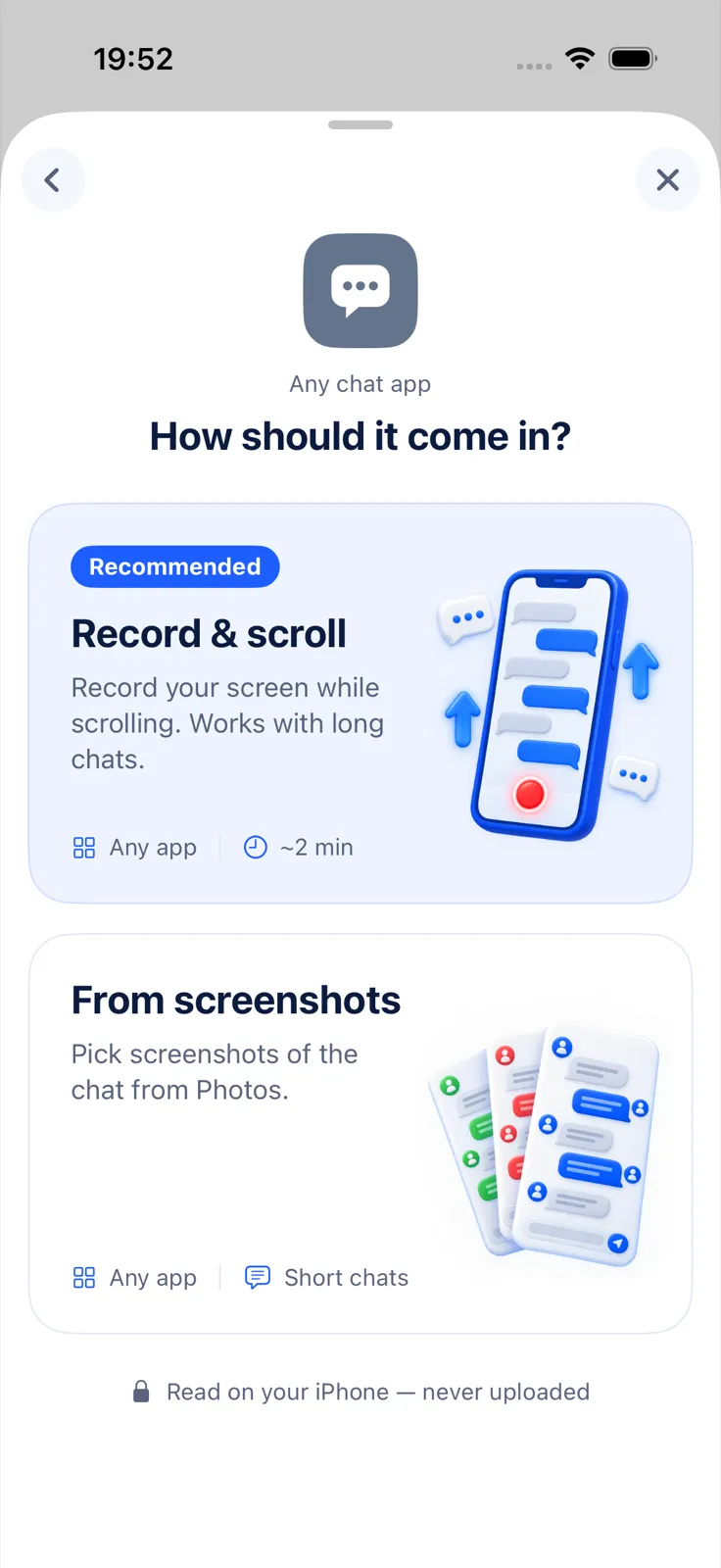
- In Exportly, add a chat and choose Signal.
- Choose Record & scroll for a long chat, or From screenshots if you already took screenshots.
- Record while you scroll through the chat from the first message you need, or pick the screenshots in order.
- Optionally type the other person’s name as the contact name. Your own messages are labelled “You”.
- Tap Export Chat and choose PDF, Word, Excel, CSV, Text or HTML.
For Signal users the privacy detail matters: the text recognition runs on your iPhone and the chat is never uploaded. The limits matter too. Record & scroll and From screenshots read English and Turkish text only for now, and Exportly doesn’t back up or restore Signal or recover deleted or disappeared messages. Importing and previewing are free; exporting needs Exportly Pro (weekly or yearly, price shown in the app before you buy).
If you’re leaving Signal or deleting your account, see how to save your messages before deleting an account. For tips on capturing a long chat, see how to screenshot an entire conversation on iPhone. Other apps are compared in how to export a Telegram chat on iPhone.
Questions people ask
Can you export a Signal chat?
No. Signal has no export feature. It stores messages only on your device and points to community-made tools for parsing them, which it doesn’t provide or endorse.
Do Signal Secure Backups give me a file I can read?
No. They are end-to-end encrypted archives for restoring Signal with your recovery key.
Can I restore a Signal Desktop backup on my iPhone?
Not currently. Signal says restoring a Desktop backup on iOS isn’t supported, and Android or Desktop on-device backups can’t be restored on an iPhone.
Does Signal notify the other person if I take a screenshot?
Signal’s support pages don’t describe any such notification. Its Screen Security setting only affects your own device.
Also available in: Deutsch · Español (México) · Français · Italiano · Português (Brasil) · Türkçe