
How to Export a Slack Conversation
To export a Slack conversation with Slack’s own tool, you need to be a Workspace Owner or Admin: on every plan they can export public channels as a ZIP of JSON files, while private channels and DMs can only be exported on Business+ and Enterprise plans, after the owner applies and Slack approves (Slack Help Center). Slack’s help center describes no way for a regular member to export one conversation. As a member, your option is to capture the conversation from your own screen, within your company’s rules.
Who can export what in Slack
What you can export depends on your plan, and only owners and admins (or members with the Export Admin system role) can run exports.
| Export option | Free | Pro | Business+ | Enterprise |
|---|---|---|---|---|
| Public channels (messages and file links) | Yes | Yes | Yes | Yes |
| Public and private channels, and DMs | No | No | After applying | After applying |
| Scheduled recurring exports | No | No | After applying | No |
| By conversation type, member or workspace | No | No | No | Yes |
| All conversations for a single user | No | No | No | After applying |
Source: Slack Help Center, Export your workspace data. On Free and Pro, Slack says owners may apply to export all channels and DMs only “under limited circumstances”: with valid legal process, with the members’ consent, or where the law requires or allows it (Slack: Guide to import and export tools).
How to export public channels (owners and admins)
The export runs from Slack on a desktop computer, not the mobile app.
- From your desktop, click Admin in the sidebar.
- Select Workspace settings, then click Security.
- Click Import & export data, then the Export tab.
- Below Export date range, choose an option from the drop-down menu.
- Click Start Export. Slack emails you when the file is ready.
- Open the email, click Visit your workspace’s export page, then Ready for download to get the ZIP.
Source: Slack Help Center.
How to export private channels and DMs
Owners on Business+ or Enterprise have to apply first.
- Follow the same path: Admin > Workspace settings > Security > Import & export data > Export.
- Click the submit an application link and, on Business+, select the export type you want access to.
- The Workspace Primary Owner must approve, and Slack Support contacts you by email before reviewing the application.
On Enterprise, Org Owners contact Slack’s Support team to request access to the self-serve export tools (Slack Help Center).
What a Slack export contains
Even when you can run one, a Slack export is data, not a readable transcript.
- Format: a ZIP of JSON files. Enterprise custom exports can be JSON or TXT.
- Files: exports include links to files, not the files themselves (with a few Enterprise exceptions).
- Free plan history: exports include file links only from the last 90 days, and Free plan messages and files older than one year are deleted (Slack plans and features).
- Retention: what can be exported also depends on your workspace’s retention settings.
Slack also points out that laws and policies may require employers to tell employees when export tools are used (Slack: Guide to import and export tools).
As a member: keep a copy of one Slack conversation
If you’re not an admin and need a record of a specific thread or DM, for example an approval or an agreed deadline, capture it from your own screen. Check your employer’s policy first: work conversations often belong to the company, and some workplaces don’t allow copying them.
Screenshots work for a short exchange. For a longer conversation, record your iPhone’s screen while you scroll through it in the Slack app.
Turn a Slack recording into a PDF with Exportly
Exportly, an iPhone app, reads a screen recording or screenshots and turns them into a document.
- In Exportly, add a chat and choose Slack.
- Choose Record & scroll, start the recording and scroll through the conversation, or choose From screenshots.
- Optionally type a contact name, which becomes the chat’s title; your own messages are labelled “You”.
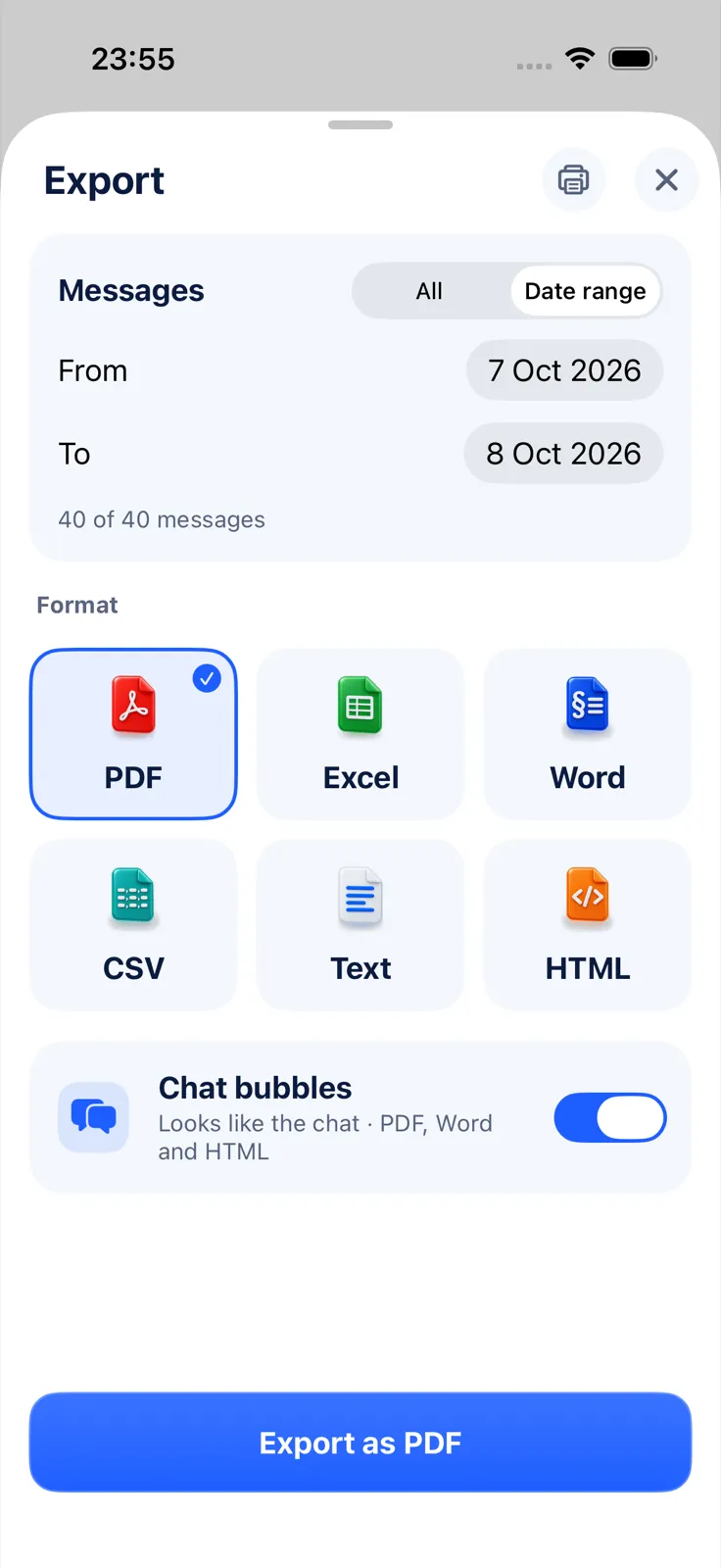
- Tap Export Chat. Under Messages, keep All or choose Date range to cover only the days that matter.
- Pick PDF, Word, Excel, CSV, Text or HTML, then share or save to Files.
This is not a workspace export and doesn’t replace the admin route: it captures only what you scrolled past, and only text Exportly can read, which for now is English and Turkish only. Importing and previewing are free; exporting needs Exportly Pro (weekly or yearly, price shown in the app before you buy). The conversation is processed on your iPhone and never uploaded.
For Microsoft’s equivalent, see how to export a Microsoft Teams chat. For habits that keep work records useful, see how to keep a record of work chats. Other apps are compared in how to export a Telegram chat on iPhone.
Questions people ask
Can I export my Slack DMs as a regular member?
Slack’s help center describes no export for members. Workspace Owners can export DMs on Business+ or Enterprise after applying, and on Free or Pro only in limited circumstances.
What format is a Slack export?
A ZIP of JSON files. Enterprise custom exports can also be TXT.
Does a Slack export include the files people shared?
No. It includes links to the files, not the files themselves, except in some Enterprise exports.
Does a free Slack workspace export include old messages?
Only what still exists. Free plan messages and files older than one year are deleted, and exports include file links only from the last 90 days.
Also available in: Deutsch · Español (México) · Français · Italiano · Português (Brasil) · Türkçe